12.1 wxPropView 97
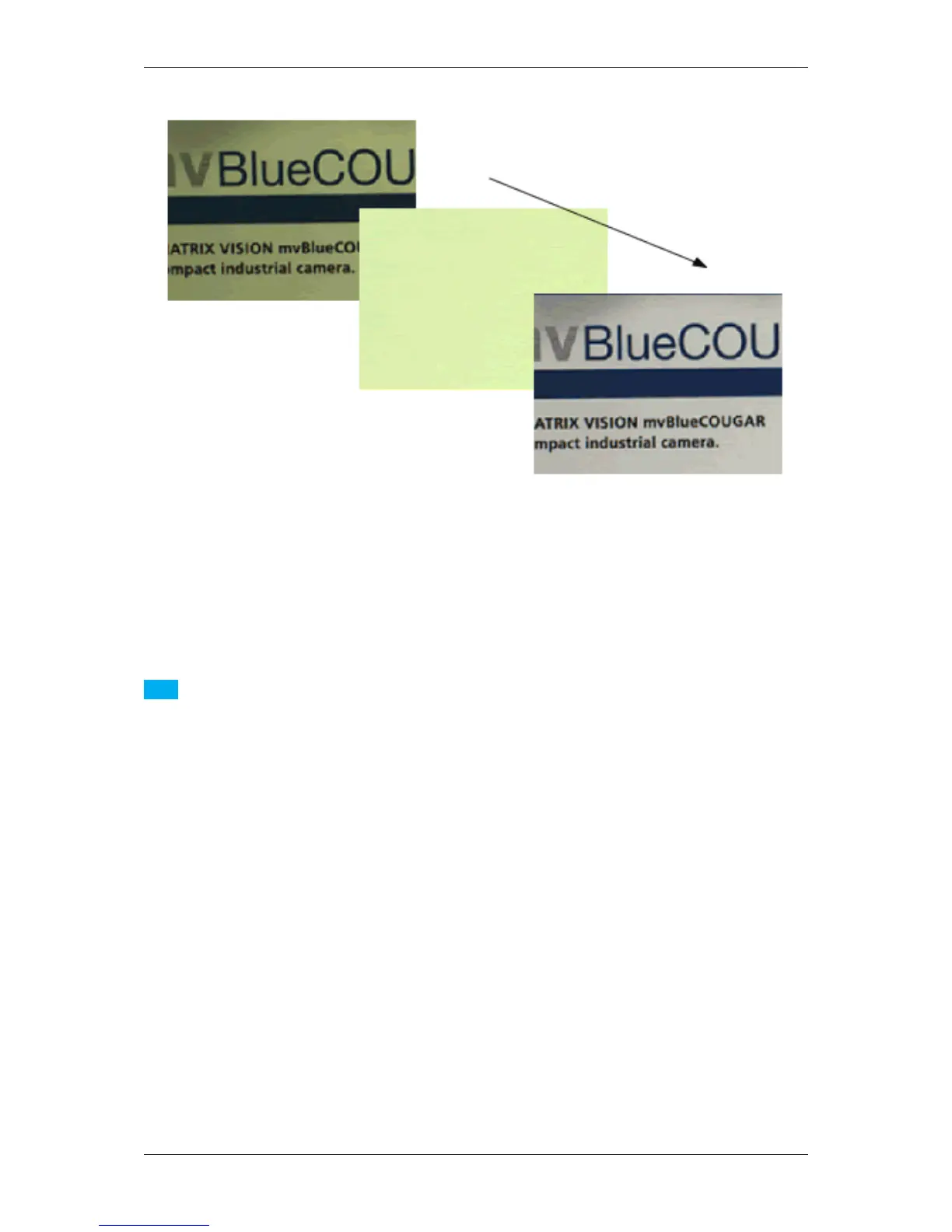
Figure 23: wxPropView - White balance summary
12.1.2.3 Configuring different trigger modes
To configure a device for a triggered acquisition, in wxPropView (p. 74) the property "Setting -> Base -> Camera
-> GenICam -> Acquisition Control -> Trigger Selector" is available.
Note
The supported trigger modes of each sensor are described in the More specific data (p. 64) of each sensor.
12.1.2.4 Testing the digital inputs
For performance reasons, device drivers will not automatically update their digital input properties if nobody is
interested in the current state. Therefore, in order to check the current state of a certain digital input, it is necessary
to manually refresh the state of the properties. To do this please right-click on the property you are interested in and
select "Force Refresh" from the pop-up menu.
Some devices might also offer an event notification if a certain digital input changed its state. This event can then
be enabled
• via the "EventSelector" in "Setting -> Base -> Camera -> GenICam -> Event Control".
• Afterwards, a callback can be registered by right-clicking on the property you are interested in again.
• Now, select "Attach Callback" from the pop-up menu and switch to the "Output" tab in the lower right section
of wxPropView (Analysis tabs).
Whenever an event is send by the device that updates one of the properties a callback has been attached to, the
output window will print a message with some information about the detected change.
MATRIX VISION GmbH


 To Next Page