22
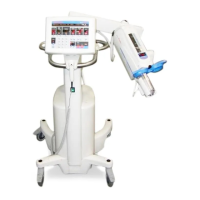
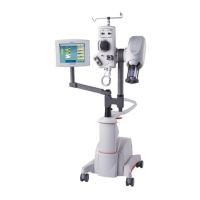
Medrad™ Intego™
PET Infusion System
Navigating the User
Interface
This section provides an overview of the main screens the operator will use with the Intego™
PET Infusion System.
Screen Overview
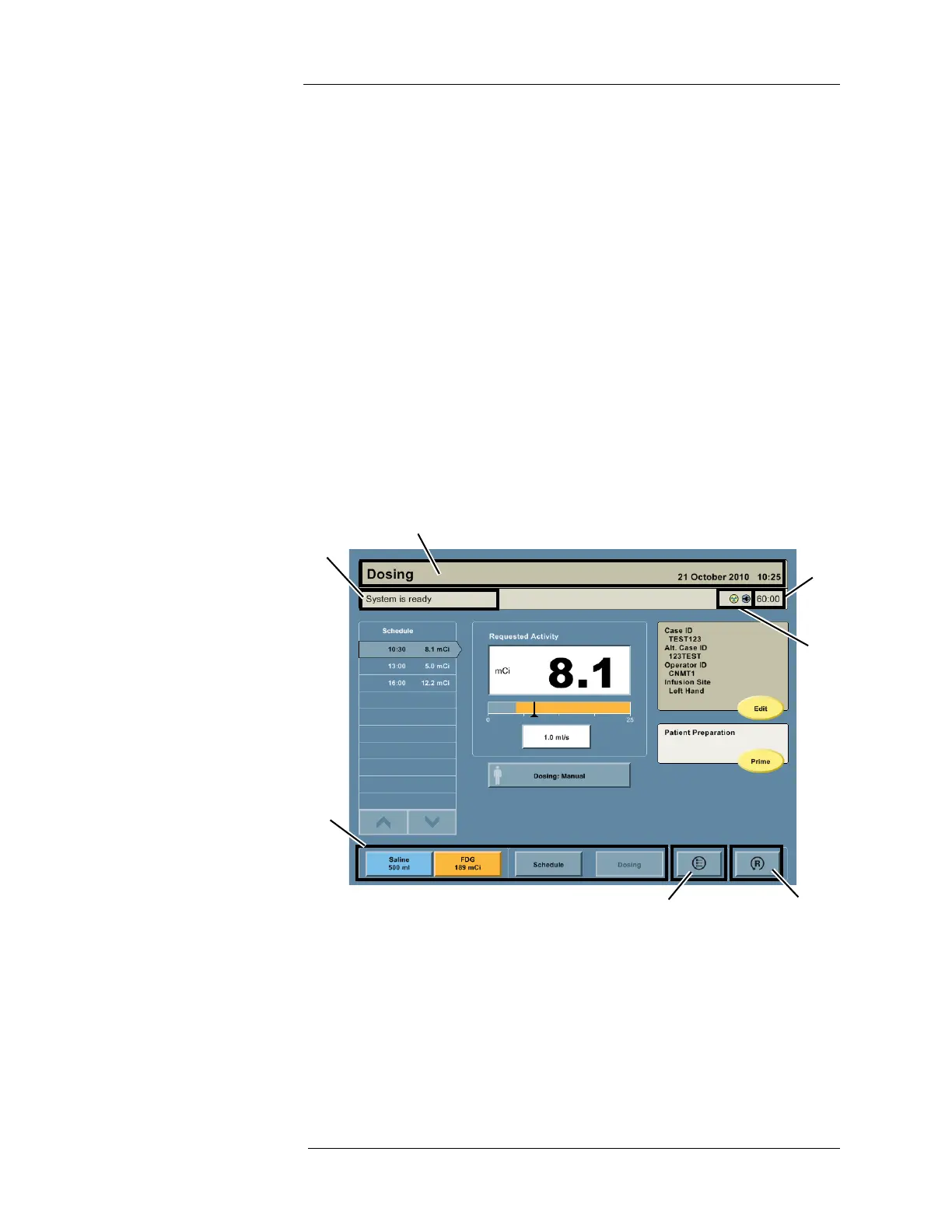
1. Title Bar – Located at the top of the screen. It identifies the current screen: System
Preparation, Schedule, Dosing, or Configuration.
2. Status Bar – Located below the title bar. Information about the current state during
operation is displayed here.
3. Navigation Bar – Located at the bottom left of the screen. It is used to move among the
System Preparation, Schedule, and Dosing screens. Press the SALINE button or the RP
button to access the System Preparation screen.
4. Configuration Button – Located at the bottom center of the screen. It is used to access
the Configuration screen.
5. Reset Button – Appears only on the Dosing screen. Located at the bottom right of the
screen. It resets the RP field to the configured default value or the current scheduled dose
and returns the user to the Patient Information panel.
6. Status Icons – Located at the top right of the screen. Refer to "User Interface Symbols
and Icons" section of this manual
7. Battery Meter – Located at the top right of the screen. Indicates the amount of time that
the system will operate on battery power.


 To Next Page