71
5 - Patient Infusion
NOTE: The Schedule Monitor will replace the last RP infusion schedule information
with the actual infusion results and marked with a Complete Infusion Delivered
icon to indicate a completed infusion.
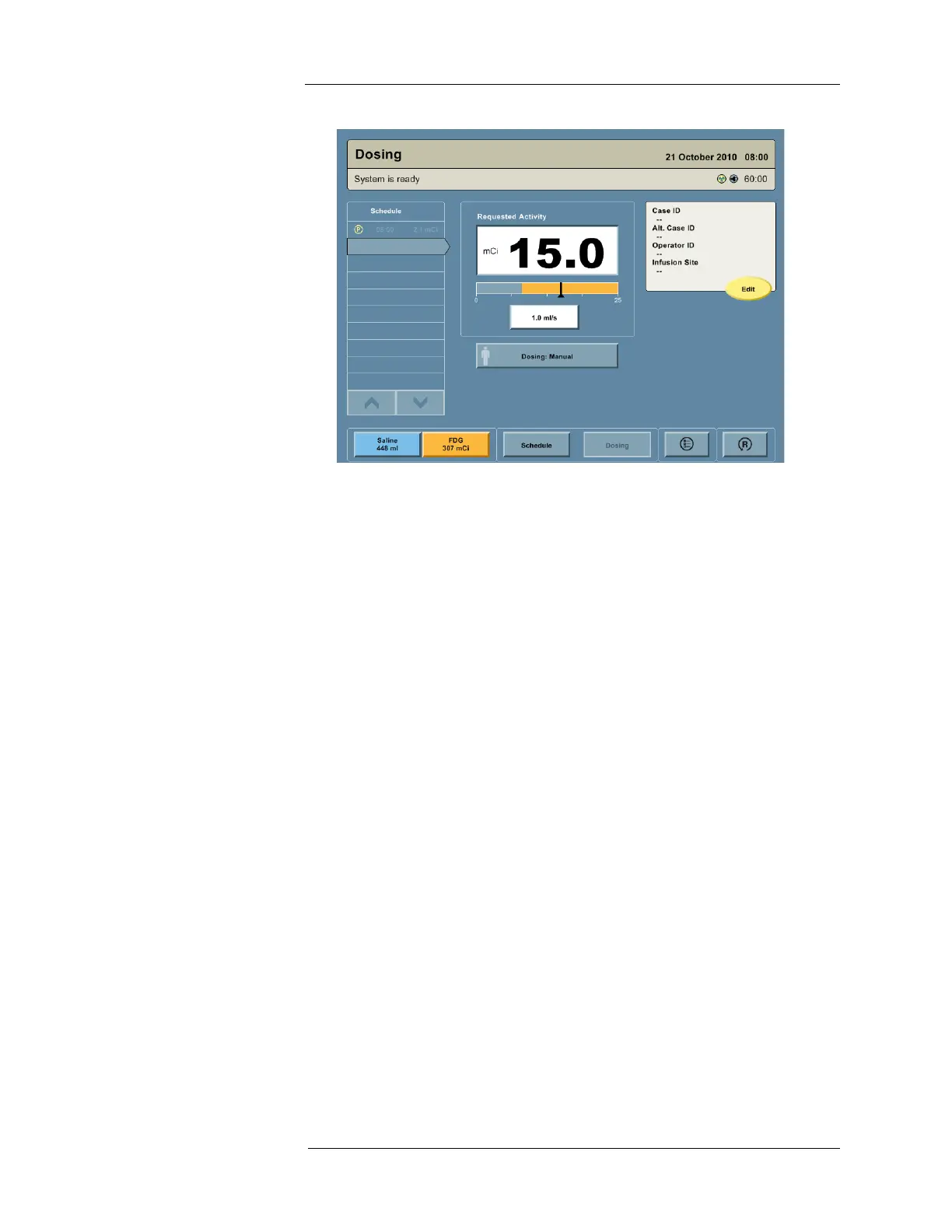
NOTE: The Schedule Monitor on the left side of the screen will have moved its highlight
to the next RP infusion in the Multi-Dose Vial schedule.
NOTE: On the right side, only the patient information panel is visible. To start the next
patient, install a PAS, then proceed with "Entering Patient Information."
Discard Completion
After a discard completes, the Intego™ PET Infusion System displays a summary screen that
shows the RP activity delivered, RP activity discarded, and any patient information provided.
1. To retry infusing the same patient, press the RETRY button. The main Dosing screen
appears with the patient information panel visible on the right side. To start dosing the
patient, install a PAS, then proceed with entering the patient information (all information
will be pre-populated with previously entered patient information).
2. If the patient must be rescheduled or removed from the Multi-Dose Vial schedule, press
the RESCHEDULE button. The Schedule screen appears, from which the scheduled
infusion time can be changed or the RP infusion can be deleted.
a. To delete a scheduled infusion, press the X button.
b. To edit a scheduled RP infusion, press the Time field or Activity field and enter the
new value.


 To Next Page