X
To show the menu: slide 6 the control-
ler.
X
To select Options: turn and press the con-
troller.
X
Select Map Content.
X
Select Map Version.
Information on the current map version is
shown.
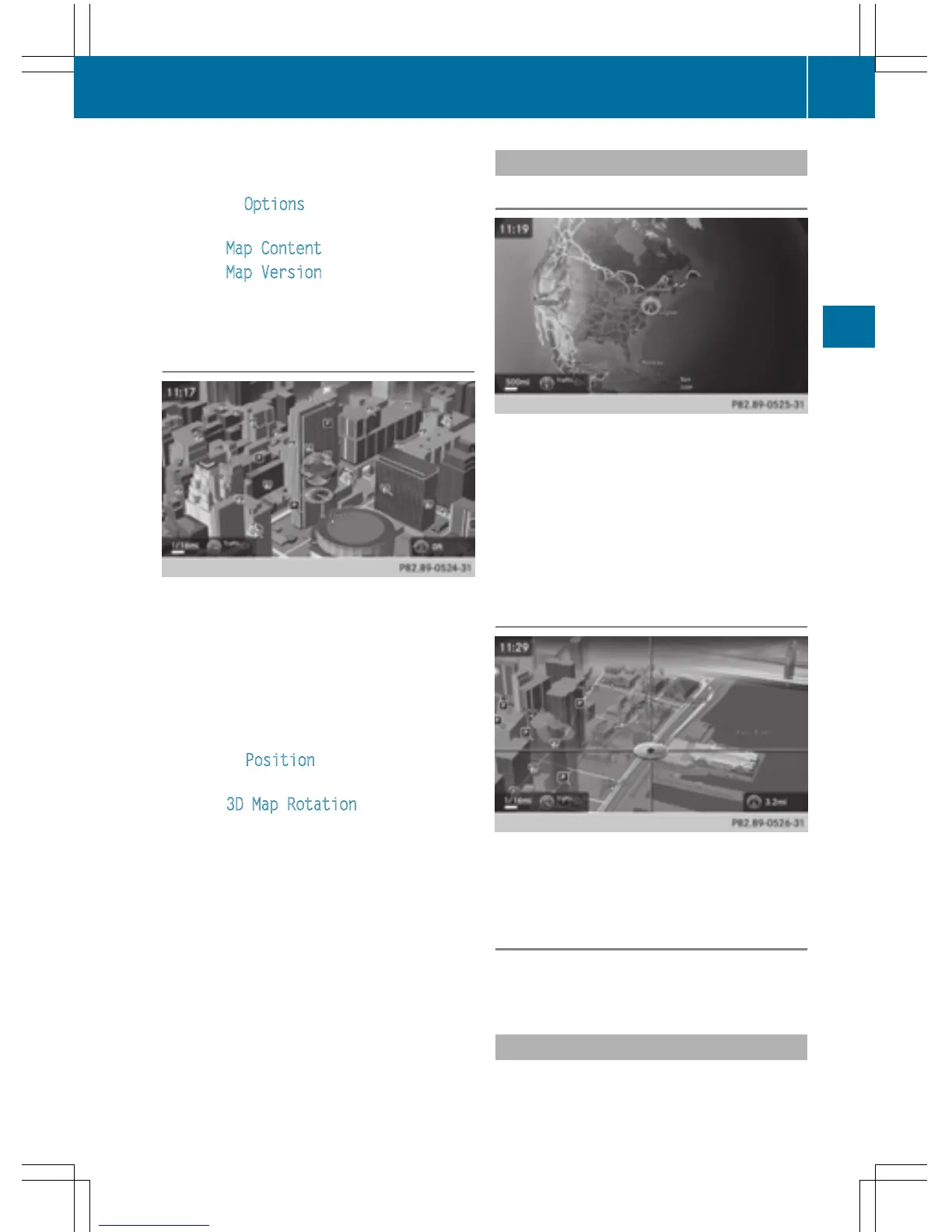
Rotating the 3D map
You can use this function to explore the vicin-
ity of the destination in a 3D view. The func-
tion is available in all map scales.
X
To switch to navigation mode: press the
Ø button.
X
To show the menu: slide 6 the control-
ler.
X
To select Position: turn and press the
controller.
X
Select 3D Map Rotation.
X
Turn the controller to change to the 3D map
perspective.
Additional functions:
R
Moving the map (Y page 64)
Map display
Displaying the navigation map
COMAND displays the navigation map and
globe satellite images. This allows for a real-
istic map display free from distortion in all
map scales.
Other functions:
R
Moving the map (Y page 64)
R
Changing the map scale (Y page 96)
Building images
In small map scales (20 m, 50 m), important
buildings are depicted realistically on the
map. Other buildings are shown as models.
Elevation model
The map uses elevation modeling to show a
realistic illustration.
Country-specific information
You can call up information on the traffic con-
ditions in the country you are currently driving
Map functions
99
Navigation
Z



 To Next Page