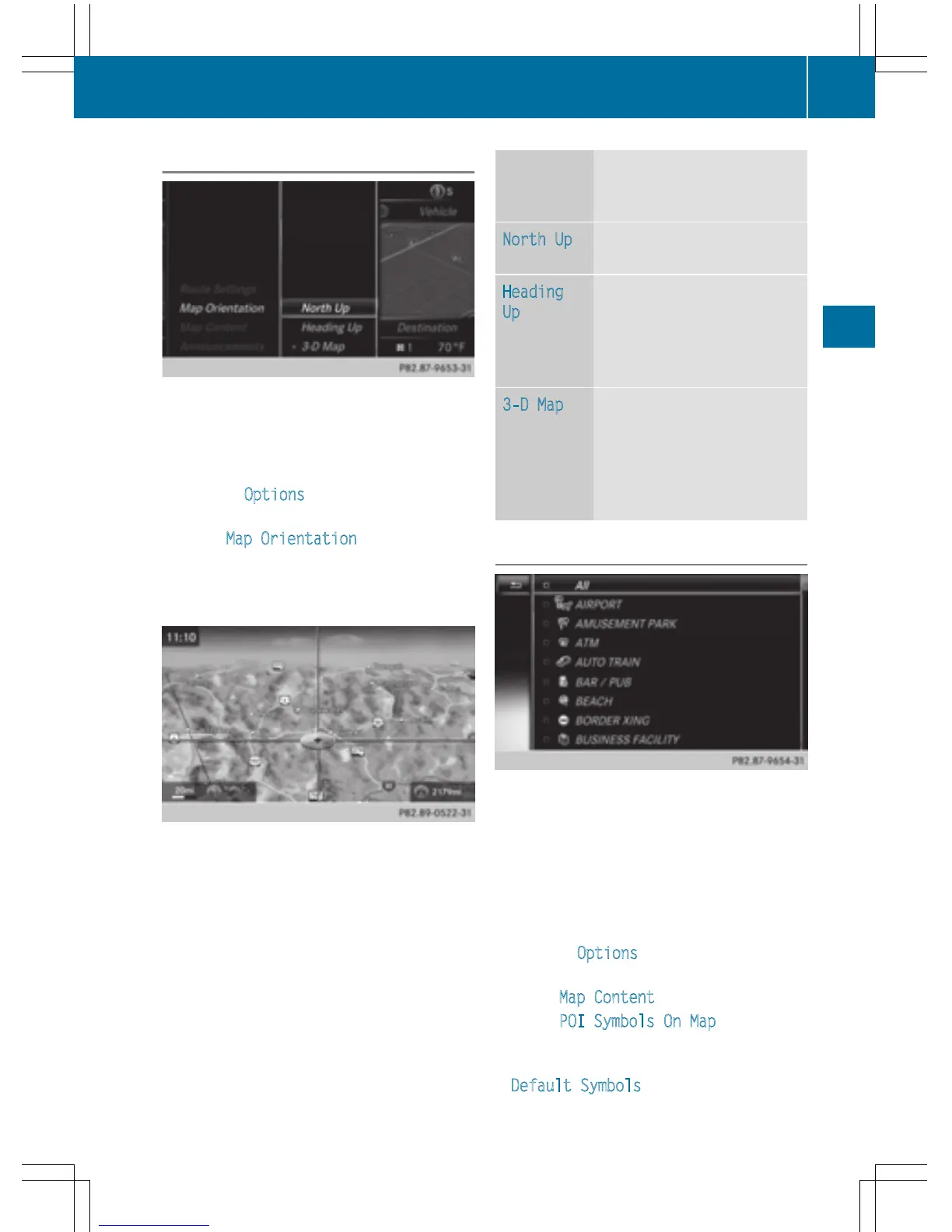
Selecting map orientation
X
To switch to navigation mode: press the
ß button.
X
To show the menu: slide 6 the control-
ler.
X
To select Options: turn and press the con-
troller.
X
Select Map Orientation.
The # dot indicates the current setting.
X
Turn and press the controller.
The map orientation is set.
The image is an example of the 3D map dis-
play with crosshair.
Change
map direc-
tion
Explanation
North Up
0 The map view is displayed
so that north is always up.
Heading
Up
¤ The map view is aligned to
the direction of travel. The
direction of travel is always
at the top; the red tip of the
symbol points north.
3-D Map
¤ The map view is aligned to
the direction of travel. The
map displays a 3D oblique
view with elevation; the red
tip of the symbol points
north.
Selecting POI symbols on the map
POIs can be displayed as symbols in the map
display. POIs include, for example, gas sta-
tions, hotels and restaurants.
X
To switch to navigation mode: press the
ß button.
X
To show the menu: slide 6 the control-
ler.
X
To select Options: turn and press the con-
troller.
X
Select Map Content.
X
Select POI Symbols On Map.
The # dot indicates the current setting.
X
Turn and press the controller.
Default Symbols
shows symbols of pre-
defined categories in the map.
Map functions
97
Navigation
Z



 To Next Page