Handwriting recognition
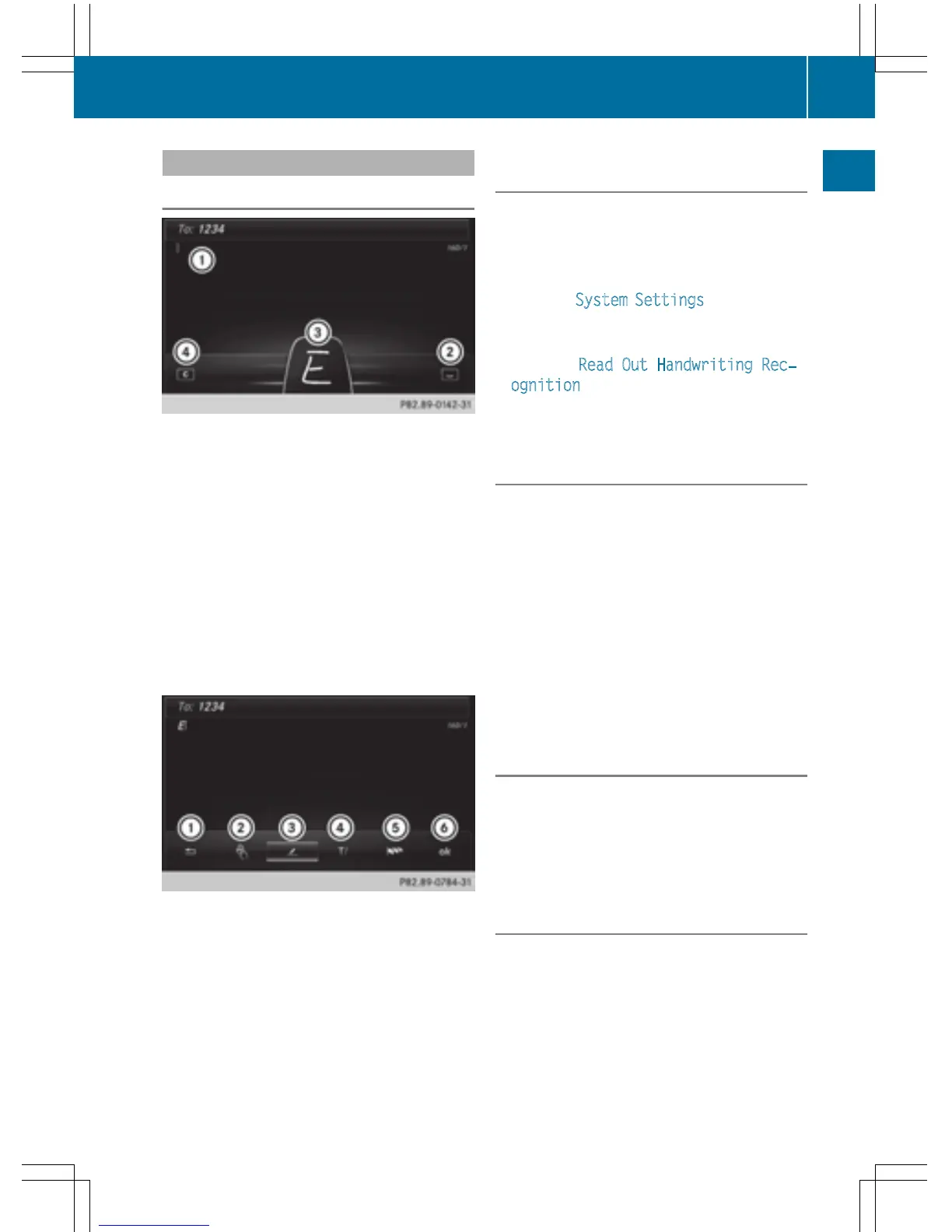
Handwriting recognition overview
:
Active input line
;
Enters a space (Y page 27)
=
Illustration of the touch-sensitive surface
?
Deletes characters (Y page 28)
You can use handwriting recognition for text,
numbers or characters in any input line.
If the character that you have entered can be
interpreted in different ways, these options
are displayed. More information on the char-
acter suggestions (
Y page 27).
You can additionally switch the handwriting
recognition read-aloud function on and off.
:
To exit the menu
;
To return to handwriting recognition
=
To use the phone book or text templates
?
To change the input line or the position of
the cursor
A
To change the input language
B
To finish character entry
X
To display the menu: press the touchpad.
Switching the text reader function of
the handwriting recognition on/off
You can switch the text reader function of the
handwriting recognition on or off.
X
Press the Ø button.
The vehicle menu is displayed.
X
To select System Settings: slide 6 turn
and press the controller.
A menu appears.
X
To select Read Out Handwriting Rec‐
ognition: turn and press the controller.
The text reader function is switched on O
or off ª.
Entering characters
Prerequisite: an input line for text, numbers or
characters has been selected.
X
Use one finger to draw the desired charac-
ter on the touch-sensitive surface.
The character recognized is entered in the
input line. You can draw the next character
on the touch-sensitive surface.
If the character can be interpreted in different
ways, these options are displayed.
More information on the character sugges-
tions (
Y page 27).
Character suggestions
X
To select a character suggestion: turn
the controller.
The selected character is entered instead
of the automatically recognized character.
Character entry can be continued.
Entering a space
Prerequisite: an input line for text, numbers or
characters has been selected.
X
Use your finger to touch the touch-sensi-
tive surface and swipe to the right.
A space is entered into the input line.
Touchpad
27
Overview and operation



 To Next Page