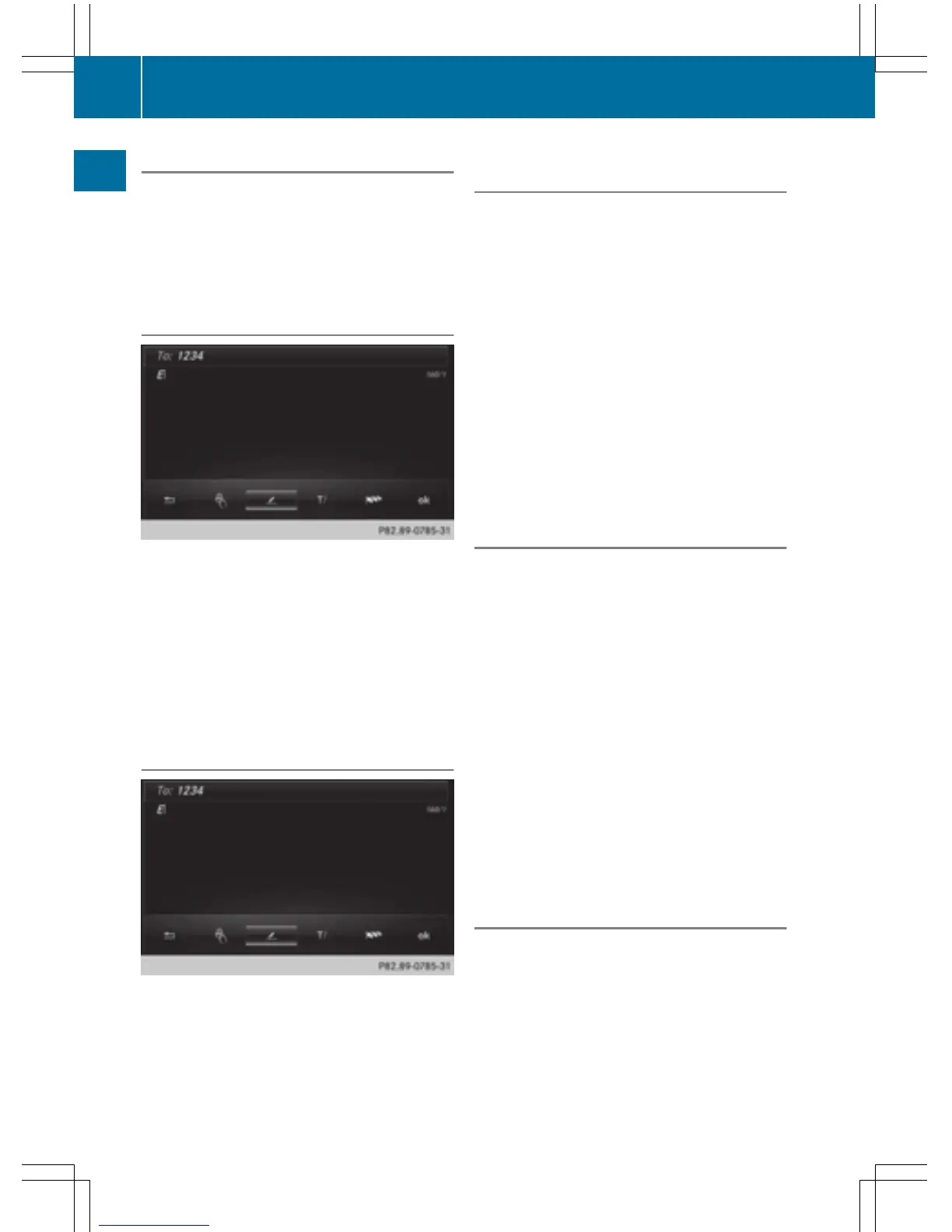
Deleting characters
Prerequisite: an input line for text, numbers or
characters has been selected.
X
Use your finger to touch the touch-sensi-
tive surface and swipe to the left.
The character last entered is deleted.
Switching input line
X
Press the touchpad.
A symbol is shown.
X
To select p: swipe your finger to the left
or right and press.
X
To select the desired input line, swipe up or
down and press.
The selected input line is active and char-
acter entry can be continued.
Moving the cursor within the input line
X
Press the touchpad.
A symbol is shown.
X
To select p: swipe your finger to the left
or right and press.
X
To move the cursor, swipe to the left or
right.
Changing the input language for hand-
writing recognition
Prerequisite: an input line for text, numbers or
characters has been selected.
X
Press the touchpad.
A symbol is shown.
X
To select B: swipe your finger to the left
or right and press.
The list of available input languages
appears.
X
To select a language: swipe up or down and
press.
To select a language: swipe up or down and
press.
The input language for handwriting recog-
nition has been changed.
Searching in lists
The phone book search is used as an exam-
ple.
You determine the first letter of the contact
you are looking for with the first character you
enter.
X
Draw the letter on the touchpad surface.
The first contact with the selected first
character is highlighted in the phone book.
Further information on handwriting recog-
nition on the touchpad (
Y page 27).
X
Draw additional letters on the touchpad
surface one after another.
X
To complete the search and return to
the phone book: press the touchpad.
Switching between the controller and
the touchpad as input device
Prerequisite: an input line for text, numbers or
characters has been selected.
X
To switch from character entry using
the controller to handwriting recogni-
tion on the touchpad: use one finger to
press the touchpad.
Handwriting recognition on the touchpad is
active.
28
Touchpad
Overview and operation



 To Next Page