Destination/route download
Prerequisites
To download navigation locations you need a
Google™ account and your vehicle identifica-
tion number. Further information about the
vehicle identification number (VIN)
(
Y page 157).
To download navigation locations, the
mbrace system must be:
R
activated
R
operational
R
activated for the services of the system and
for Internet access
For information on the mbrace system, see
the separate vehicle Operator's Manual.
Procedure and general information
Sign into your Google™ account on the Inter-
net. Use the Google Maps™ website to send
the destination to a server (
Y page 155).
Using the Download
POI App, the destination
is displayed in the vehicle (
Y page 155).
The destination can be:
R
imported (Y page 156)
R
used for route guidance (Y page 156)
R
called up (Y page 156)
R
deleted from the server (Y page 156)
Sending destinations to the server
X
Sign into your Google™ account.
X
Call up the Google Maps™ website.
X
Enter a destination.
X
Click "More" at the destination.
X
Click "Send".
X
Enter the corresponding information in the
boxes shown.
X
Select "Send to car".
X
Select Mercedes-Benz as the vehicle
brand.
X
Enter the mbrace e-mail address or the
vehicle identification number.
Further information about the vehicle iden-
tification number (
Y page 157).
X
Click "Send".
The destination is sent to the server.
The availability of the destination/route
download function is country-dependent.
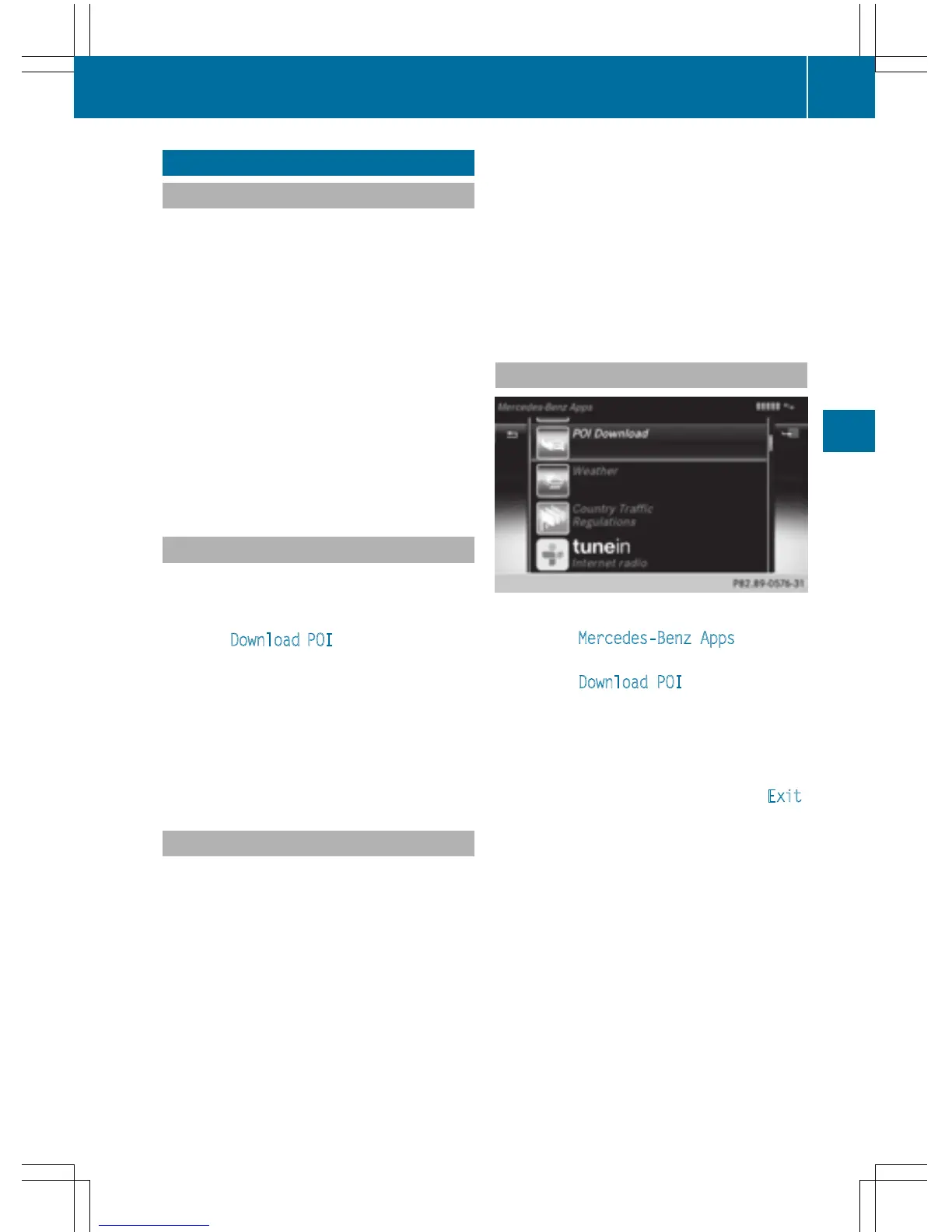
Displaying destinations in the vehicle
X
To call up Internet functions (Y page 151).
X
To select Mercedes-Benz Apps: turn and
press the controller.
X
To select Download POI: turn and press
the controller.
Available destinations are shown in the list.
X
To select and download a destination: turn
and press the controller.
X
To exit destination download: select Exit.
Further information on how to use the desti-
nation for route guidance (
Y page 156).
Further information on importing the desti-
nation (
Y page 156).
Further information on deleting the destina-
tion (
Y page 156).
You can save up to 50 destinations for your
vehicle on the server and display these in the
list. If you send further destinations to the
server, the oldest entries are deleted from the
list.
Destination/route download
155
Online and Internet functions
Z



 To Next Page