Symbol Function
è
Switches to keyword search
(
Y page 70)
4, 5 Selects the input line
2, 3 Moves the cursor within the
input line
¬
Confirms an entry
&
Cancels input
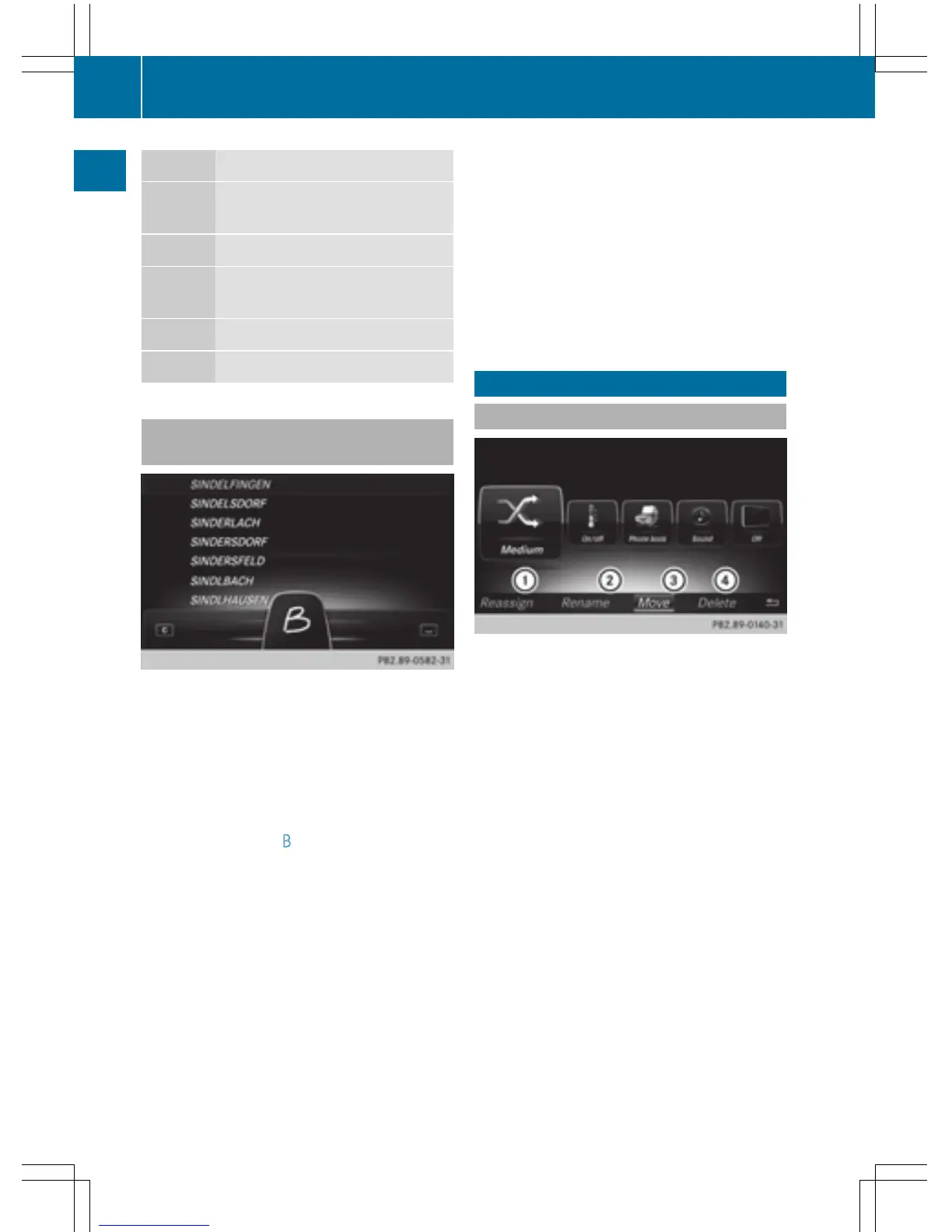
Entering characters using the touch-
pad
Alternatively, you can enter characters using
the touchpad (
Y page 24). Character entry is
supported by a handwriting recognition func-
tion.
An example is the address entry
(
Y page 67).
X
With one finger, draw the desired charac-
ter, e.g. the letter B
, on the touch-sensitive
surface.
In the list (e.g. City), the first entry that
starts with the letter entered is highlighted.
You can draw the next character on the
touch-sensitive surface.
If the character that you have entered can
be interpreted in different ways, these
options are displayed.
X
To select a character suggestion: turn
the controller.
The selected character is used for the list
display instead of the automatically recog-
nized character. Character entry can be
continued.
X
To delete a character: touch the touch-
sensitive surface with your finger and glide
your finger to the left.
The character last entered is deleted.
X
To finish the entry and switch back to the
list: press the touchpad.
Favorites
Overview of favorites
:
To add a new favorite (Y page 35)
;
To rename a selected favorite
(
Y page 35)
=
To move a selected favorite
(
Y page 35)
?
To delete a selected favorite
(
Y page 36)
X
To display the favorites overview: press
the favorites button on the controller.
X
To show the menu bar: slide 6 the con-
troller.
You can manage a total of 20 favorites.
To do so use the following functions:
R
Displaying and selecting favorites
(
Y page 35)
R
Adding favorites (Y page 35)
R
Renaming favorites (Y page 35)
R
Moving favorites (Y page 35)
R
Deleting favorites (Y page 36)
34
Favorites
Overview and operation



 To Next Page