X
To show the menu: slide 6 the control-
ler.
X
To select Traffic: turn and press the con-
troller.
X
To select Messages On Route: turn and
press the controller.
The traffic report window appears. Several
traffic reports may be available for the cal-
culated route, marked for example by 1/3.
The report shows the following information:
R
State/province, road and display of the
affected direction
R
Section of the road to which the traffic
report applies
R
Traffic icon and traffic report
X
To display the next/previous traffic
report: turn the controller.
X
To close the display: press the % but-
ton.
Displaying all traffic reports
X
To switch to navigation mode: press the
Ø button.
X
To show the menu: slide 6 the control-
ler.
X
To select Traffic: turn and press the con-
troller.
X
To select All Messages: turn and press
the controller.
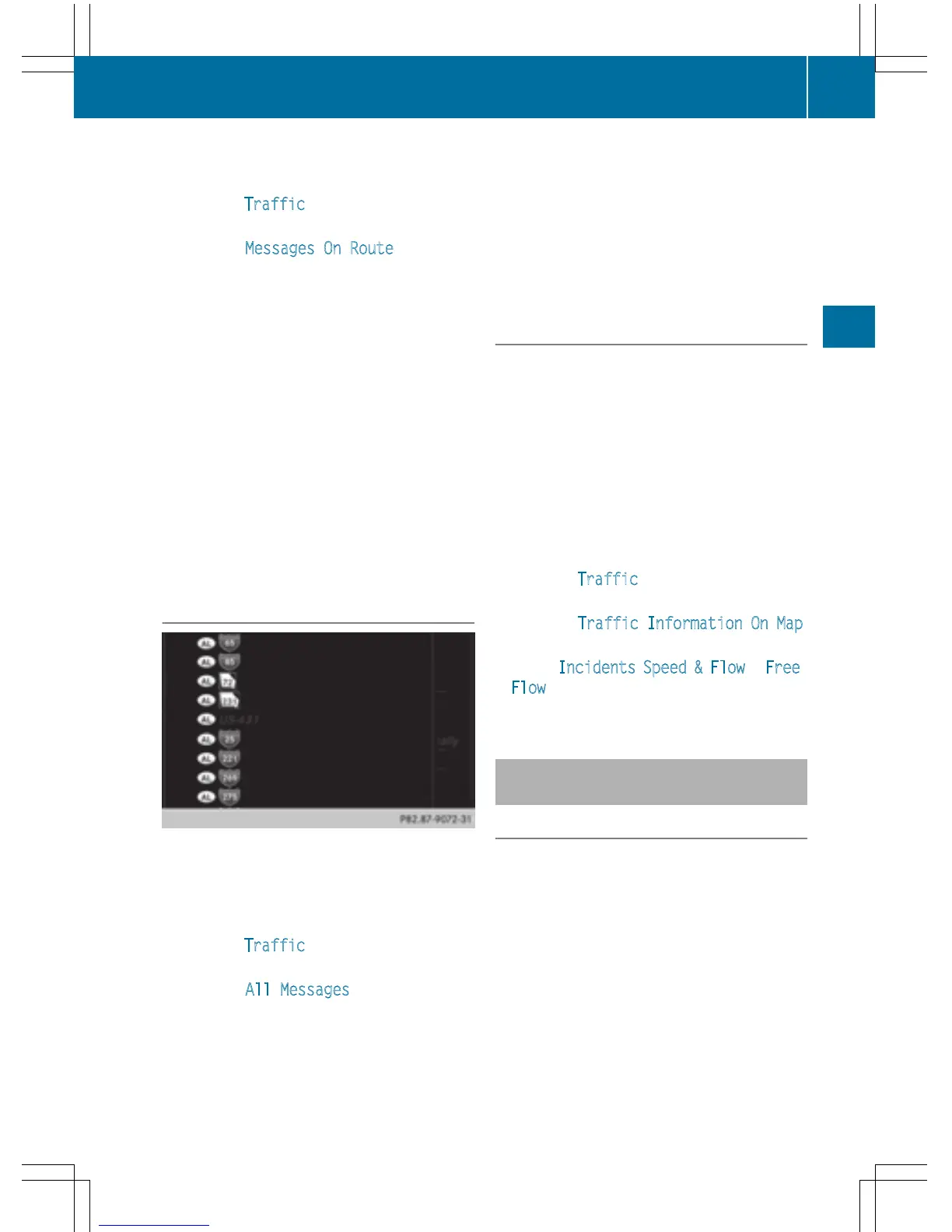
A list is shown containing all roads, areas or
regions affected by traffic reports. Roads,
areas or regions not on the route also
appear in the list.
X
To select the road, area or region: turn
the controller and press to confirm.
The traffic report is displayed (
Y page 92).
There may be several traffic reports for the
affected road.
X
To close the display: press the % but-
ton.
Settings for the display on the map
You can switch these displays on/off on the
map:
R
Incidents
R
Speed & Flow
R
Free Flow
X
To switch to navigation mode: press the
Ø button.
X
To show the menu: slide 6 the control-
ler.
X
To select Traffic: turn and press the con-
troller.
X
To select Traffic Information On Map:
turn and press the controller.
X
Select Incidents, Speed & Flow or Free
Flow.
The display is on O or off ª.
Reading out traffic reports on the
route
Introduction
The read-aloud function is only available while
route guidance is active. It reads out traffic
reports affecting the current route.
You can select from the following text reader
properties:
R
Language (Y page 45)
R
Text reader speed (Y page 41)
You can start the text reader function man-
ually or set it to automatic.
Real-time traffic reports
93
Navigation
Z



 To Next Page