Calling up the Favorites function via the
system menu:
X
Press the Ø button.
or
X
Press Vehicle in the main function bar.
The vehicle menu is displayed.
X
To select System Settings: slide 6 and
press the controller.
A menu appears.
X
To select Favorite Functions: press the
controller.
The favorites are displayed.
X
To select the desired function, e.g. Phone‐
book: turn and press the controller.
Calling up the Favorites function via the
controller or touchpad:
X
Press the Favorites button on the controller
or touchpad.
The favorites are displayed.
X
To select the desired function, e.g. Phone‐
book: turn and press the controller.
The Favorites function can be exited at any
time.
To exit the Favorites function:
X
Press the Favorites button again
or
X
Press the % button on the controller
or
X
Press the % button on the touchpad
or
X
To select % in the display: turn and
press the controller.
Further information on favorites (
Y page 34).
Importing/exporting data
General notes
!
Never remove the stick or card when writ-
ing data to the USB stick or the memory
card. You may otherwise lose data.
Using this function, you can do the following
with your personal COMAND data:
R
transfer from one system or vehicle to
another system or vehicle.
R
make a backup copy (export data) and load
it again (import data).
R
protect your data from unwanted export by
activating a PIN prompt (presetting: deac-
tivated ª).
You can either use an SD memory card or a
USB storage device (e.g. a USB stick) as tem-
porary storage.
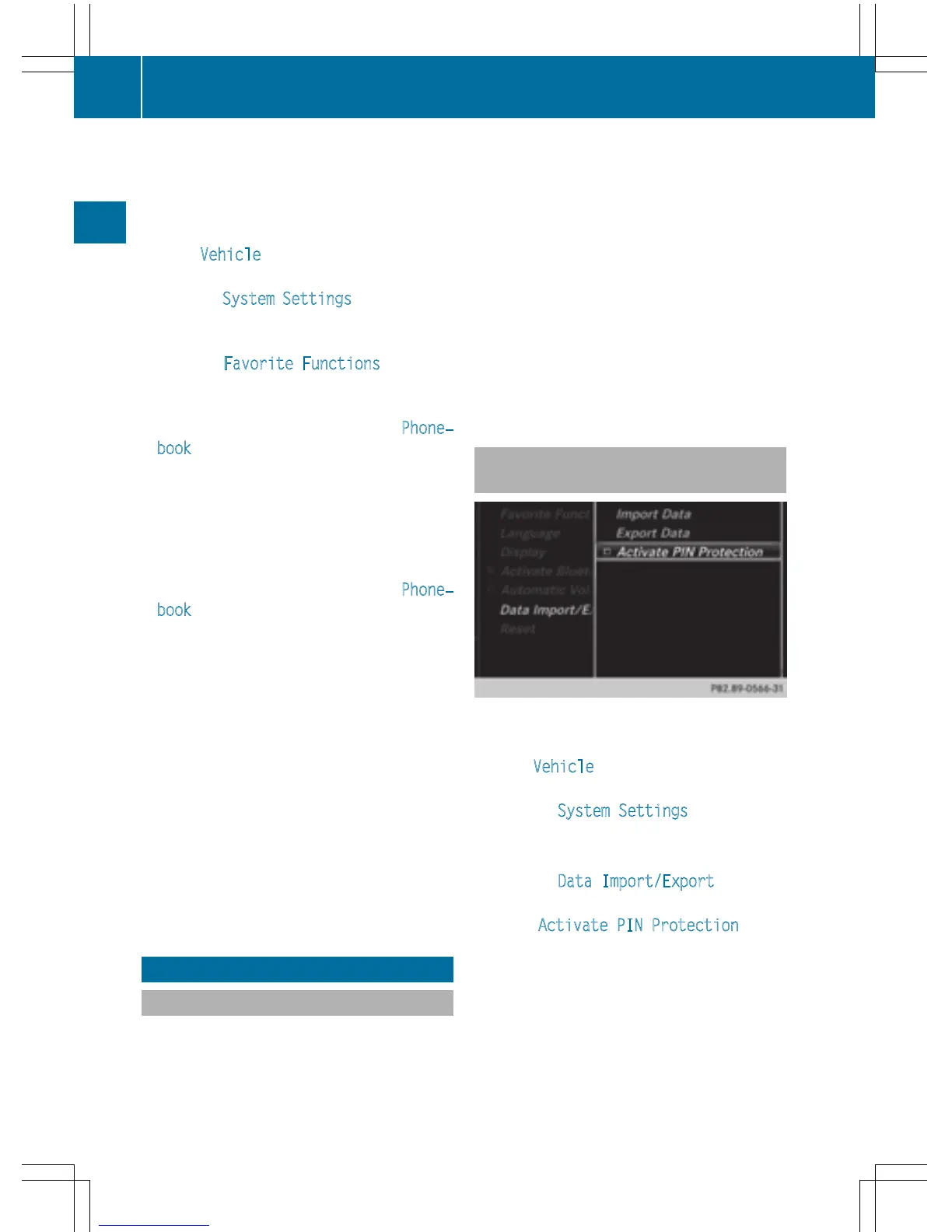
Activating/deactivating PIN protec-
tion
X
Press the Ø button.
or
X
Press Vehicle in the main function bar.
The vehicle menu is displayed.
X
To select System Settings: slide 6,
turn and press the controller.
A menu appears.
X
To select Data Import/Export: turn and
press the controller.
X
Select Activate PIN Protection.
Activate O or deactivate ª PIN protec-
tion. When activating PIN protection, you
will be prompted to enter a PIN.
46
Importing/exporting data
System settings



 To Next Page