in via the COMAND Internet and online func-
tion.
The availability of information is country-
dependent. Information can include maxi-
mum speeds, driving with low-beam head-
lamps or legal alcohol limits, for example.
X
To switch to navigation mode: press the
Ø button.
X
To show the menu: slide 6 the control-
ler.
X
To select Position: turn and press the
controller.
X
Select Country Information.
When the online connection has been
established, the available country informa-
tion appears.
i
Alternatively you can call up this function
using the touchpad (
Y page 25).
X
To return to navigation: press the %
button.
Avoiding an area
General notes
COMAND enables you to avoid areas you do
not wish to drive through.
If you activate or deactivate a route block
while route guidance is active, COMAND will
calculate a new route. If you activate or deac-
tivate a route block while route guidance is
inactive, COMAND will use the new setting for
the next route guidance.
The calculated route may include an area to
be avoided if:
R
your destination is located in such an area.
R
there is no alternative route of comparable
length available
Highways within blocked areas are always
taken into consideration in the route calcula-
tion.
i
Alternatively, you can carry out this oper-
ation using the touchpad (
Y page 25).
Avoiding a new area
X
To switch to navigation mode: press the
Ø button.
X
To show the menu: slide 6 the control-
ler.
X
To select Options: turn and press the con-
troller.
X
Select Route Settings.
X
Select Avoid Options.
X
Select Avoid Area.
X
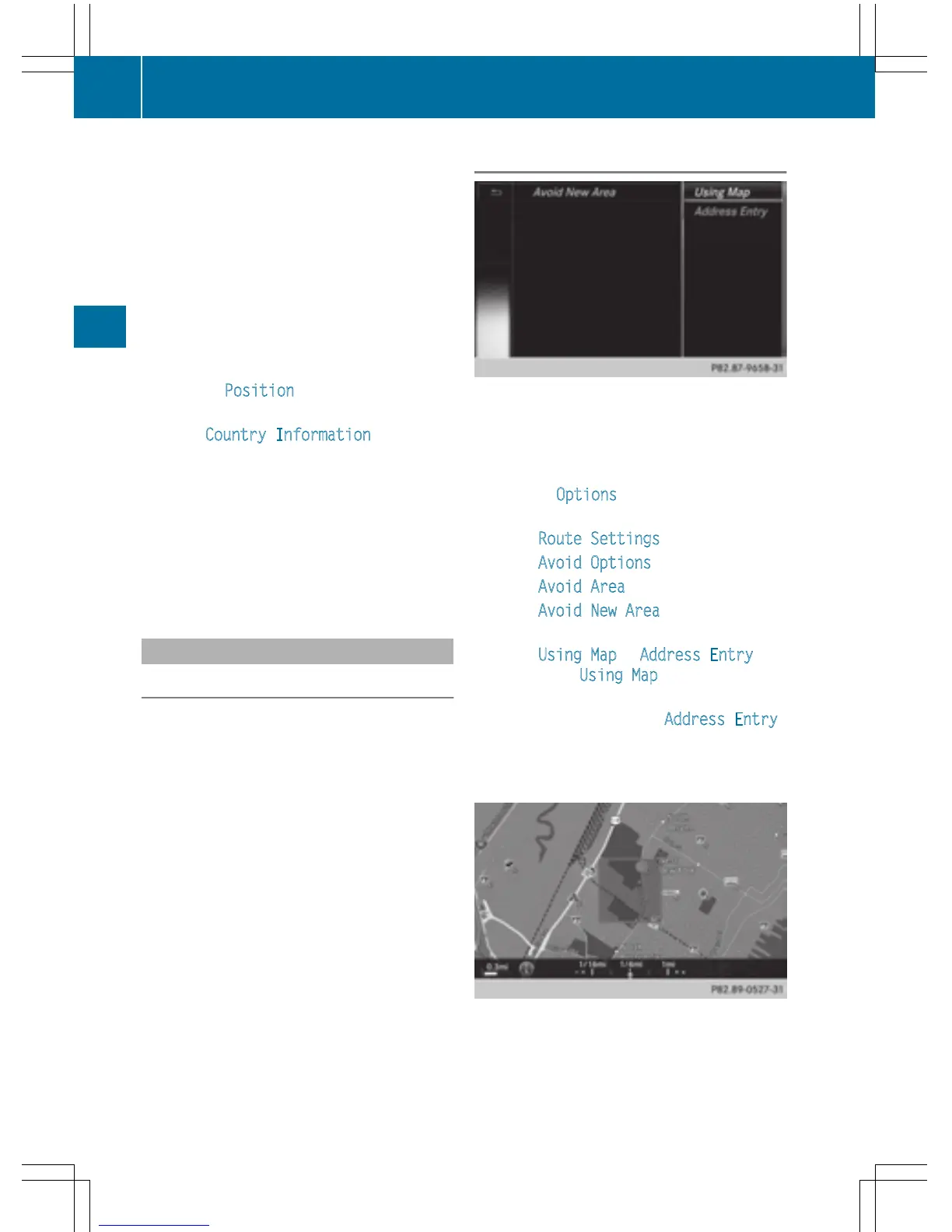
Select Avoid New Area.
A menu appears.
X
Select Using Map or Address Entry.
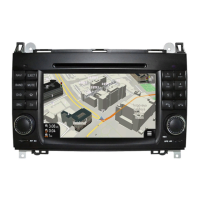
If you select Using Map
, the map with
crosshair appears.
When you have selected Address Entry
the address entry menu appears
(
Y page 67). The map appears with the
crosshair after the address is entered.
100
Map functions
Navigation



 To Next Page