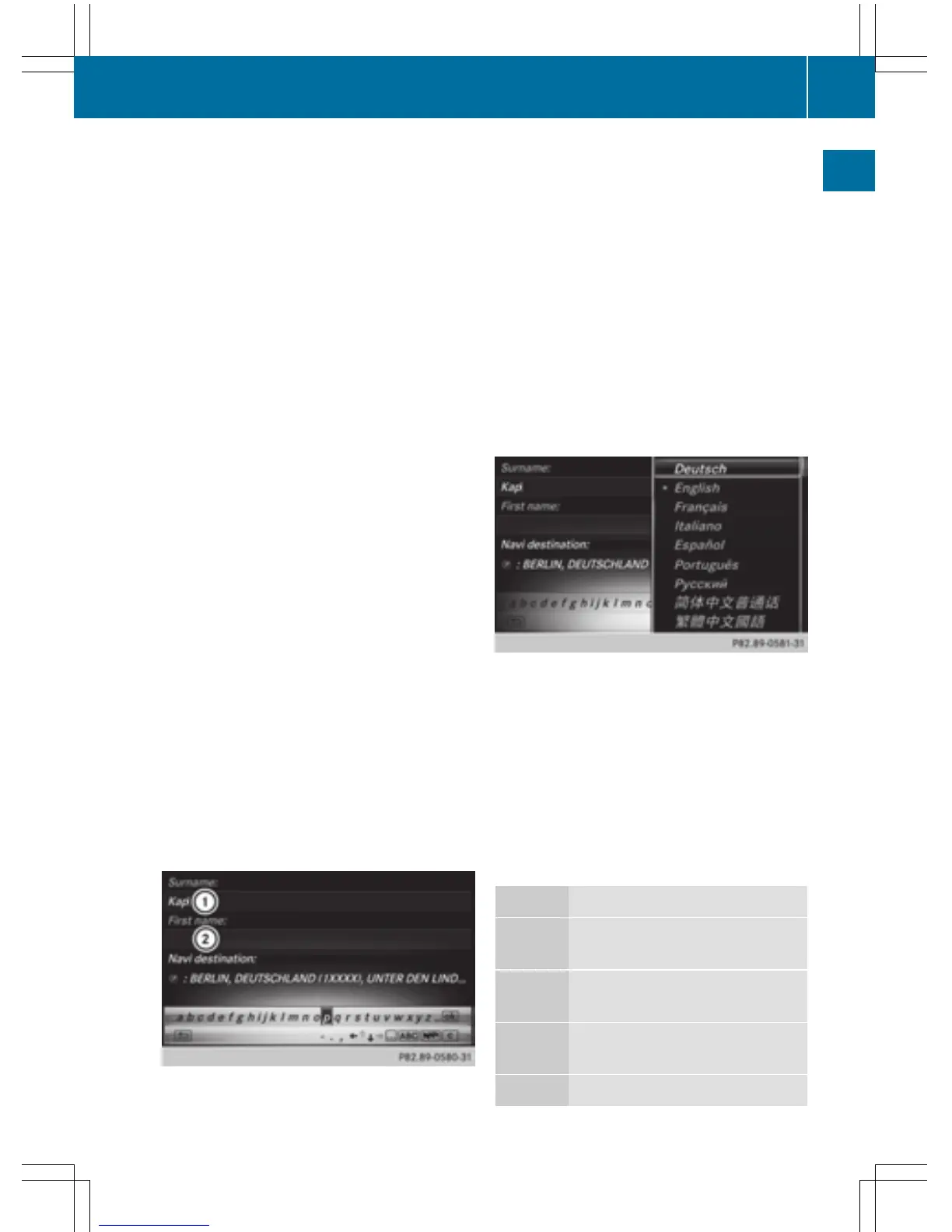
The example shows the address entry
(
Y page 67).
X
To enter a character: turn, slide 6 or
5 and press the controller.
Selected character : is entered in the
upper line. COMAND adds the missing
characters and shows the entry that best
matches the current input.
The characters are available B or not ?,
depending on the characters already
entered and the data stored in the digital
map.
The G symbol indicates that an entry
exists more than once.
X
To delete a character: slide 6 and turn
the controller, then press it after selecting
F.
X
To delete an entire entry: slide 6 and
turn the controller; then after selecting F
press and hold down the controller until the
entire entry is deleted.
X
To switch to keyword search: slide 6
and turn the controller, then press it after
selecting = (
Y page 70).
X
To confirm an entry: slide 6 and turn
the controller, then press it after select-
ing¬.
or
X
Slide 5 the controller repeatedly until the
character bar disappears.
The location selection list appears. The
selected entry is highlighted.
:
Cursor
;
Entry line
The example shows the character entry when
you save a destination as a navigable contact
in the address book (
Y page 68).
X
To select an input line: slide 6 and turn
the controller, then press it after selecting
4 or 5.
or
X
Slide 5 the controller repeatedly until the
character bar disappears.
X
Turn and press the controller.
X
To move the cursor: select the input line.
X
Slide 6 and turn the controller, then
press it after selecting 2 or 3.
X
To change the character bar language:
slide 6 and turn the controller, then
press it after selecting B.
A menu appears.
X
To select the language: turn and press the
controller.
The character set for the selected language
is set.
The character bar entry functions are listed in
the table.
Symbol Function
Ä
Switches between digits and
symbols
*
Switches the character bar to
uppercase/lowercase letters
B
Changes the character bar lan-
guage
F
Deletes a character/an entry
Character entry (navigation)
33
Overview and operation



 To Next Page