X
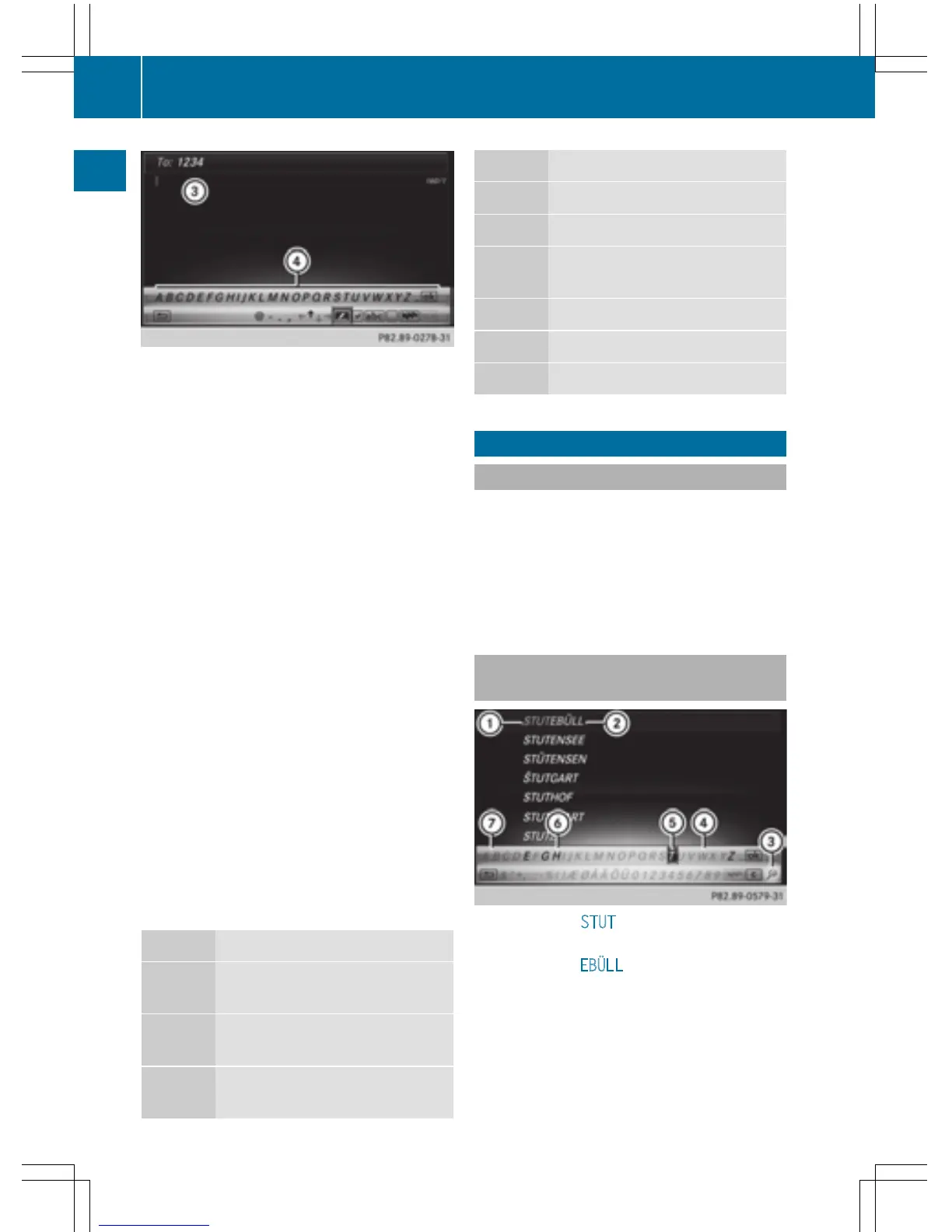
To select a character: turn and press the
controller.
The character selected in character bar ?
is entered into text message input line =.
X
To delete a character: switch to the bot-
tom line of the character bar by sliding 6
the controller.
X
To select F, turn and press the controller.
The character last entered is deleted.
X
To delete an entire entry: switch to the
bottom line of the character bar by sliding
6 the controller.
X
To select F, turn the controller.
X
Press and hold the controller until the
entire entry is deleted.
X
To change the country setting of the
character bar: switch to the bottom line of
the character bar by sliding 6 the con-
troller.
X
To select B, turn and press the control-
ler.
The available languages are displayed.
X
Turn and press the controller.
Further functions available in the charac-
ter bar
Symbol Function
Ä
Switches between digits and
symbols
*
Switches the character bar to
uppercase/lowercase letters
B
Changes the country setting for
the character bar
Symbol Function
F
Deletes a character/an entry
4, 5 Selects the input line
2, 3 Moves the cursor within the
input line
¬
Finishes an entry
&
Cancels input
S
Inserts a paragraph
Character entry (navigation)
Character entry options
You can enter characters using the controller
or the touchpad. With the controller, you
enter characters using a character bar. To
enter using the touchpad, draw the character
in the entry field. COMAND supports this
using a handwriting recognition function.
Entering characters using the charac-
ter bar
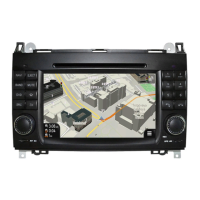
:
Characters STUT entered by the user
(orange)
;
Characters EBÜLL automatically added by
COMAND
=
To switch to keyword search
?
Characters not currently available
A
Currently selected character
B
Characters currently available
C
Character bar
32
Character entry (navigation)
Overview and operation



 To Next Page