OM-278680 Page 40
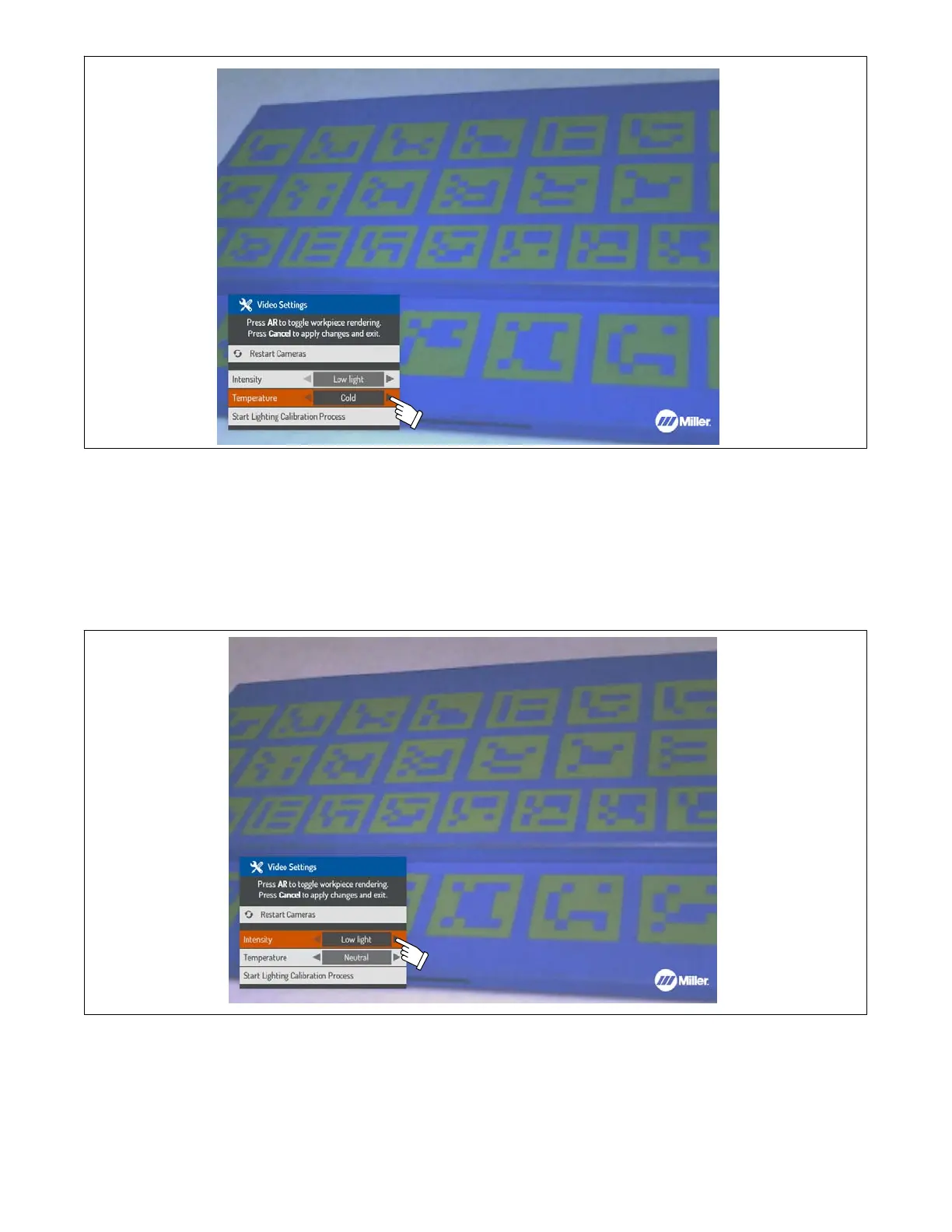
Figure 8-24. Changing Temperature Setting
C. Intensity Setting (Figure 8-25)
Use the up/down Navigation buttons to select the Intensity setting. Use the left/right Navigation buttons to select either Low Light, Mid Light, or
High Light. Choose the setting that corresponds to the intensity of light in the room.
If AR tracking is working properly, select Cancel to apply the changes and exit.
Figure 8-25. Changing Intensity Setting
D. Custom Settings
If the existing options for lighting intensity and temperature do not resolve AR tracking issues, custom settings can be created.
To create a custom Light Intensity setting, use the up/down arrows to select the light intensity setting, and press OK (Figure 8-26). Use the
up/down Navigation buttons to scroll to a light intensity setting (Exposure, Gamma, Brightness, etc.), and then use the left/right Navigation buttons
to adjust. After the desired light intensity values are set, select Save as custom and press OK, or press Cancel to exit the menu. Choose the
name of the custom setting (Custom 1, Custom 2, Custom 3) to save the current intensity values.



 To Next Page