EasyManua.ls Logo

Miller AugmentedArc - User Manual

Miller AugmentedArc
76 pages
Print Icon
To Next Page IconTo Next Page
Loading...
AugmentedArc
Processes
Description
MIG (GMAW) Welding
Flux Cored (FCAW) Welding
Arc Welding Training System
OM-278680A 2019-08
File: Accessory
TIG (GTAW) Welding
Stick (SMAW) Welding
For product information,
Owner’s Manual translations,
and more, visit
www.MillerWelds.com
Welding Training System
®

Table of Contents

Questions and Answers

Miller AugmentedArc Specifications

General IconGeneral
ApplicationWelding Training and Education
Welding ProcessesSMAW, GMAW, FCAW, GTAW
ConnectivityWi-Fi
Product TypeAugmented Reality Welding Training System
Display TypeHigh-resolution LCD display with augmented reality overlay

Summary

SECTION 1 - SAFETY PRECAUTIONS - READ BEFORE USING

1-1. Symbol Usage

Explains the meaning of danger, warning, and notice symbols used in the manual.

1-2. Welding Training System Hazards

Details hazards associated with the welding training system and general safety precautions.

1-3. Proposition 65 Warnings

Provides California Proposition 65 warning regarding cancer and reproductive harm.

1-4. Principal Safety Standards

Lists relevant safety standards for electrical equipment for measurement and control.

SECTION 3 - DEFINITIONS

3-1. Miscellaneous Symbols And Definitions

Defines various symbols and terms used throughout the manual for system operation and features.

SECTION 4 - SPECIFICATIONS

4-1. Introduction

Introduces the AugmentedArc system as an AR welding training solution for skill development.

4-2. System Features And Benefits

Outlines advanced simulation, teacher software, analysis mode, and system adaptability.

4-3. AugmentedArc Complete Package

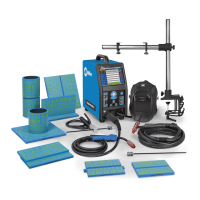
Lists and illustrates all components included in the AugmentedArc Complete Package.

4-4. Serial Number And Rating Label Location

Informs users where to find the serial number and rating information on the unit.

4-5. Unit Specifications

Provides comprehensive technical specifications for the simulator, helmet, computer, and software.

4-6. Software Licensing Agreement

Directs users to the End User License Agreement for software terms and conditions.

4-7. Environmental Specifications

Specifies the operating and storage temperature ranges for the equipment.

SECTION 5 - INSTALLATION

5-1. Selecting A Location

Provides guidelines on choosing a suitable and safe location for system installation.

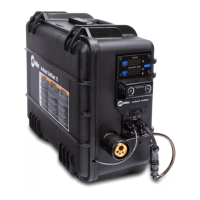
5-2. Simulator Components

Identifies and labels the various components of the simulator unit.

5-3. Installing The Training System - Standalone Configuration

Step-by-step guide for setting up the training system in a standalone configuration.

5-4. Installing The Training System - Classroom Configuration

Step-by-step guide for setting up the training system in a classroom configuration.

5-5. Connecting Simulator To An External Monitor

Instructions for connecting the simulator to an external display device via HDMI.

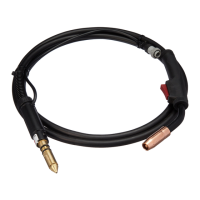
5-6. Assembling AR MIG Gun

Guides the user through the process of assembling the AR MIG welding gun.

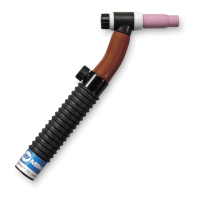
5-7. Assembling AR TIG Torch

Guides the user through the process of assembling the AR TIG torch.

5-8. Assembling AR Stick Electrode

Guides the user through the process of assembling the AR stick electrode.

5-9. AR Stick Electrode, MIG Gun, TIG Torch, And Workpieces

Describes the setup and function of AR Stick Electrode, MIG Gun, TIG Torch, and Workpieces.

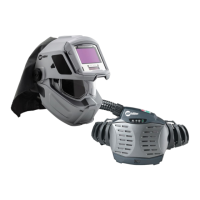
5-10. AR Welding Helmet

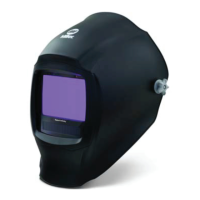
Describes the features and functionality of the AR welding helmet.

5-11. Making Helmet Adjustments

Explains how to adjust the headgear for proper fit, tightness, angle, and distance.

5-12. Connecting Weld Cables

Provides instructions for connecting MIG/FCAW, TIG, and Stick weld cables.

SECTION 6 - SYSTEM CONTROLS AND COMPONENTS

6-1. Simulator Controls

Identifies and explains the function of each button and control on the simulator's front panel.

SECTION 7 - OPERATION

7-1. Equipment Setup

Guides on assembling the system, connecting equipment, and powering on.

7-2. Getting Started

Covers logging in, selecting courses, and initial system calibration procedures.

SECTION 8 - SYSTEM SETTINGS

8-1. Accessing Administrator Home Screen

Details how to log in as an administrator to access the system settings menu.

8-2. Changing System Configuration

Explains how to change language, units, date/time, mode, simulation settings, and restore defaults.

8-3. Software Updates

Provides instructions for updating the system software for standalone and classroom modes.

8-4. Troubleshooting

Guides on connecting to technical support and copying log files for troubleshooting.

8-5. Check Components

Details procedures for checking front panel functions, audio, displays, and cameras.

8-6. Cameras

Guides on configuring and calibrating the helmet's cameras for optimal tracking.

8-7. Video Device Settings

Explains how to adjust lighting settings like temperature and intensity for AR tracking.

SECTION 9 - USING THE TEACHER SOFTWARE

9-1. Installing The Teacher Software Program

Provides computer requirements and step-by-step instructions for installing the teacher software.

9-2. Using The Teacher Software

Covers navigating the teacher software and managing students, courses, and modules.

9-3. Module Management

Details how to manage modules, units, and tasks (theory, exercises, quizzes) within the software.

9-4. Course Management

Explains how to add, edit, and manage courses, enroll students, and organize modules.

9-5. Reviewing Student Activity And Results

Guides on viewing student progress, activity logs, and detailed results of exercises.

9-6. Account And Settings

Covers managing instructor accounts and configuring system settings, databases, and backups.

SECTION 10 - INSTALLING OPTIONAL MAGNIFYING LENS

SECTION 11 - MAINTENANCE AND STORAGE

11-1. Routine Maintenance

Outlines daily and periodic maintenance tasks for the simulator and accessories.

SECTION 13 - RECONFIGURING STANDALONE ROUTER FOR CLASSROOM MODE

SECTION 14 - PARTS LIST

Related product manuals