OM-267357 Page 26
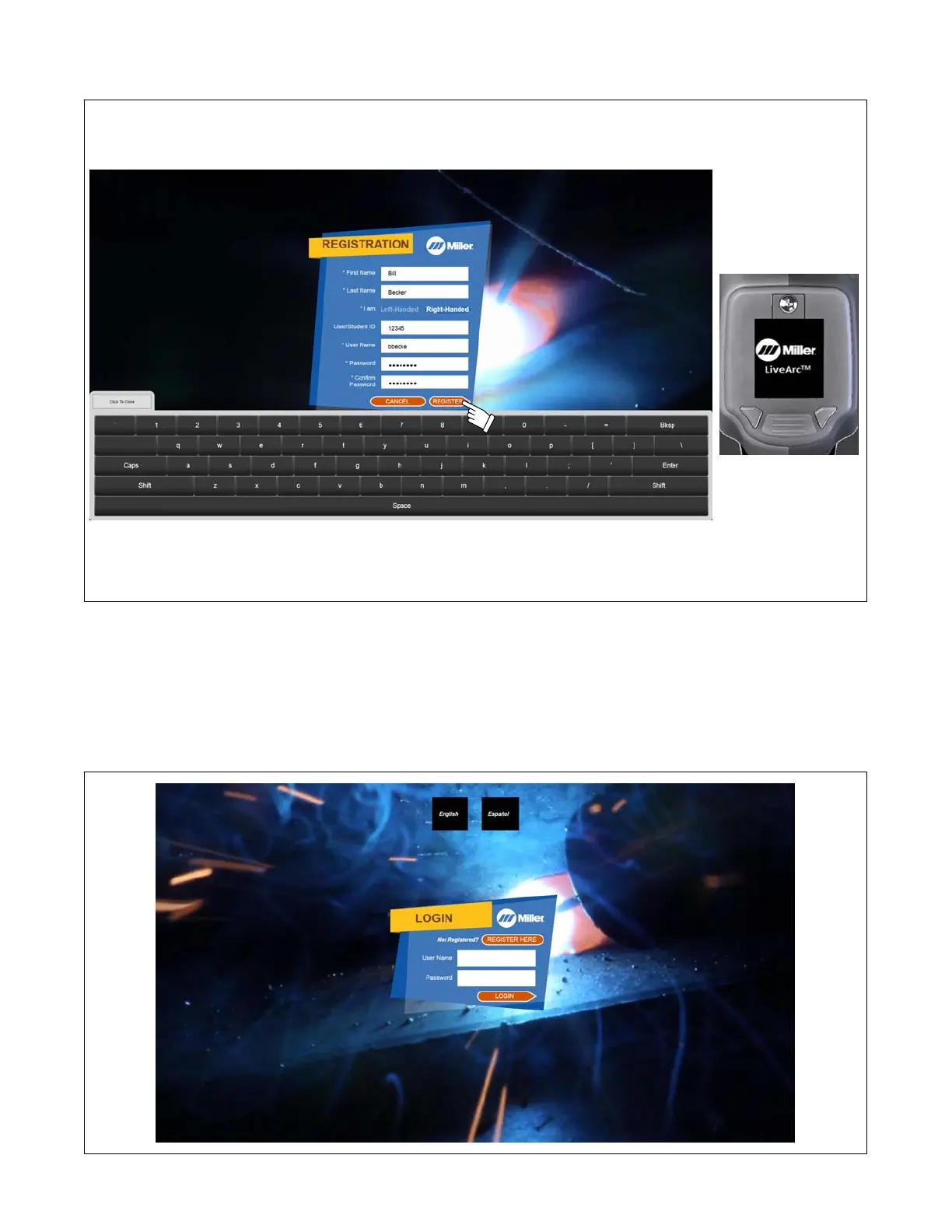
3. To create a new account, touch Register Here (Figure 7-2). Enter first name, last name, user/student ID (optional), user name, and password in
window, and indicate if you are left-handed or right-handed. Touch Register to save information, close window, and be automatically logged in.
Corresponding
SmartGun Display
Figure 7-2. Registration Screen
4. Depending on the equipment settings selections (see Section 8-2), language options may be displayed on the login screen (see Figure 7-3). Once
a language is selected, text on the LiveArc monitor and SmartGun display will be displayed in the selected language. To select a different language,
the user must log out and select the desired language.
To enable additional language options, the US-International keyboard must be enabled in in Windows. To do so, exit the LiveArc software to view
the Windows OS. Open the Control Panel and select Language. In the Language window, select Options. In the Language Options window, select
Add an input method. Scroll down to the United States-International Touch keyboard layout (in most cases, this should be the ninth option on
the list). Select it to highlight it, then select Add. In the Language Options window, select Save. After logging into the LiveArc software as an instruc-
tor, select System Admin, then Settings. Change the setting called Show language selection option on user login screen to Show.
Figure 7-3. User Login Screen






 To Next Page