OM-267357 Page 41
9-2. Creating New Assignments
Red text indicates a field contains unacceptable data.
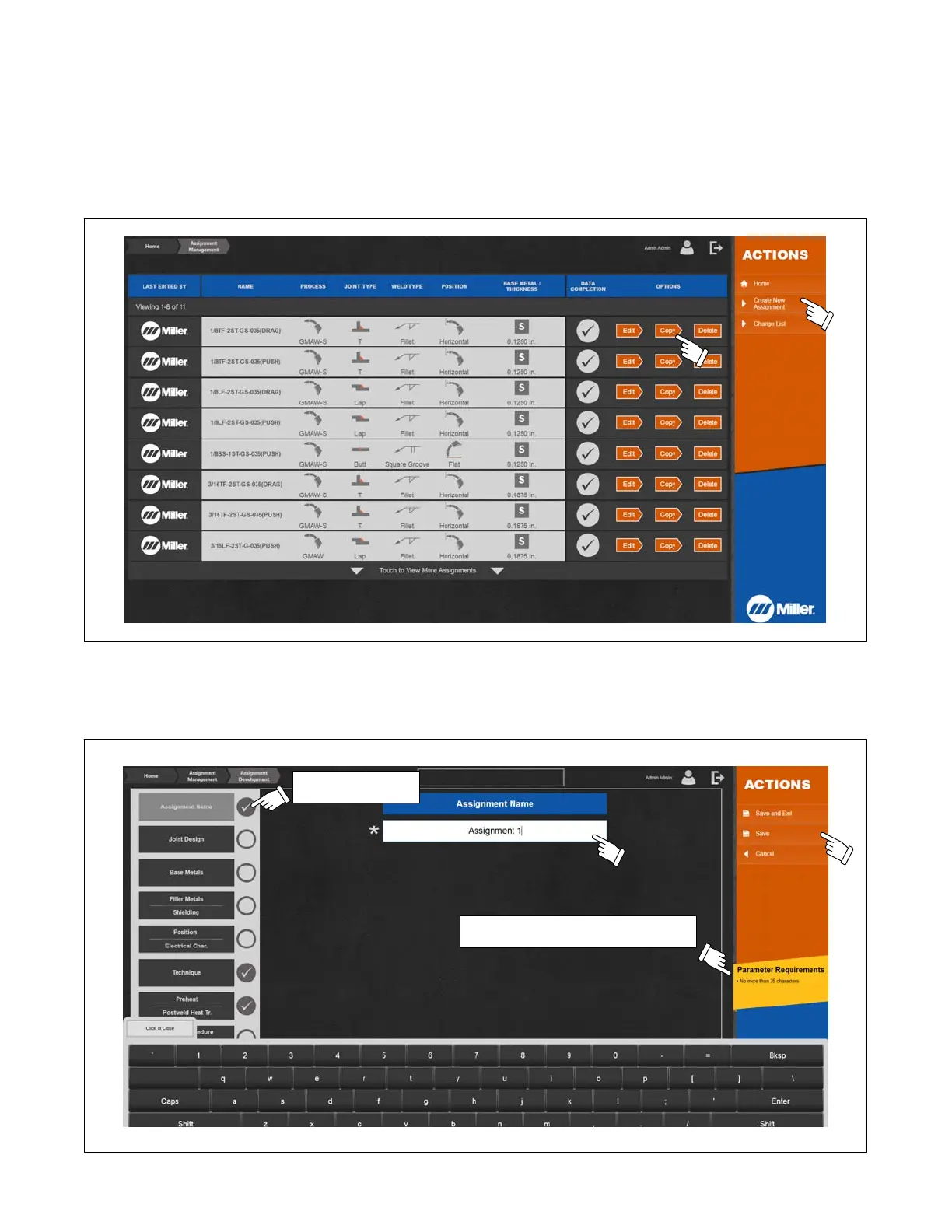
1. To create an entirely new assignment (all required parameters and values must be entered), touch Create New Assignment ( Figure 9-2). To use an
existing assignment as a template for a new assignment (parameters/values are already entered but can be edited), touch Copy on an existing
assignment similar to the assignment being created.
Miller assignments cannot be edited; however, a copy can be created and then edited. The visibility status of each assignment can be adjusted to
hide or show assignments in the assignment selection list available to all users.
Assignments with incomplete Data Completion will remain hidden until all required fields are completed with valid data.
Assignments can be imported from or exported to a USB drive to transfer between LiveArc systems or between a computer and a LiveArc system.
Figure 9-2. Assignment Management Homepage
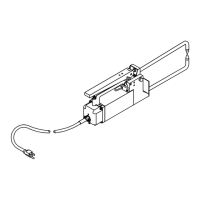
2. Touch Assignment Name text field (shaded white) to open keyboard and change name of new assignment (Figure 9-3). (Assignment name is
limited to 25 characters.) When finished, select (touch) the next parameter category (Joint Design), touch Save (to save name and proceed with
additional changes to assignment), or touch Save and Exit (if no additional changes will be made). Touch Cancel to delete changes and restore
original settings. Incomplete assignments can be saved but will not be displayed on assignment list on home screen.
Indicates completed
status.
Parameter Requirements are displayed
when a data entry field is selected.
Figure 9-3. Changing Assignment Name





 To Next Page