ImageOverlay
MENUbutton
...
[£j
retouch menu
Image overlay combines
two
existing
NEF
(RAW)
photographs
to
create a single picture
that
is
saved separately from the originals;
the results, which make
use
of
RAW
data from
the
camera image
sensor, are noticeably better than photographs combined in
an
imaging application. The new picture
is
saved at current image
quality and
size
settings; before creating
an
overlay, set image
quality and
size
([[] 68,71; all options are available).
To
create a
NEF
(RAW)
copy, choose
an
image quality
of
NEF (RAW).
1 Select
Image
overlay.
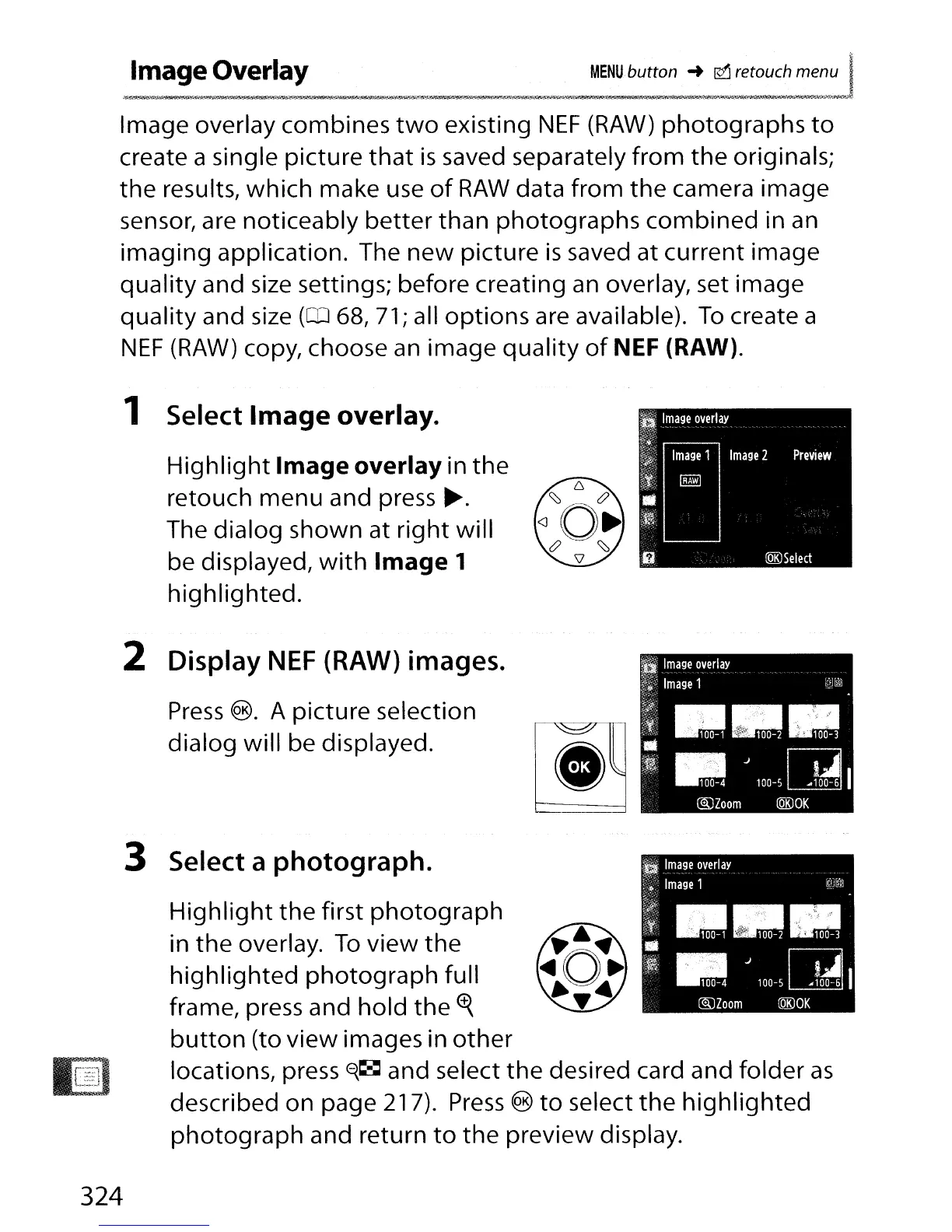
Highlight
Image overlay in
the
retouch menu and press
~.
The dialog shown at
right
will
be displayed,
with
Image 1
highlighted.
2
Display
NEF
(RAW) images.
Press
®.
A picture selection
~
dialog will be displayed.
3 Select a
photograph.
Highlight
the first photograph
in
the
overlay.
To
view
the
highlighted
photograph full
frame, press and hold the
~
button
(to view images in
other
~
locations, press
E{~
and select the desired card and folder
as
described on page 217).
Press
®
to
select
the
highlighted
photograph and return
to
the preview display.
324



 To Next Page