EasyManua.ls Logo

Nortel 2004 - User Manual

Nortel 2004
154 pages
Print Icon
To Next Page IconTo Next Page
Loading...
Nortel Communication Server 1000
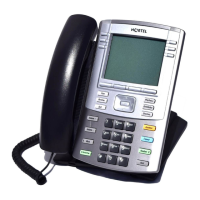
IP Phone 2004
User Guide
Title page

Table of Contents

Other manuals for Nortel 2004

Questions and Answers

  • D
    Danielle WattsSep 13, 2025
    What does 'VOUD configured on TN' mean on my Nortel 2004 IP Phone?
    • S
      Susan LivingstonSep 13, 2025
      If your Nortel IP Phone displays 'VOUD configured on TN', it indicates that the remote IP Phone does not have VOUA Class of Service. Notify your system administrator.
  • S
    Scott GordonSep 12, 2025
    What does 'Permission Denied (1)' mean on my Nortel 2004?
    • S
      Sean KeithSep 12, 2025
      If your Nortel IP Phone displays 'Permission Denied (1)', it means the remote telephone has no Station Control Password. Notify your system administrator.
  • E
    Eric HughesSep 12, 2025
    What does 'Invalid ID (2)' mean on my Nortel 2004 IP Phone?
    • L
      lsilvaSep 12, 2025
      If your Nortel IP Phone displays 'Invalid ID (2)', it means that an incorrect user ID was entered. Make sure to enter the correct user ID.
  • J
    Jennifer PerezSep 10, 2025
    Why does my Nortel IP Phone say 'Server Unreachable (2)'?
    • N
      Nicole KirkSep 10, 2025
      If your Nortel IP Phone displays 'Server Unreachable (2)', it indicates a network problem. If the problem persists, notify your system administrator.
  • C
    Chad WardSep 9, 2025
    Why does my Nortel 2004 IP Phone say 'Server Unreachable (1)'?
    • E
      ellisoncameronSep 9, 2025
      If your Nortel IP Phone displays 'Server Unreachable (1)', it indicates a network problem. If the problem persists, notify your system administrator.
  • M
    Mr. Dennis HardingSep 8, 2025
    What to do if my Nortel IP Phone shows 'Permission Denied (3)'?
    • S
      Shannon RodriguezSep 8, 2025
      If your Nortel IP Phone displays 'Permission Denied (3)', it could be due to entering an incorrect user ID. Ensure you enter the correct user ID. Alternatively, the remote telephone might not have a Station Control Password, in which case you should notify your system administrator.
  • J
    Jessica LaraAug 23, 2025
    How to unlock Nortel IP Phone after too many wrong password attempts?
    • J
      Jeffery SummersAug 23, 2025
      If you've entered the wrong Station Control Password three times, the Nortel IP Phone will lock. You can either wait one hour for the lock to clear automatically or ask your system administrator to clear it.
  • A
    Antonio BarnesSep 6, 2025
    What does 'Invalid ID (1)' mean on my Nortel IP Phone and how can I fix it?
    • M
      Mark SandersSep 6, 2025
      If your Nortel IP Phone displays 'Invalid ID (1)', it indicates that an incorrect user ID was entered. Ensure you enter the correct user ID. If the problem persists, notify your system administrator, as the user ID might not be in the Gatekeeper database.
  • R
    Rebecca PageSep 5, 2025
    What does 'Permission Denied (4)' mean on my Nortel 2004 and how to solve it?
    • T
      Tonya BrewerSep 5, 2025
      If your Nortel IP Phone displays 'Permission Denied (4)', it may be because you entered an incorrect user ID. Another reason could be an attempt to log in to a remote IP Phone 2002 or IP Softphone 2050 from an IP Phone 2004. In this case, use an IP Phone 2002 or IP Softphone 2050 to try again.
  • J
    Jason BrownSep 4, 2025
    What does 'Permission Denied (6)' mean on my Nortel 2004 and how to solve it?
    • R
      richardgeorgeSep 4, 2025
      If your Nortel IP Phone shows 'Permission Denied (6)', it could be due to entering an incorrect user ID or an incorrect Station Control Password. Try again with the correct Station Control Password.

Summary

About the Nortel IP Phone 2004

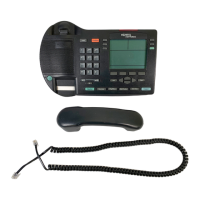
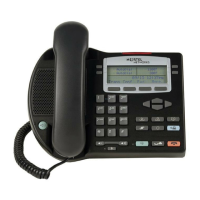
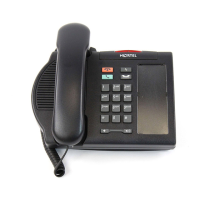
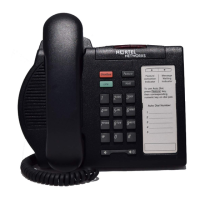
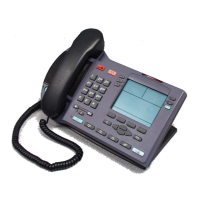
IP Phone 2004 Models

Details the three models of the IP Phone 2004: Phase 0, Phase 1, and Phase 2.

Basic Features

Lists the core functionalities of the IP Phone 2004, including programmable keys and display.

Telephone Controls

Explains the function of various physical keys and the volume control bar on the phone.

Configuring Options

Using the Telephone Options Menu

Accesses settings for volume, language, date/time, and other preferences.

Configuring Call Log Options

Sets preferences for logging incoming calls, new call indications, and name matching.

Making a Call

Using Off-Hook Dialing

Instructions for dialing a number after lifting the handset.

Using Handsfree Dialing

How to make and manage calls using the built-in speaker and microphone.

Using the Directory Applications

Details on accessing Corporate, Personal, and Callers Lists for making calls.

Making a Call Using Personal Directory

Steps to store and dial contacts from your personal directory.

Using AutoDial

Storing and automatically dialing frequently used numbers.

Answering a Call

While on an Active Call

Features available during an ongoing call, like hold and transfer.

Placing a Call on Hold

Instructions for putting an active call on hold.

Transferring a Call

Procedures for redirecting a call to another party.

Incoming Calls

Using Call Pickup

How to answer calls directed to other phones in a pickup group.

Using Call Waiting

Handling incoming calls when already engaged in another call.

While Away from Your Desk

Using Call Forward

Redirecting incoming calls to another line or number.

Securing Your Telephone

Instructions on how to lock your phone to prevent unauthorized use.

Talking with More Than One Person

Setting Up a Conference Call

Guide to establishing multi-party conference calls.

Additional Call Features

Charging a Call or Charging a Forced Call

Procedures for charging calls to an account or using forced charge.

Using Forced Camp-on Feature

Automatically ringing a telephone immediately after its current call ends.

Additional Telephone Features

Using Personal Directory

How to create, edit, and delete entries in the personal contact list.

Using Virtual Office

Connects to office IP phone features from a remote location.

Logging in to Virtual Office

Steps to activate and log into the Virtual Office feature.

Using Virtual Office on Your Remote Telephone

Describes the interface when using Virtual Office on a remote IP phone.

Using Media Gateway 1000 B

Information on operating the Media Gateway in Normal and Local modes.

Using Test Local Mode

Checks local mode functionality for telephone calls.

Using Hospitality Features

Configuring Automatic Wake-Up

Sets up timed reminder calls from the system.

Accessing External Server Applications

Using Record On Demand Key

Feature to start or stop recording telephone conversations.

Accessories

IP Phone Key Expansion Module (KEM)

Optional hardware module for adding more line appearances and feature keys.

Regulatory and Safety Information

Terms You Should Know

Nortel 2004 Specifications

General IconGeneral
Programmable Keys4
SpeakerphoneYes
Headset SupportYes
Message Waiting IndicatorYes
Supported CodecsG.711, G.729a
Fixed Feature Keys14
Networking10/100 Mbps Ethernet
ProtocolsSIP
PowerIEEE 802.3af Power over Ethernet
ConnectorsRJ-45
Lines4 lines

Related product manuals