OMRON PART 1: CX-Programmer
CX-Programmer_Page (xvi)
Version 6.1 Upgrade Information
Functionality Improved from Version 6.0 to Version 6.1
Compatible PLC Models
The following PLC models have been added as compatible PLCs as part of the
version 6.0 to version 6.1 upgrade:
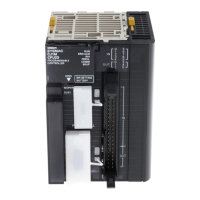
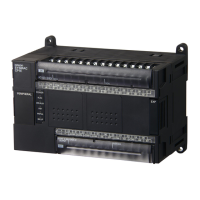
CP Series CP1H CPU Units (CP1H-XA and CP1H-X)
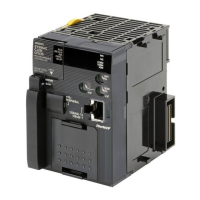
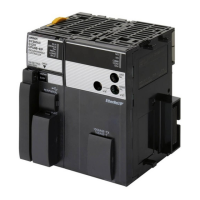
Support for NSJ-series NSJ Controllers
The PLC model (“device type”) can be set to “NSJ” and the CPU type can be set to
the G5D.
Support for FQM1 Unit Version 3.0
The new models of the FQM1 Flexible Motion Controller are now supported (i.e.,
the FQM1-CM002 Coordinator Module and the FQM1-MMA22/MMP22 Motion
Control Modules).
Ladder Program Simulation Function
Previous version (Ver. 6.0) New version (Ver. 6.1)
The CX-Simulator could be used to execute
a ladder program step (Step Run), execute
steps continuously (Continuous Step Run),
execute a single cycle (Scan Run), and set
I/O break point conditions.
The Step Run, Continuous Step Run, Scan Run, and Set/Clear Break
Point functions can be executed as CX-Programmer functions.
All of these functions can be used with ladder programs and ladder/ST
programs in function blocks.
Note 1: The CX-Simulator Ver. 1.6 (sold separately) must be installed in
order to use these functions.
Note 2: I/O break conditions cannot be set.
Improved Function Block Functions
• Monitoring ST Programs in Function Blocks
Previous version (Ver. 6.0) New version (Ver. 6.1)
The operation of ST programs within function
block instances could not be monitored while
monitoring the program online.
(It was possible to check the contents of a
function block definition's program and
monitor the I/O status of a function block
instance's ladder diagram.)
The status of a function block instance's ST program can be monitored
while monitoring the program.
To monitor the ST program's status, either double-click the function
block instance or right-click the instance and select Monitor FB
Instance from the pop-up menu. At this point, it is possible to change
PVs and force-set/reset bits.
Note: Online editing is not supported.




 To Next Page