14 Scan Tool User Guide
Adjust Default Settings
2: Setup
Adjust Default Settings
Use the System Setup functions to view information
about the scan tool and adjust default settings for the
scan tool as follows:
NOTE: Temperature or lighting may affect the brightness
of the scan tool screen. If necessary, use the Contrast
Adjust function to adjust the screen for working conditions.
1 Provide power to the scan tool, press the On / Off
button to turn the scan tool on, and wait for the Appli-
cation Manager screen to appear.
2 Use the Down Direction key to select System Setup
and then press the ENTER key. This displays the
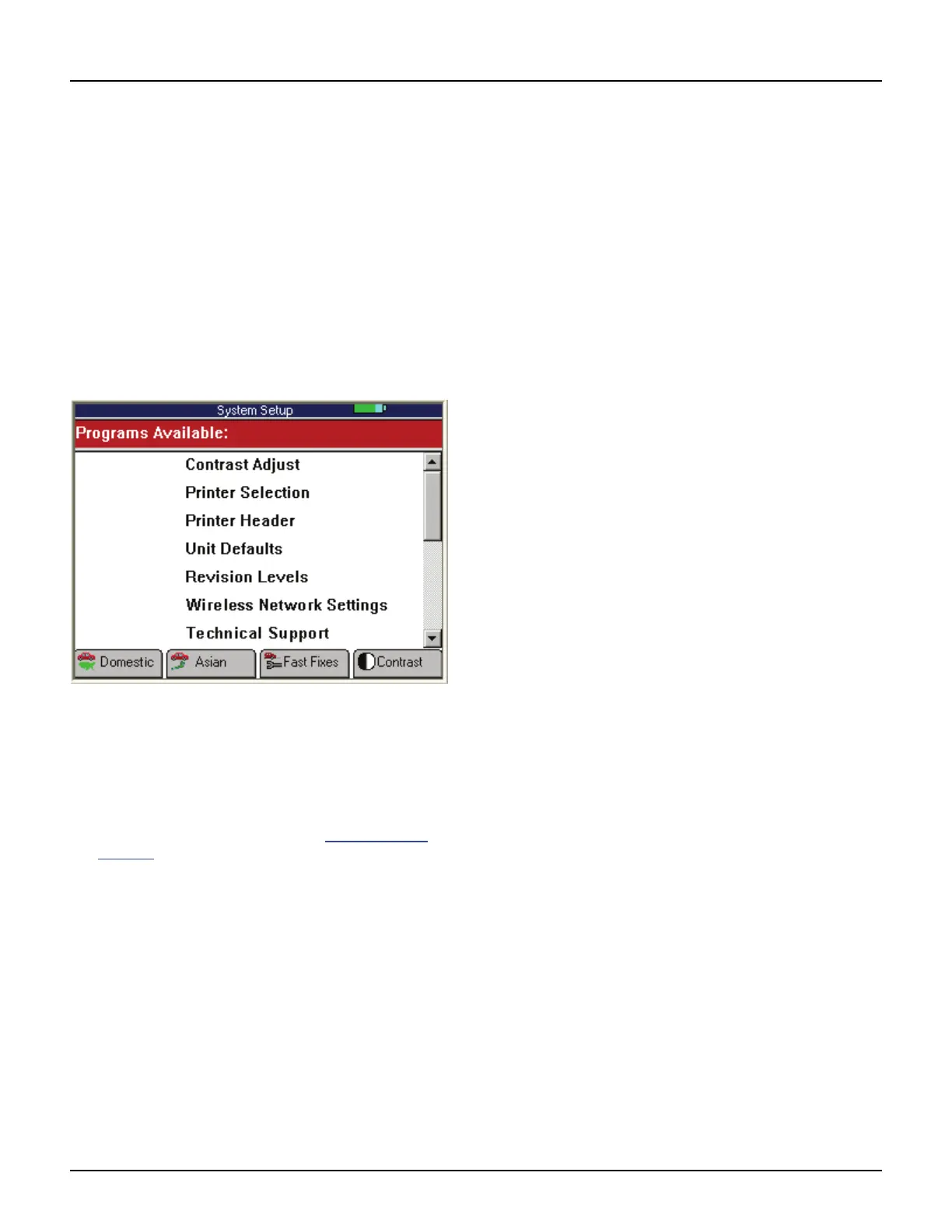
System Setup screen, shown below.
Figure 2.3: System Setup Screen - Classic User Interface
3 Use the Direction keys to select an item to adjust and
then press the ENTER key.
4 Follow any on-screen instructions; use the Direction
keys as needed to adjust settings; use the EXIT key
to exit the screens.
5 For detailed instructions, refer to System Setup
on
page 77
.



 To Next Page