50 Scan Tool User Guide
Remembered Settings
7: Datastream
Conflict
The Conflict function on the Datastream screen’s
More menu lets you view detailed information when
two or more power control modules (PCMs) are
reading data for the same sensor or actuator, but the
readings do not match (there is a conflict). This func-
tion works only when you are using Global OBD II
testing and when one or more lines on the
Datastream screen are red, indicating a conflict.
To view PCM conflicts, follow these steps:
1 Follow the steps in Basic Datastream Procedure on
page 39
to display the Datastream screen.
2 Notice if the data for any line(s) are red. (If not, there
are no conflicts.)
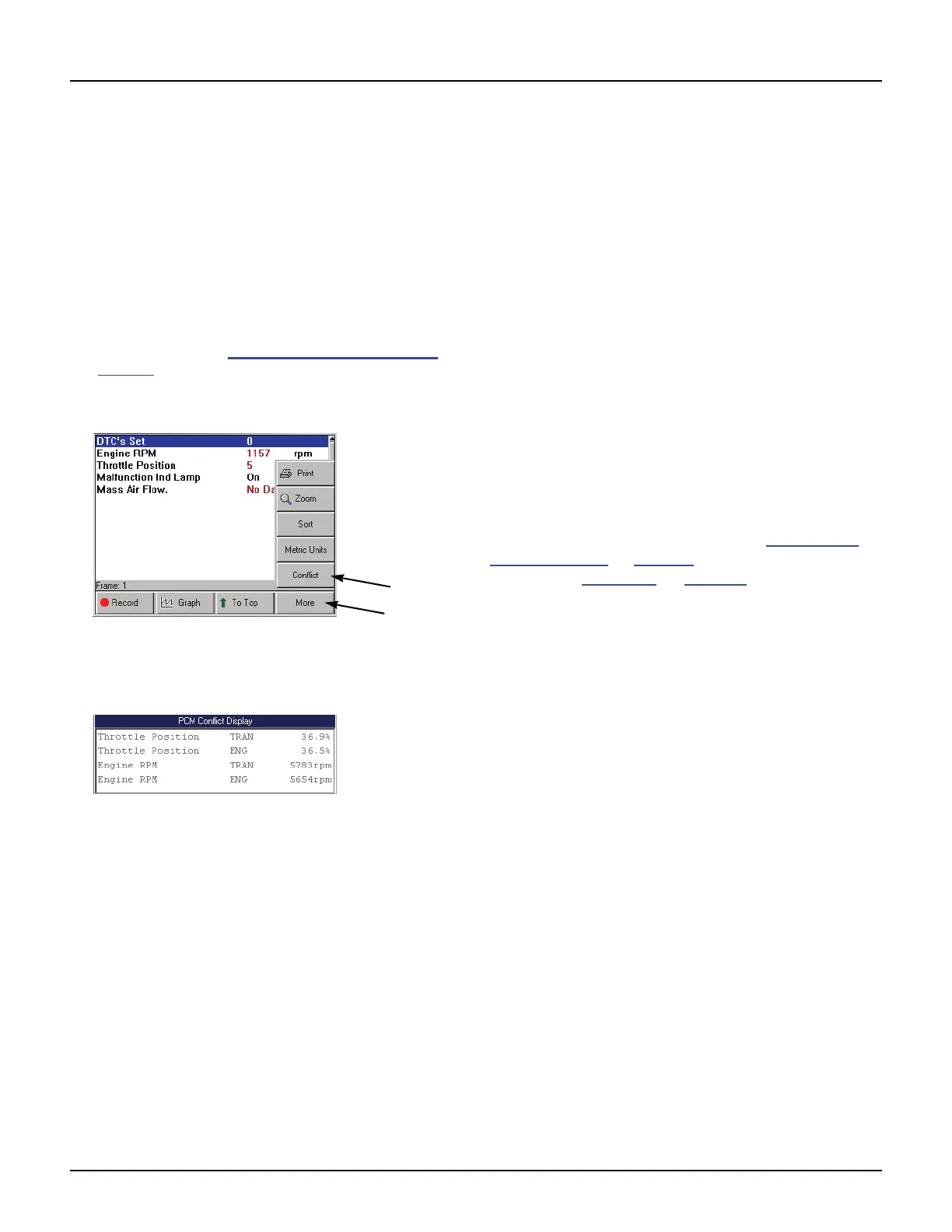
Figure 7.24: More Menu
3 Press the More function key.
4 Select Conflict and press the ENTER key.
Figure 7.25: PCM Conflict Display Screen
5 The PCM Conflict Display screen lists the conflict
item(s), the PCMs reading the item(s), and the
readings for each PCM. Be aware of the following:
• If there is a small difference between the read-
ings for an item, the conflict is most likely due
to a timing difference of when the PCMs
reported the data.
• If there is a large difference between the read-
ings for an item, suspect a broken wire or PCM
fault.
6 After viewing the items, use the EXIT key to return to
previous screens.
Remembered Settings
When you have the Datastream screen displayed for
a vehicle and you rearrange the data lines or change
lines to graphs, and then exit the Datastream screen,
the software automatically remembers the settings
the next time you test the same vehicle. This applies
to the 20 most-recently tested vehicles.
For example, if you lock certain lines or sort them, the
settings will appear the next time you test the vehicle.
DTC-Triggered Recording
The scan tool has an automatic DTC-Triggered
Recording function. This function works automati-
cally and does not appear as an option on any menu.
If a diagnostic trouble code (fault) occurs while you
are testing a vehicle, the vehicle stores a DTC in the
ECU’s memory and the scan tool automatically
creates a recording for playback and alerts you with
a screen message. Use the steps in Diagnostic
Trouble Codes on page 27 to read the code and use
the steps in Playback
on page 75 to replay the
recording.
NOTE: If there is a portable USB drive inserted into the
scan tool’s USB port, all recordings save to the USB drive.



 To Next Page