Scan Tool User Guide 81
Hardware Tests
17: System Setup
Hardware Tests
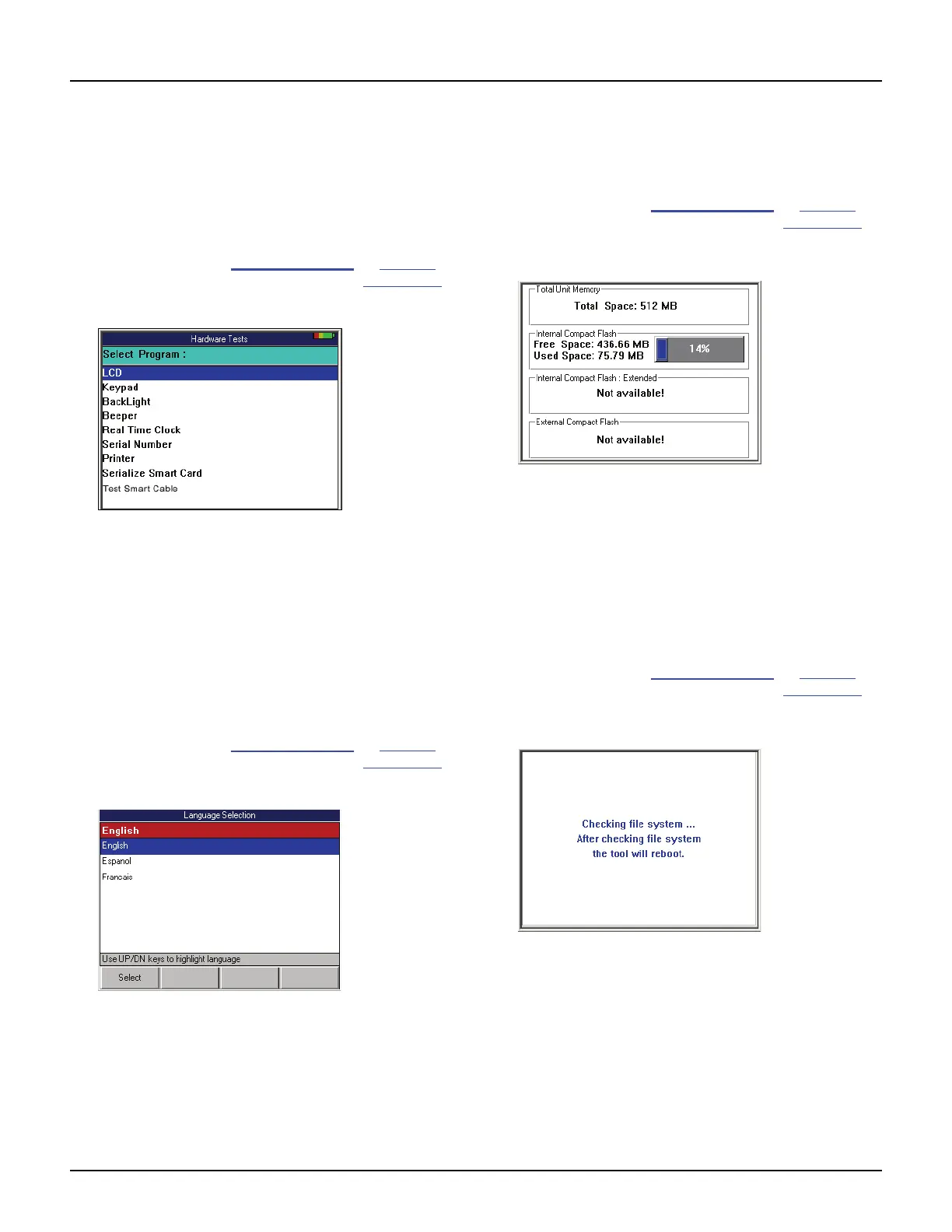
The Hardware Tests function lets you test the LCD
screen, keypad keys, backlight, beeper, and Smart
cable, and lets you view the time clock and serial
number for the scan tool and the serial number of the
Smart Card.
1 Follow the steps in Basic Procedure on page 77 to
display the System Setup screen (see Figure 17.1
).
2 Select Hardware Tests and press the ENTER key.
Figure 17.12: Hardware Tests Screen
3 Select an option and press the ENTER key.
4 Follow the instructions on the screen that appears.
5 Use the EXIT key to return to previous screens.
Language
The Language function lets you set the default
language for the scan tool software.
1 Follow the steps in Basic Procedure on page 77 to
display the System Setup screen (see Figure 17.1).
2 Select Language and press the ENTER key.
Figure 17.13: Language Selection Screen
3 Use the Up and Down Directions keys to select the
language.
4 Press the Select function key.
5 Use the EXIT key to return to previous screens.
Disk Usage
The Disk Usage function lets you view details about
the scan tool memory size and usage.
1 Follow the steps in Basic Procedure on page 77 to
display the System Setup screen (see Figure 17.1
).
2 Select Disk Usage and press the ENTER key.
Figure 17.14: Disk Usage Screen
3 View the disk usage information.
4 Use the EXIT key to return to previous screens.
File System Check
The File System Check function lets you test the file
system on the memory card(s).
1 Follow the steps in Basic Procedure on page 77 to
display the System Setup screen (see Figure 17.1
).
2 Select File System Check and press the ENTER key.
Figure 17.15: File System Check Screen
3 Wait for the scan tool to turn off and on automatically
as it does a self-check.



 To Next Page