Scan Tool User Guide 39
7: Datastream
The Datastream function lets you view live data from
a vehicle’s electronic control unit (ECU). This chapter
describes how to use the Datastream function.
Basic Datastream Procedure
Use the following steps to obtain a basic understand-
ing of how the Datastream function works.
To use the datastream function, follow these
steps:
1 Follow the instructions in Test Startup and Vehicle
Connection on page 16 to display the Diagnostic
Menu screen.
Figure 7.1: Diagnostic Menu Screen
2 Select Datastream and press the ENTER key.
This displays the Datastream screen
NOTE: Optionally, you can use Custom
Datastream and select specific datastream
items for viewing. For details, refer to
Custom Datastream
on page 51.
NOTE: If a group selection screen appears, select a
group and press the ENTER key to display the
Datastream screen.
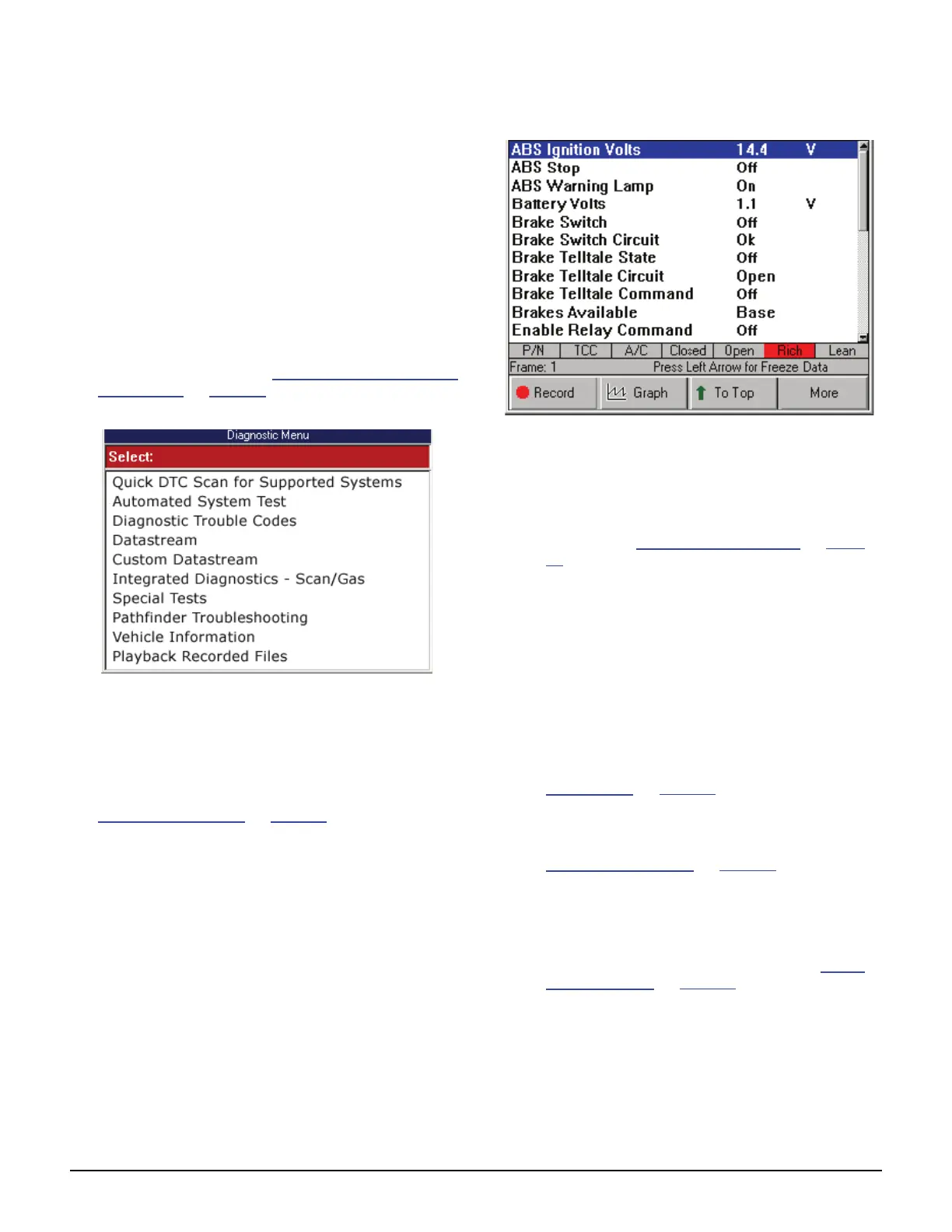
Figure 7.2: Datastream Screen
3 Notice the following about the Datastream screen:
• Each line displays a data item. The first time
you test a vehicle, the top line displays in Graph
format and the remaining lines display in Digital
format. (See Remembered Settings
on page
50.)
• The screen’s data updates as the software
reads from the vehicle’s ECU. Each update is
called a “frame” of data.
• You use the Up and Down Direction keys to
scroll through the data and to select lines (one
line at a time). You use the Right Direction key
to scroll continuously through the screens one
at a time (until you get back to the first screen).
• You use the Left Direction key to stop the live
readings. When you stop the readings, the data
“freezes” on the screen. For details, refer to
Freeze Data
on page 45.
• The function keys at the bottom of the screen
let you perform several other functions on the
screen. For details, refer to the next section,
Functions Overview
on page 40.
• The status line above the function keys
displays current software status information.
• The LED bar, directly above the status line,
appears only when you use the More function
key, LED Bar option. For details, refer to Show
/ Hide LED Bar on page 48.
4 When you are finished using the screen, press the
EXIT key to return to the Diagnostic Menu screen.



 To Next Page