44 Scan Tool User Guide
Datastream Functions
7: Datastream
Lock
The Lock function lets you “lock” selected data lines
so they are always included when recording and
printing, even if they are below the viewable area of
the screen.
NOTE: Generally, printing and recording include only the
data items within the viewable area of the data display.
To lock data lines, follow these steps:
1 With the Datastream screen displayed, use the Up or
Down Direction key to select the line to lock.
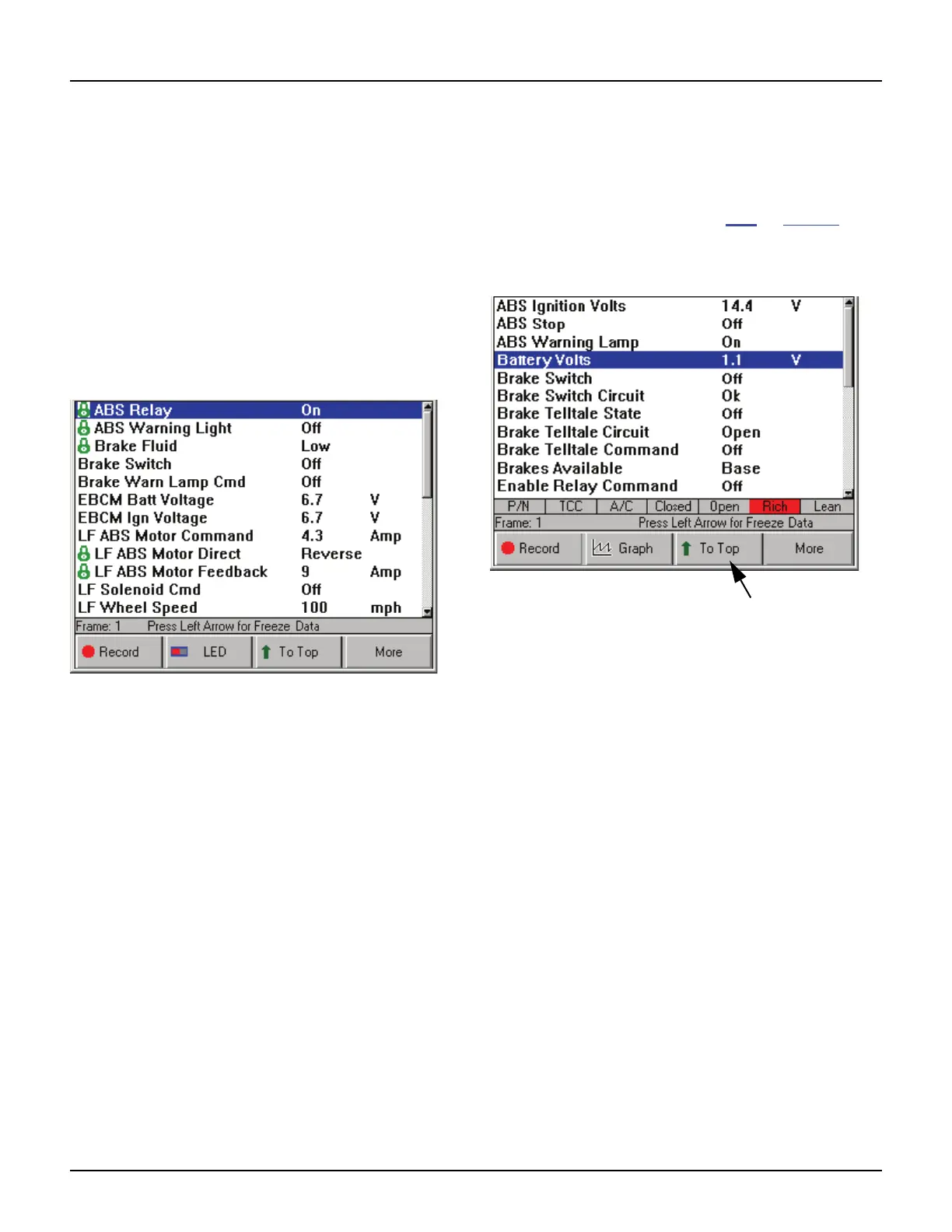
2 Press the ENTER key. A padlock icon appears on the
left side of the line.
Figure 7.9: Datastream Screen - Sensor Lock Function
3 Repeat steps 1 and 2 for each line to lock.
NOTE: The lines remain locked for the selected vehicle
until you unlock them, even if you exit the software.
4 To unlock a locked line, select the locked line and
then press the ENTER key (see steps 1 and 2).
To Top
The To Top function lets you move a selected data
line to the top of the Datastream screen.
NOTE: You can also use the Sort function to rearrange
the data lines. For details, refer to Sort on page 47.
To move a data line to the top of the screen,
follow these steps:
Figure 7.10: Datastream Screen - To Top Function
1 With the Datastream screen displayed, use the Up or
Down Direction key to select the line to move.
2 Press the To Top function key. The selected line
moves to the top of the screen.
3 Repeat steps 1 and 2 for each line to move.
NOTE: Any displayed analog gauges always remain at
the top of the screen. Lines moved “To Top” appear below
the analog gauges.



 To Next Page