Scan Tool User Guide 25
System Test Details
5: Automated System Test
TM
Datastream Snapshots
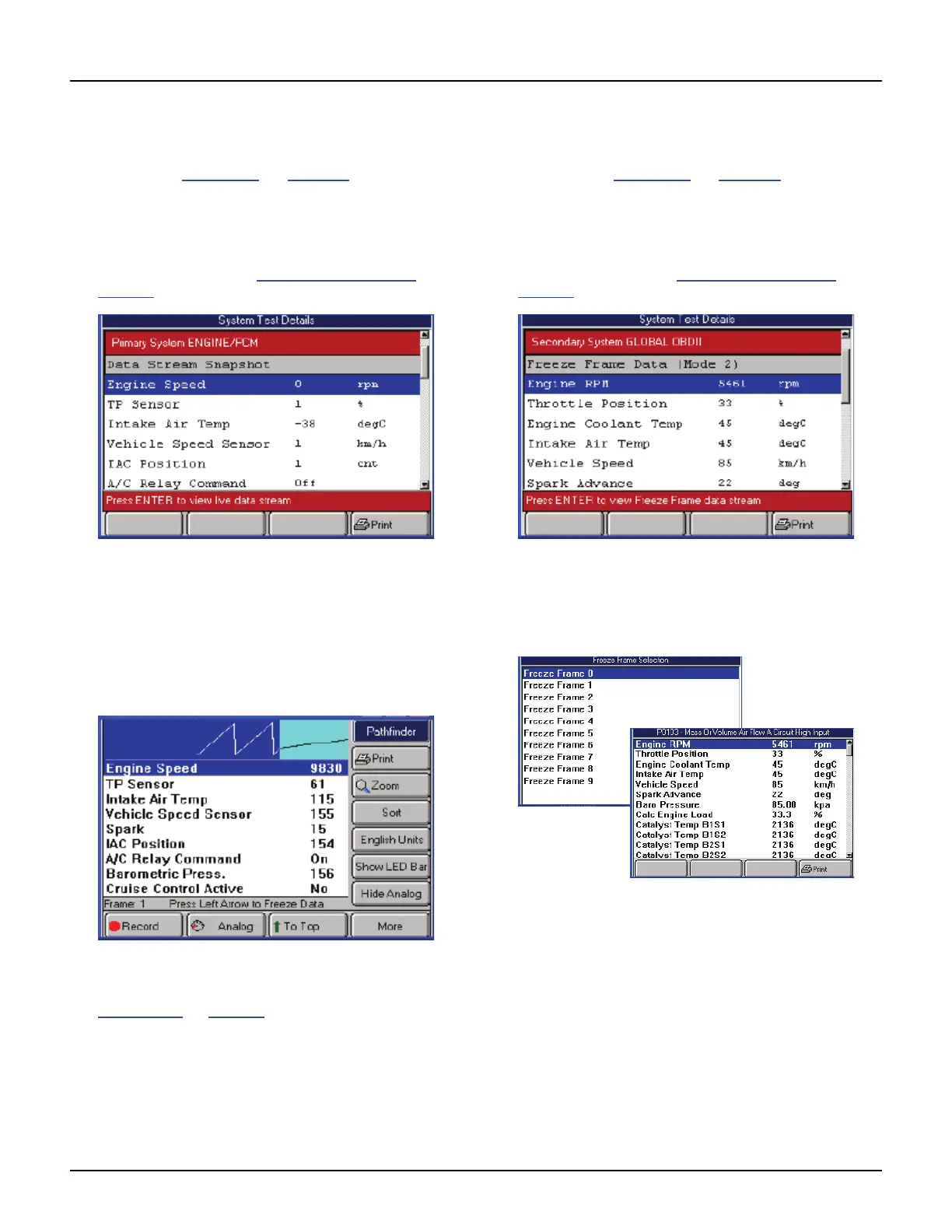
When you select (highlight) the line for a datastream
snapshot (see Figure 5.3
on page 24), if you can
view live data readings, the status bar displays the
message Press ENTER to view live datastream.
To view live datastream, follow these steps:
1 Follow the steps in the Basic Test Procedure on
page 23 to display the System Test Details screen.
Figure 5.5: System Test Details Screen, Datastream Snapshots
2 Select the line for the datastream snapshot.
3 If the status bar indicates viewing of datastream is
available, press the ENTER key.
4 If the select Datastream group screen appears, select
a group to view and press the ENTER key to display
the live data readings.
Figure 5.6: Datastream Screen
5 View the data as necessary. For details, refer to
Datastream
on page 39.
6 When finished, use the EXIT key to return to previous
screens.
Freeze Frame Data (Mode 2)
When you select (highlight) the line for a freeze
frame item (see Figure 5.3
on page 24), if you can
view the data, the status bar displays the message
Press ENTER to view Freeze Frame datastream.
To view freeze frame data, follow these steps:
1 Follow the steps in the Basic Test Procedure on
page 23 to display the System Test Details screen.
Figure 5.7: System Test Details Screen, Freeze Frame Data
2 Select the line for the freeze frame data.
3 If the status bar indicates viewing of freeze frame data
is available, press the ENTER key.
Figure 5.8: Freeze Frame Selection Screen and Freeze Frame
Screen
4 If the Freeze Frame Selection screen appears, select
a frame to view and press the ENTER key to display
the data recorded at the time the DTC occurred.
5 View the data and optionally use the Print function
key to print it.
6 When finished, use the EXIT key to return to previous
screens.



 To Next Page