24 Scan Tool User Guide
System Test Details
5: Automated System Test
TM
4 Press the Detail function key (Figure 5.2 on page 23)
to display details for the test items.
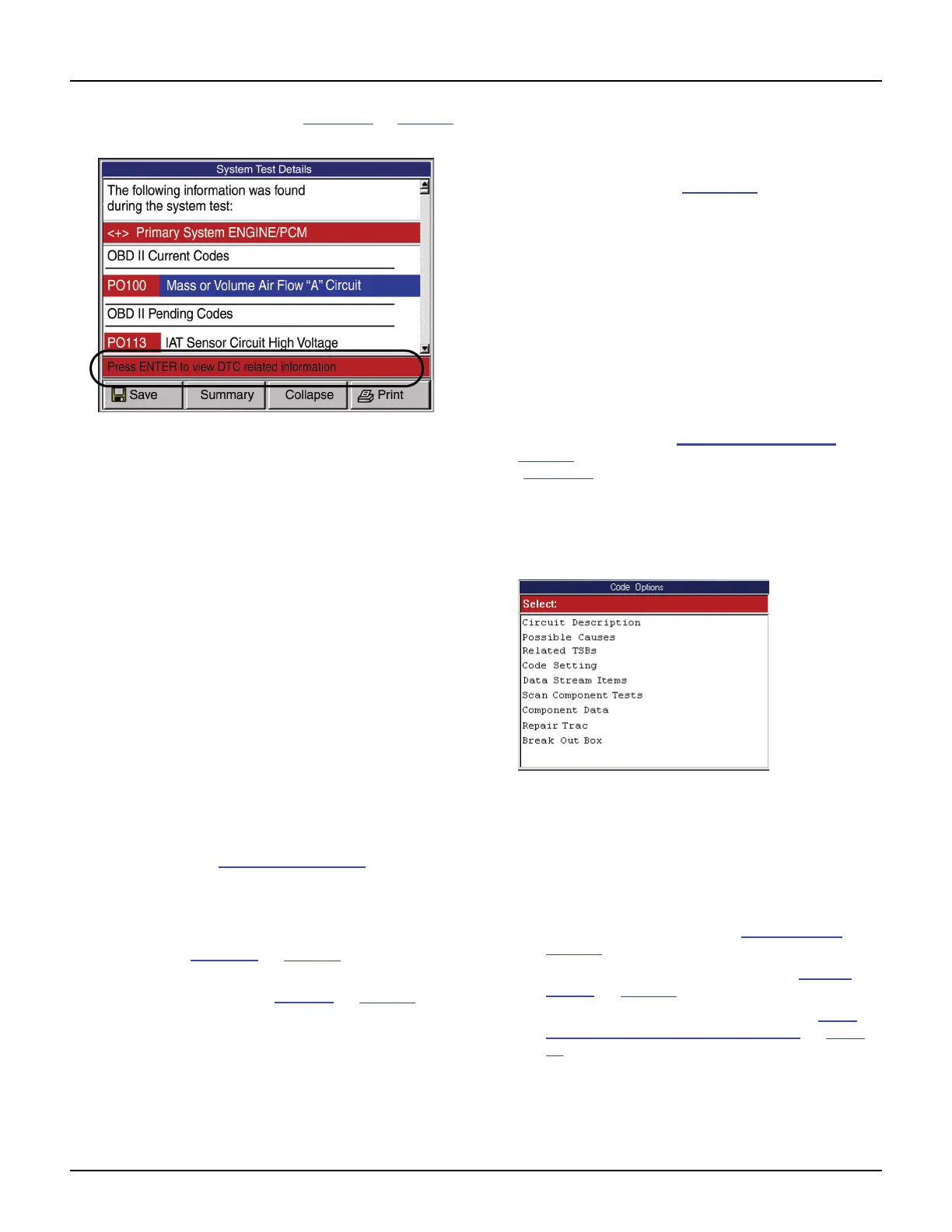
Figure 5.3: System Test Details Screen
5 Notice the following about the System Test Details
screen:
• You use the Up and Down Direction keys to
scroll through the results.
• The primary system results are listed first
with individual lines for DTCs and datastream
snapshot readings.
• The OBD-II results are listed next with
individual lines for DTCs, freeze frame data
(Mode 2), component tests (Mode 6), oxygen
sensor tests (Mode 5), readiness test results,
and datastream snapshot readings.
• The secondary systems are listed next, in
separate sections, along with individual lines
for DTCs and other test data that is available for
each system.
• The status bar at the bottom of the screen tells
you if additional information is available for a
selected line item. This applies to DTCs,
datastream snapshot items, freeze frame
items, and component test failures. Refer to the
next section (System Test Details
) for infor-
mation about viewing the test results.
• You can press the Save function key at the
bottom of the screen to save the test results for
later viewing with the Playback function.
(Refer to Playback
on page 75.)
• You can press the Print function key to print the
test results. (Refer to Printing
on page 83.)
• You can use the Summary function key to
return to the System Analysis Test Report
screen.
• Pressing the EXIT key exits the test.
System Test Details
With the Automated System Test, System Test
Details screen displayed (Figure 5.3), you can select
individual lines to view additional information about
each test item. The following sections describe the
types of test items.
Diagnostic Trouble Codes (DTCs)
When you select (highlight) the line for a DTC, if
there is additional information available about the
DTC, the status bar displays the message Press
ENTER to view DTC related information.
To view DTC information, follow these steps:
1 Follow the steps in the Basic Test Procedure on
page 23
to display the System Test Details screen
(Figure 5.3
).
2 Select the line for a DTC.
3 If the status bar indicates related information is
available, press the ENTER key. This displays a
Code Options screen.
Figure 5.4: Code Options Screen
4 Select an option and press the ENTER key.
5 Do any of the following as necessary:
• If a description screen appears, read and/or
print the description and use the EXIT key to
return to the previous screen.
• For viewing live data, refer to 7: Datastream
on
page 39.
• For Repair-Trac information, refer to Repair
Trac™ on page 55.
• For Break Out Box information, refer to PCM
Connector Pin Information (B.O.B) on page
60.
6 When finished, use the EXIT key to return to previous
screens.



 To Next Page