Scan Tool User Guide 7
Software Descriptions
1: General Information
Software Descriptions
This section describes the software currently avail-
able for the scan tool.
NOTE: This section does not describe any PC software
that is used along with the scan tool.
System 3.0
System 3.0 adds a number of enhancements that
reduce diagnostic time:
• Fast Boot™ technology - fast start-up.
• Quick DTC Scan - automatically scans all supported
systems for Trouble Codes. See Quick DTC Scan
(Supported Systems) on page 21.
• Automated System Test
™ - automatically scans all
supported systems for Trouble Codes, datastream,
Freeze Frame data (Mode 2), Component tests
(Mode 6), Oxygen Sensor Tests (Mode 5) and Read-
iness Tests (Mode 1). See Automated System
TestTM on page 23.
• Common Mode 6 items linked to repair information
(Special Tests).
• Readiness Monitors linked to Drive Cycle Tests
(Special Tests and Step 3: View the OBD II Quick
Test Results on page 19).
• Accessory / Cables / Glossary on the scan tool
(Repair Information Applications
on page 8).
Scan Tool Software
Installation / Activation / Updates
The scan tool software is installed on the scan tool
and also provided on a compact disc or flash card.
Scan tool applications are activated (unlocked) by
simply inserting an application Smart Card.
NOTE: With icon screens displayed, locked applications
have a padlock symbol next to the application icon. With
menu screens displayed, locked applications are listed at
the bottom of the menu and are grey (screen contrast
must be properly adjusted).
In addition, free software updates for the tool are
available periodically on the Internet at www.geni-
sysotc.com.
For complete instructions, refer to System 3.0
Upgrade (OTC P/N 543999) or NGIS Software Appli-
cation Installation and Updates (OTC P/N 551254).
Software Applications Overview
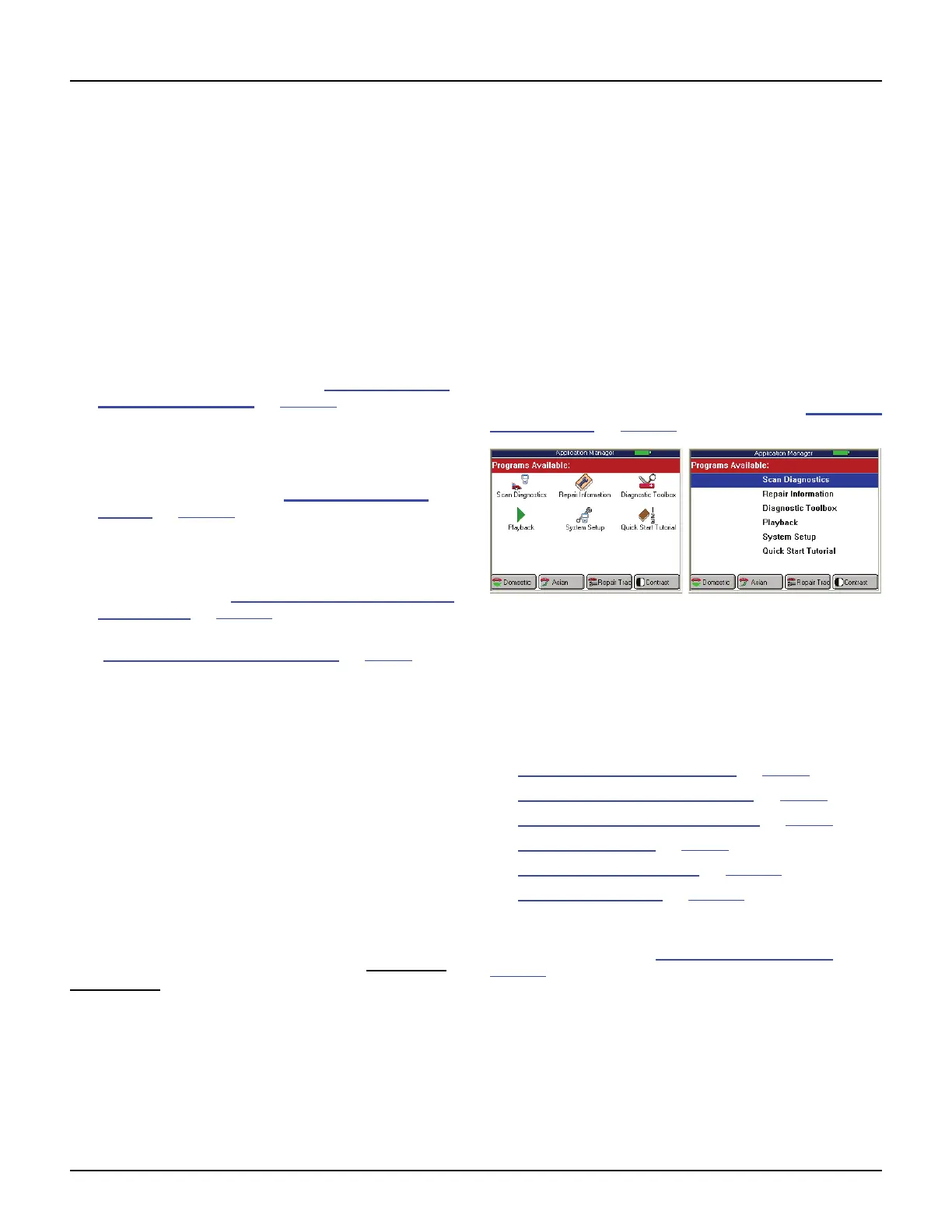
When you turn the scan tool on, the Application
Manager screen displays options for selecting the
software applications in the scan tool as shown
below and on the next few pages.
Application Manager Screen
The Application Manager screen contains either
icons or a menu of the groups of software installed in
the scan tool. All current software applications are
included in the scan tool, but only authorized
(unlocked) applications are available for use.
NOTE: You can change the screen to display either icons
or a menu as shown below. For details, refer to User Inter-
face Selection on page 80.
Figure 1.20: Application Manager Screen Examples
With the Application Manager screen displayed, you
use the Direction (arrow) keys to select an option and
then press the ENTER key to display the next
screen. The options on the Application Manager
screen are described in the next few sections as
follows:
• Scan Diagnostic Applications on page 8
• Repair Information Applications on page 8
• Diagnostic Toolbox Applications on page 9
• Playback Function on page 9
• System Setup Functions on page 10
• Quick Start Tutorial on page 11
NOTE: You can customize the four function keys at the
bottom of the screen for quick access to applications you
use frequently. Refer to User Interface Selection
on
page 80



 To Next Page