Scan Tool User Guide 59
Symptoms
10: Pathfinder Troubleshooting
Symptoms
The Symptoms option lets you view possible causes
and TSB numbers for specific malfunction symp-
toms.
1 Follow the steps in Basic Procedure on page 55 to
display the Pathfinder Troubleshooting screen (see
Figure 10.1
).
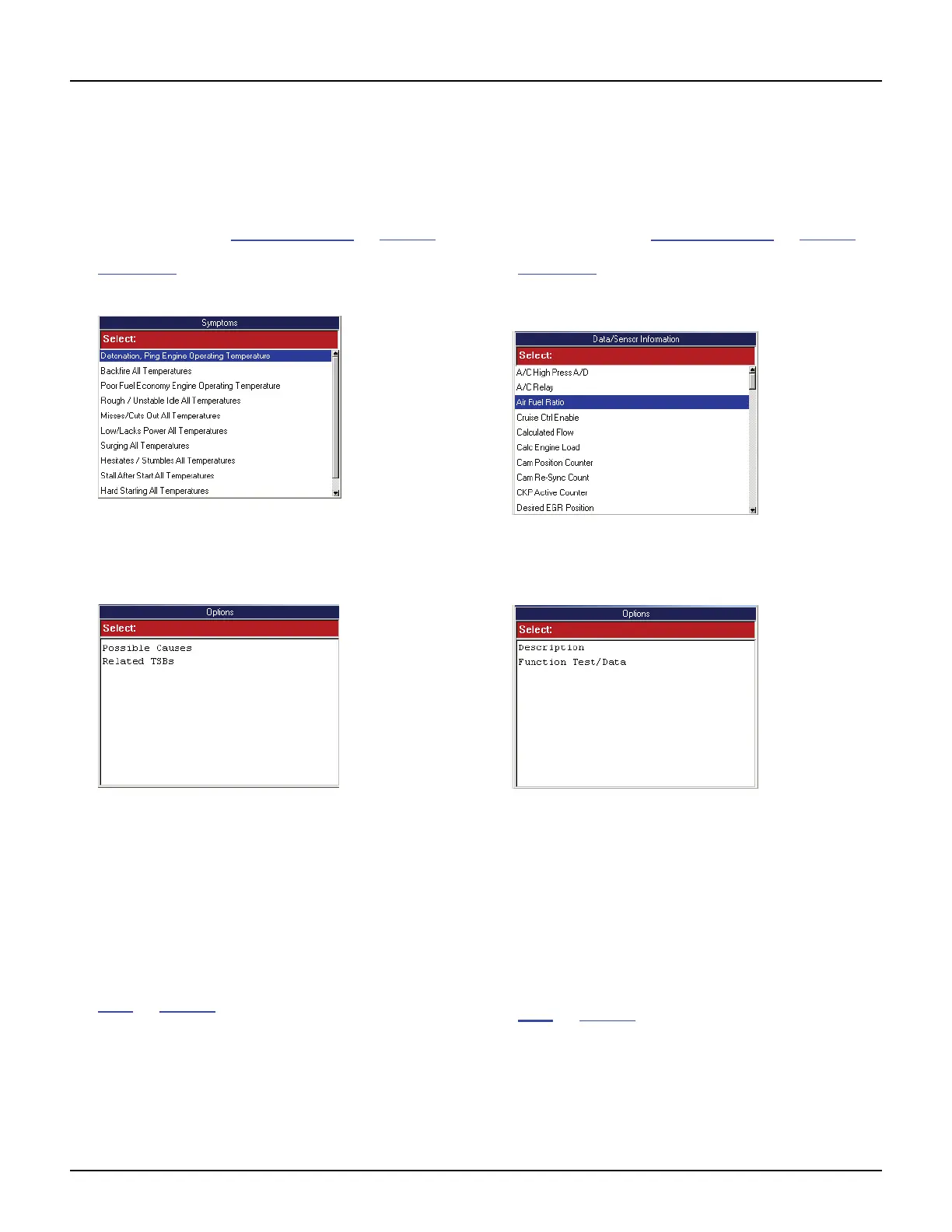
2 Select Symptoms and press the ENTER key.
Figure 10.10: Symptoms Screen
3 Select a symptom and press the ENTER key. This
displays an Options screen.
Figure 10.11: Options Screen
4 Select an option and press the ENTER key:
• Possible Causes - lists possible causes for the
symptom.
• Related Technical Service Bulletins (TSBs)
- lists TSBs associated with the symptom.
5 If you select Related TSBs, select a TSB and press
the ENTER key to view more information.
6 View the information and optionally print it. Refer to
Print
on page 46.
7 When finished, use the EXIT key to return to previous
screens.
Data/Sensor Information
The Data / Sensor Information function lets you view
vehicle-specific, sensor and switch descriptions and
typical data values.
1 Follow the steps in Basic Procedure on page 55 to
display the Pathfinder Troubleshooting screen (see
Figure 10.1
).
2 Select Data / Sensor Information and press the
ENTER key.
Figure 10.12: Data / Sensor Information Screen
3 Select an item and press the ENTER key. This
displays an Options screen.
Figure 10.13: Options Screen
4 Select an option and press the ENTER key:
• Select Description to view a description of the
selected sensor or switch on the Description
screen.
• Select Function Test / Data to view the typical
value or other information about the selected
sensor or switch on the Function Test / Data
screen.
5 View the information and optionally print it. Refer to
Print
on page 46.
6 Use the EXIT key to return to previous screens.



 To Next Page