Scan Tool User Guide 55
10: Pathfinder Troubleshooting
The Pathfinder Troubleshooting function lets you
access the Pathfinder Troubleshooting software
functions from within the Scan Diagnostics applica-
tions. This option lets you view vehicle-specific infor-
mation for some vehicles.
NOTE: You can also access the Pathfinder Troubleshoot-
ing functions by doing one of the following:
• From the Datastream screen, press the More
function key and select the Pathfinder option.
For details, refer to Pathfinder
on page 45.
• From the DTC Information screen, press the
Pathfinder function key. For details, refer to
Read and Display Codes
on page 27.
Basic Procedure
To access the Pathfinder Troubleshooting func-
tions, follow these steps:
1 Follow the instructions in Test Startup and Vehicle
Connection on page 16 to display the Diagnostic
Menu screen.
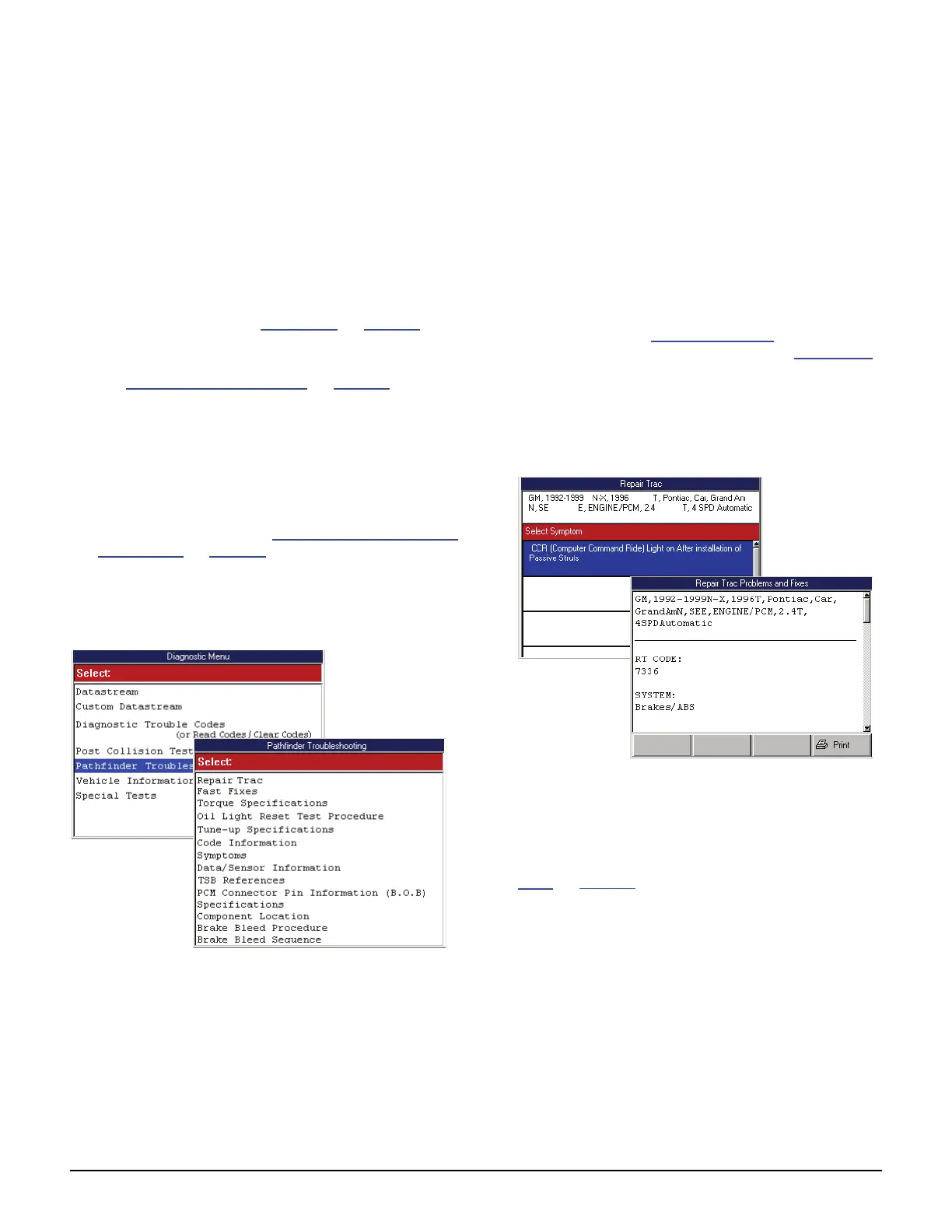
2 Select Pathfinder Troubleshooting and press the
ENTER key to display the Pathfinder Troubleshooting
screen (shown below).
Figure 10.1: Diagnostic Menu Screen and Pathfinder
Troubleshooting Screen
3 Select the item to view and press the ENTER key.
4 Refer to the remaining sections in this chapter for
specific instructions for each option on the Pathfinder
Troubleshooting screen.
Repair Trac™
The Repair Trac™ option lets you access the Repair
Trac software from within the Scan Diagnostic appli-
cations. The Repair Trac software contains repair
instructions for hard-to-diagnose “pattern failures.”.
NOTE: You can also access the Repair Trac™ software
from the scan tool’s Repair Information menu. If you do
this, you will need to enter the vehicle information again.
1 Follow the steps in Basic Procedure
to display the
Pathfinder Troubleshooting screen (see Figure 10.1).
2 Select Repair Trac™ and press the ENTER key to
display the Repair Trac Symptoms screen.
3 From the list of symptoms, select a symptom to view
and press the ENTER key. This displays the
Problems and Fixes screen (shown below).
Figure 10.2: Repair Trac Symptoms Screen and Repair Trac
Problems and Fixes Screen
NOTE: The RT (Repair Trac) Code on the screen
is not a part of any diagnostic trouble code (DTC).
4 View the description and optionally print it. Refer to
Print
on page 46.
5 Use the EXIT key to return to previous screens.



 To Next Page