Scan Tool User Guide 1
1: General Information
Introduction
The scan tool is an easy-to-use tool for reading infor-
mation from a vehicle’s electronic control units.
With the tool properly connected to a vehicle’s data
link connector (DLC), you can use the tool to read
diagnostic trouble codes and view “live” data read-
ings from the vehicle’s ECUs. You can save “record-
ings” of the data readings, print information, and
perform special device control tests on the vehicle.
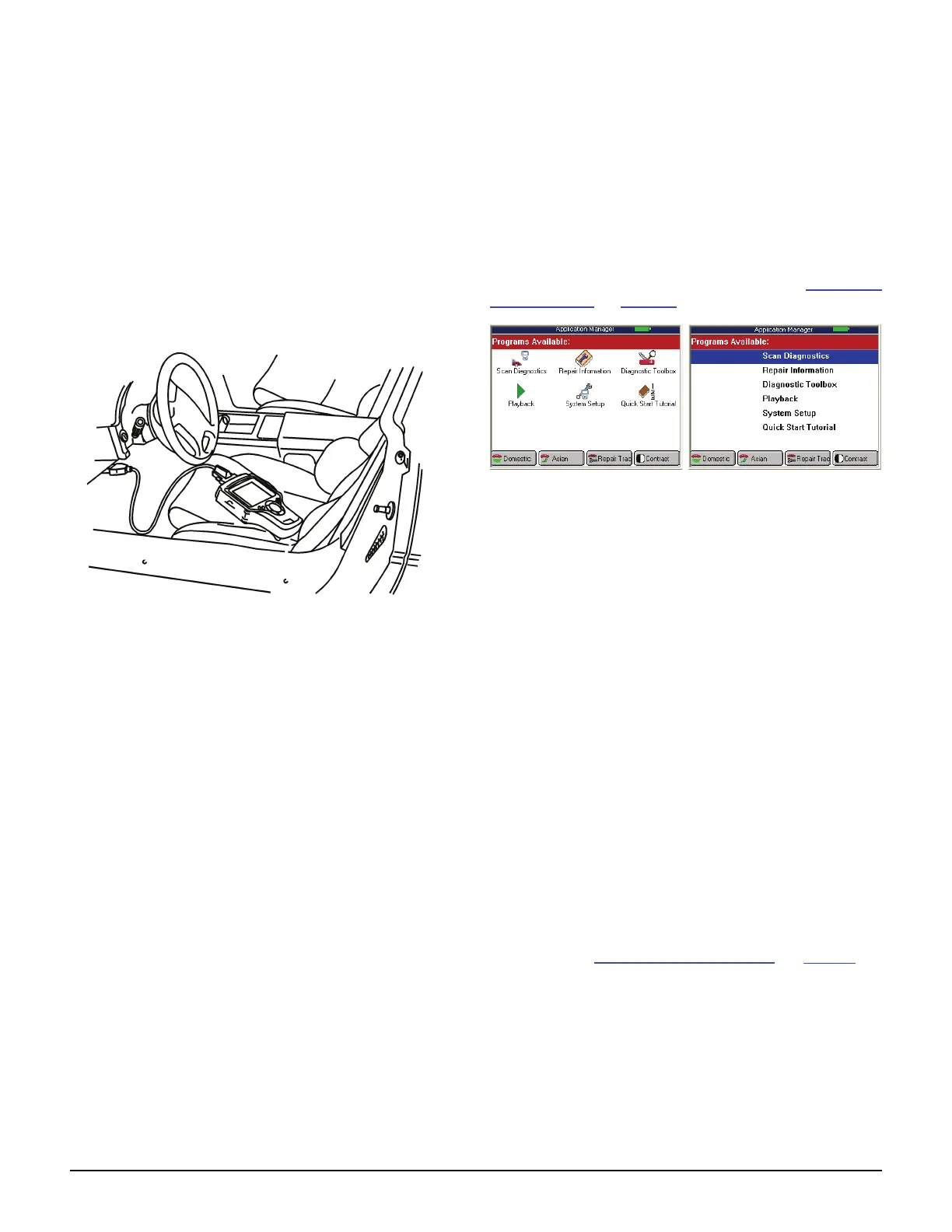
Figure 1.1: Scan Tool Connected to Vehicle DLC
In addition, you can use the scan tool to look up
special repair information and instructions without
being connected to a vehicle.
When you turn the scan tool on, the Application
Manager screen displays icons (or a menu) for
selecting the software applications in the scan
tool as shown and described below.
NOTE: You can change the screen to display either icons
or a menu as shown below. For details, refer to User Inter-
face Selection on page 80.
Figure 1.2: Application Manager Screen Examples
• Scan Diagnostics - this option leads to the vehicle
diagnostic software applications: Domestic, Asian,
ABS/ Air Bag, European, Latin America, Global
OBD II, Heavy Duty, and GM SPS Reprogramming
Module.
• Repair Information - this option leads to the repair
information software applications: Repair-Trac
™,
Fast Fixes
™, Code Library, and InfoTech.
• Diagnostic Toolbox - this option leads to the
specialized diagnostic software applications:
Remote Display, Scope Multimeter, Scope
with InfoTech, Gas M-P, and ConnecTech.
• Playback - leads to a screen for viewing saved data
recordings.
• System Setup - leads to screens for adjusting default
scan tool settings and viewing system information.
• Quick Start Tutorial - for viewing an overview of how
to use the scan tool keys and screens.
• Function Keys - four function keys at the bottom of
the screen are for quick access to applications or
functions that you use frequently.
For more information about these software applica-
tions, refer to Software Descriptions
on page 7.



 To Next Page