76 Scan Tool User Guide
Copy Files To / From USB Drive
16: Playback
Copy Files To / From USB Drive
The Copy Files function lets you copy saved files to
and from a portable USB Drive for either temporary
or permanent storage.
To copy files to or from a portable USB drive,
follow these steps:
IMPORTANT: Do not insert or remove the USB Drive
with the tool turned on; exit the application, turn the
tool off, and then insert or remove the drive.
1 Turn the Scan tool off.
2 Insert the portable USB drive into the port on the top
of the scan tool.
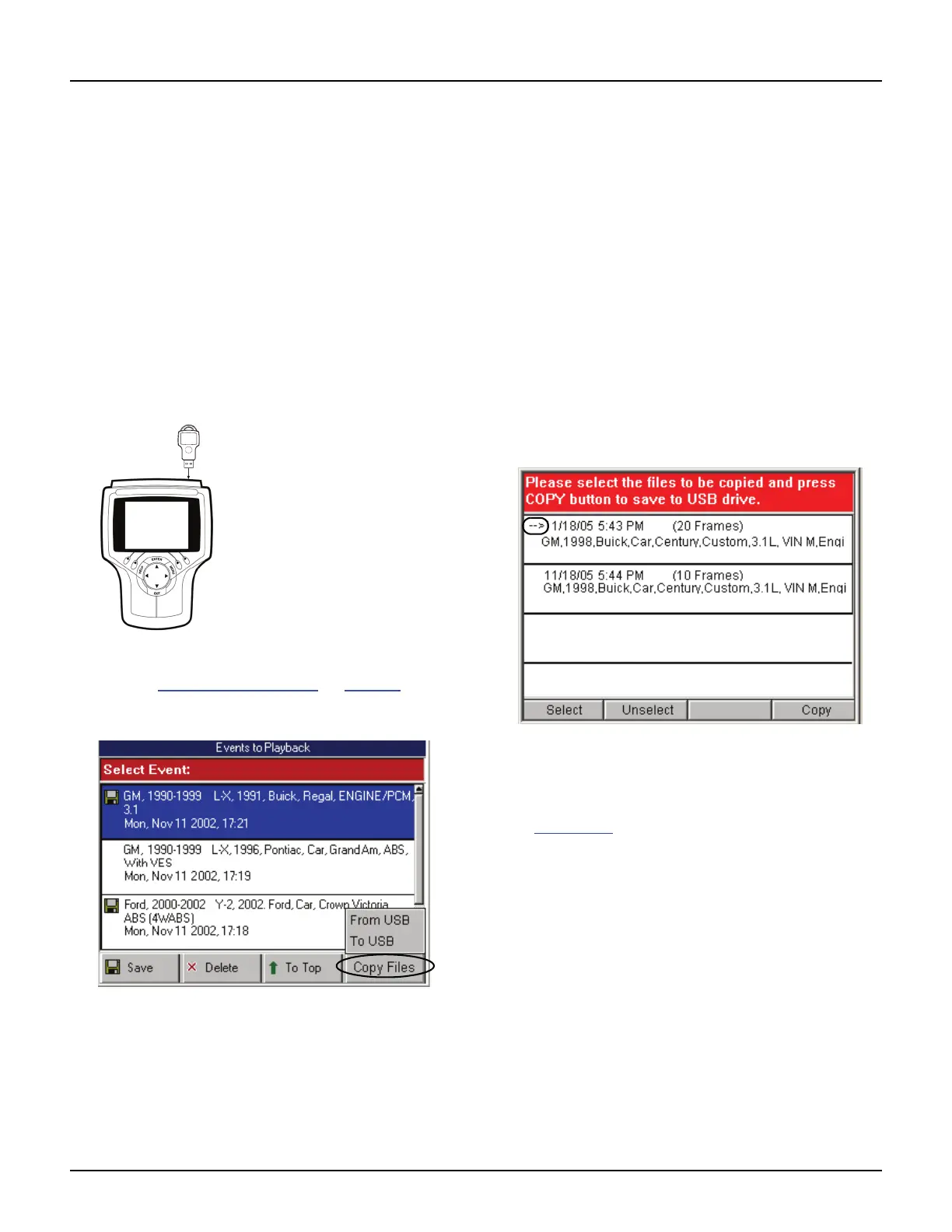
Figure 16.4: Connect USB Drive to Scan Tool
3 Refer to Playback Instructions on page 75 and
follow the steps to display the Events to Playback
screen.
Figure 16.5: Events to Playback Screen
4 Press the Copy Files function key. This displays the
copy files menu, shown above.
5 Select an option and press the ENTER key as
follows:
• Select From USB to copy files from the USB
drive to the scan tool.
NOTE: The tool holds up to 25 files. If neces-
sary, delete files from the tool to make room for
copying files from the USB drive.
• Select To USB to copy files from the scan tool
to the USB drive.
NOTE: The number of files you can copy
depends on the free space available on the
USB drive.
6 After selecting a copy option, a message screen
appears. If instructed, press the ENTER key to
continue. This displays a list of files to copy.
Figure 16.6: Copy Files Screen
7 For each file to copy, select the file and then press
the Select function key. This places a small arrow to
the left side of the file name, as shown for the top line
in Figure 16.6
.
NOTE: To deselect a selected file, select the file
and then press the Unselect function key.
8 After selecting files, press the Copy function key to
begin the file copy.
9 Wait for the files to copy and for a message screen to
display the results of the copy.
10 Press the EXIT key to return to previous screens.
11 Turn the scan tool off and remove the USB drive.



 To Next Page