78 Scan Tool User Guide
Printer Selection
17: System Setup
Printer Selection
The Printer Selection function lets you select a
printer for printing from the scan tool.
1 Follow the steps in Basic Procedure on page 77 to
display the System Setup screen (see Figure 17.1
).
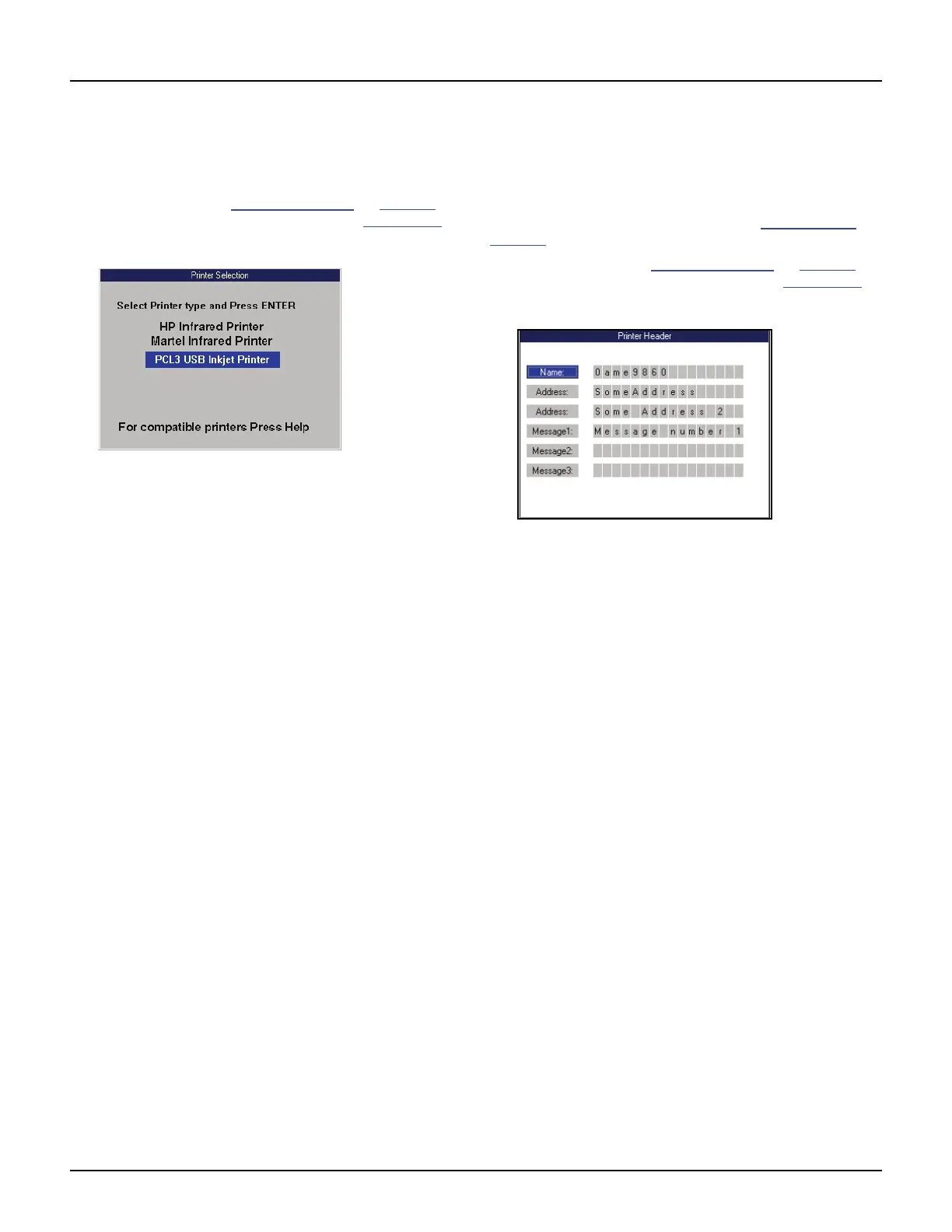
2 Select Printer Selection and press the ENTER key.
Figure 17.3: Printer Selection Screen
3 Select a printer and press the ENTER key.
IMPORTANT PRINTING NOTES:
• The USB Inkjet printer is recommended.
• When printing, do not press any keys on the
tool until the printing stops.
• If using an infrared printer, make sure the
distance between the tester and printer is less
than 3 feet; point the top of the tester at the
printer’s infrared LED until the printing stops.
• Press the HELP key to see a complete listing
of compatible printers.
Printer Header
The Print Header function lets you set up a heading
for reports that you print from the scan tool.
NOTE: You can turn the Print Header function on and off
with the Unit Defaults settings. Refer to Unit Defaults
on
page 79
.
1 Follow the steps in Basic Procedure
on page 77 to
display the System Setup screen (see Figure 17.1
).
2 Select Printer Header and press the ENTER key.
Figure 17.4: Printer Header Screen
3 Use the Up and Down Direction keys to select
Name, Address, or Message.
4 Press the Right Direction key once to move to the
first edit box.
5 Use the Up and Down Direction keys to select a
character for the box.
NOTE: To remove a character and leave a box
blank, select the character that is blank (it is
between 0 and A).
6 Press the Right Direction key to select the next box.
NOTE: Pressing the Left Direction key selects the
previous box.
7 Repeat steps 5 and 6 until the line is entered as you
want it.
8 Repeatedly press either the Left or Right Direction
key to return to the Name, Address, or Message box.
9 Repeat steps 3 through 8 until all the information is
entered.
10 Use the EXIT key to return to previous screens.



 To Next Page