80 Scan Tool User Guide
Technical Support
17: System Setup
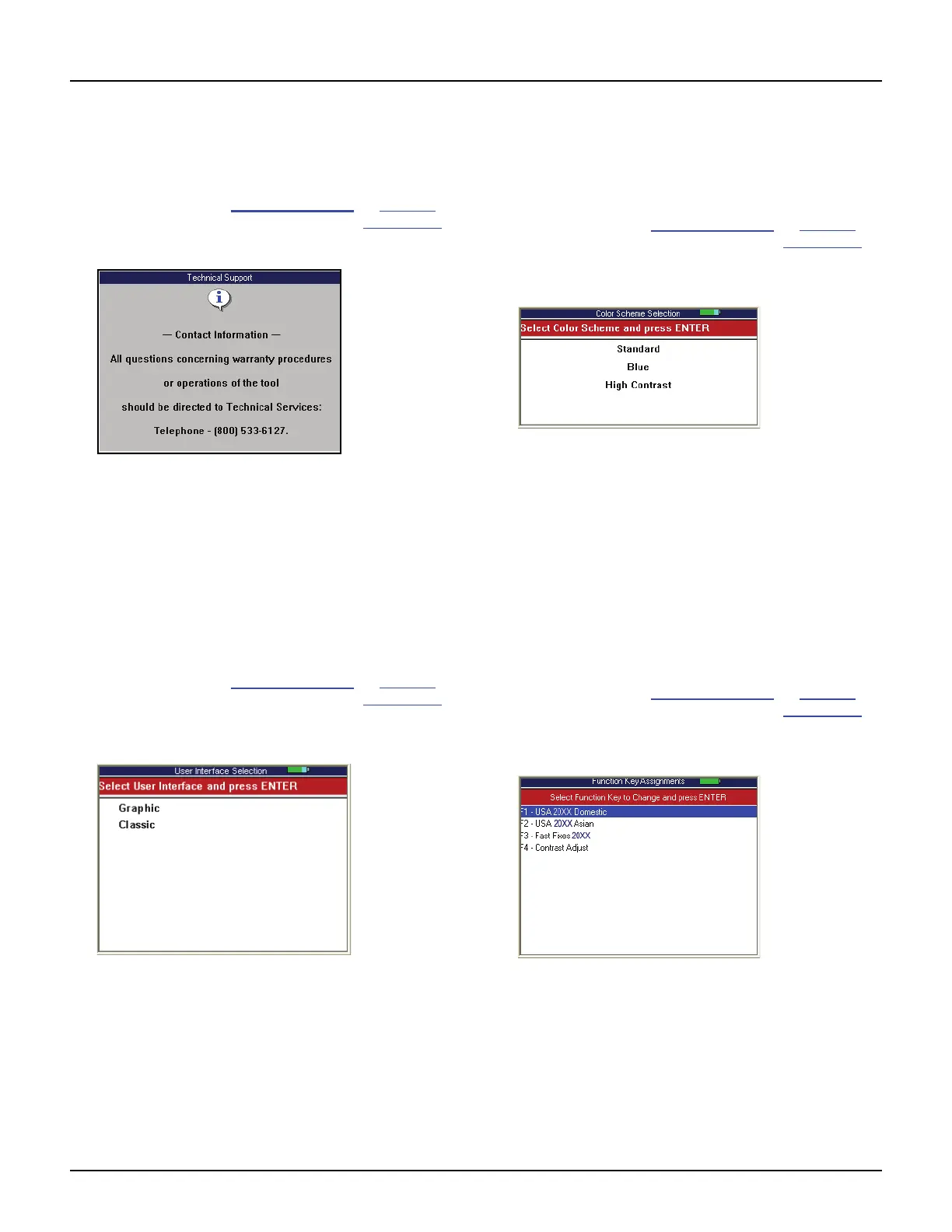
Technical Support
The Technical Support function displays technical
support information.
1 Follow the steps in Basic Procedure on page 77 to
display the System Setup screen (see Figure 17.1
).
2 Select Technical Support and press the ENTER key.
Figure 17.8: Technical Support Screen
3 View the information.
4 Use the EXIT key to return to previous screens.
User Interface Selection
The User Interface Selection function lets you set the
scan tool main screens to display options as either
icons or menus.
1 Follow the steps in Basic Procedure on page 77 to
display the System Setup screen (see Figure 17.1
).
2 Select User Interface Selection and press the
ENTER key.
Figure 17.9: Interface Selection Screen
3 Select an option and press the ENTER key:
• Select Graphic to have the screens display
options as icons.
• Select Classic to have the screens display
options as menus.
4 Follow the instructions that appear on the screens.
The scan tool will have to be turned off and back on.
Color Scheme Selection
The Color Scheme Selection function lets you set the
color of the background and text that appears on the
scan tool screens.
1 Follow the steps in Basic Procedure on page 77 to
display the System Setup screen (see Figure 17.1
).
2 Select Color Scheme Selection and press the
ENTER key.
Figure 17.10: Color Scheme Selection Screen
3 Select a color scheme and press the ENTER key.
4 Follow the instructions that appear on the screens.
The scan tool may have to be turned off and back on.
Function Key Assignment
The Function Key Assignment function lets you
assign specific frequently-used applications to the
function keys at the bottom of the Application
Manager screen.
1 Follow the steps in Basic Procedure on page 77 to
display the System Setup screen (see Figure 17.1
).
2 Select Function Key Assignments and press the
ENTER key.
Figure 17.11: Function Key Assignments Screen
3 Select a function key to change and press the
ENTER key. This displays a list of applications and
functions.
4 Select the item to assign to the selected function key
and press the ENTER key. Repeat for each key.
5 When finished, press the EXIT key and follow the
instructions that appear on the screen.



 To Next Page