18 Scan Tool User Guide
Test Startup and Vehicle Connection
3: Scan Diagnostics Applications
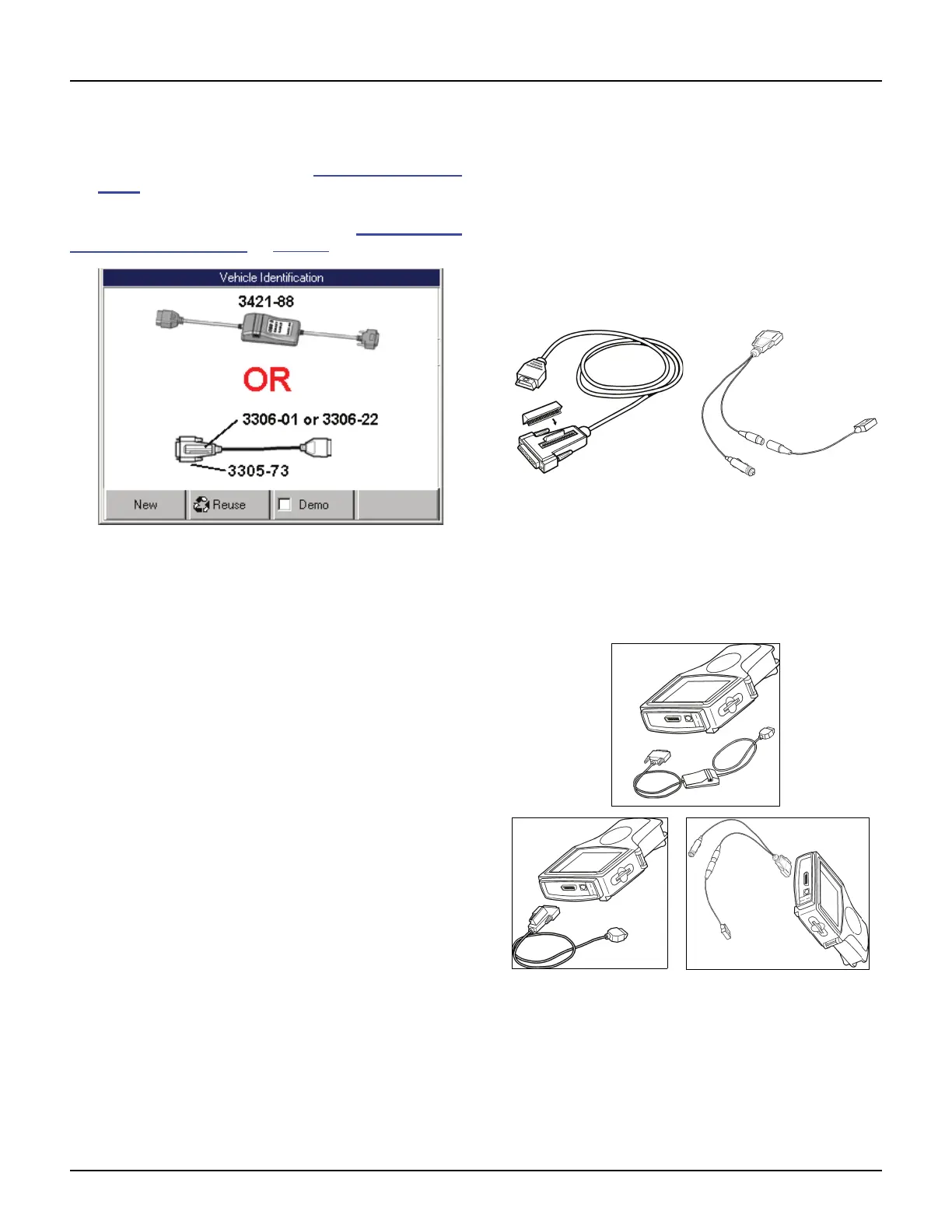
8 With the Required Cables displayed on the Vehicle
Identification screen, make the required cable
connections as shown on the screen. For specific
steps, refer to the next section (Step 2: Connect the
Cable).
NOTE: If the screen states that no cable connection is
required, press the ENTER key and go to Step 4: Select
the Diagnostic Function on page 20.
Figure 3.9: Vehicle Information - Required Cables Screen
NOTE: For some vehicles (pre-OBD II and heavy duty),
the Required Cables screen may illustrate the vehicle
DLC connector instead of the required cable(s).
Step 2: Connect the Cable
The method used to connect the scan tool to a vehi-
cle’s DLC depends on the vehicle’s configuration as
follows:
• OBD II - A vehicle equipped with an On Board Diag-
nostics Two (OBD II) vehicle management system
uses the OBD II Smart cable (3421-88). If the OBD II
cable is not available, use a System Smart 25-pin
cable (3305-73). This cable is used along with a
System Smart Insert (SSI). Both the OBD II Smart
cable and the System Smart 25-pin cable supply
communication and 12-volt power through a stan-
dardized J-1962 data link connection (DLC).
• Non-OBD II - A vehicle not equipped with an OBD II
system generally uses the DB25 Power cable (3305-
72), which supplies communication through a DLC
connection and supplies 12-volt power through the
cigarette lighter receptacle or a connection to the
battery. This cable is used along with a vehicle cable
adapter. (Some non-ODB II vehicles may require the
System Smart 25-pin cable.)
NOTE: Connections described above charge the scan
tool’s battery while connected.
To connect the cable, follow these steps:
1 Locate the required cable and any SSI or cable
adapter as required.
2 If necessary, do one of the following:
• For the System Smart 25-pin cable, insert the
SSI into the port on the top of the cable’s 25-pin
connector.
• For the DB25 Power cable, connect the
adapter’s 8-pin connector to the cable’s
8-pin connector.
Figure 3.10: SSI Connection to System Smart 25-pin cable (shown
on left) and Adapter Connection to DB25 Power Cable (shown on
right).
3 Connect the cable’s 25-pin connector to the DB25 port
on the top of the scan tool. Finger tighten the screws.
NOTE: Extension cable (3305-71) can be used
between the scan tool and the cable.
Figure 3.11: Cable Connection to Scan Tool: OBD II Smart Cable
(shown at top, center), System Smart 25-pin cable (shown at
bottom, left), and DB25 Power Cable (shown at bottom, right)



 To Next Page