Scan Tool User Guide 23
5: Automated System Test
TM
The Automated System Test™ does an automatic
test of the ECU being tested (primary system) and
any other ECUs (secondary systems) that can be
read, does an OBD-II test (if OBD-II), and then
displays a summary of the test results.
From the summary, you can view live data and
detailed test results, such as DTC descriptions and
related repair information, datastream snapshots,
freeze frame data, component test failure informa-
tion, oxygen sensor test results and system readi-
ness test results.
The Automated System Test includes functions from
other scan tool applications, such as Pathfinder,
Repair-Trac, InfoTech, and Fast Fixes (see
Software Descriptions
on page 7.
Basic Test Procedure
To use the Automated System Test™, follow
these steps:
1 Follow the instructions in Test Startup and Vehicle
Connection on page 16 to display the Diagnostic
Menu screen.
Figure 5.1: Diagnostic Menu Screen
2 Select Automated System Test™, press the ENTER
key, and wait for the summary test results to appear
on the System Analysis Test Report screen.
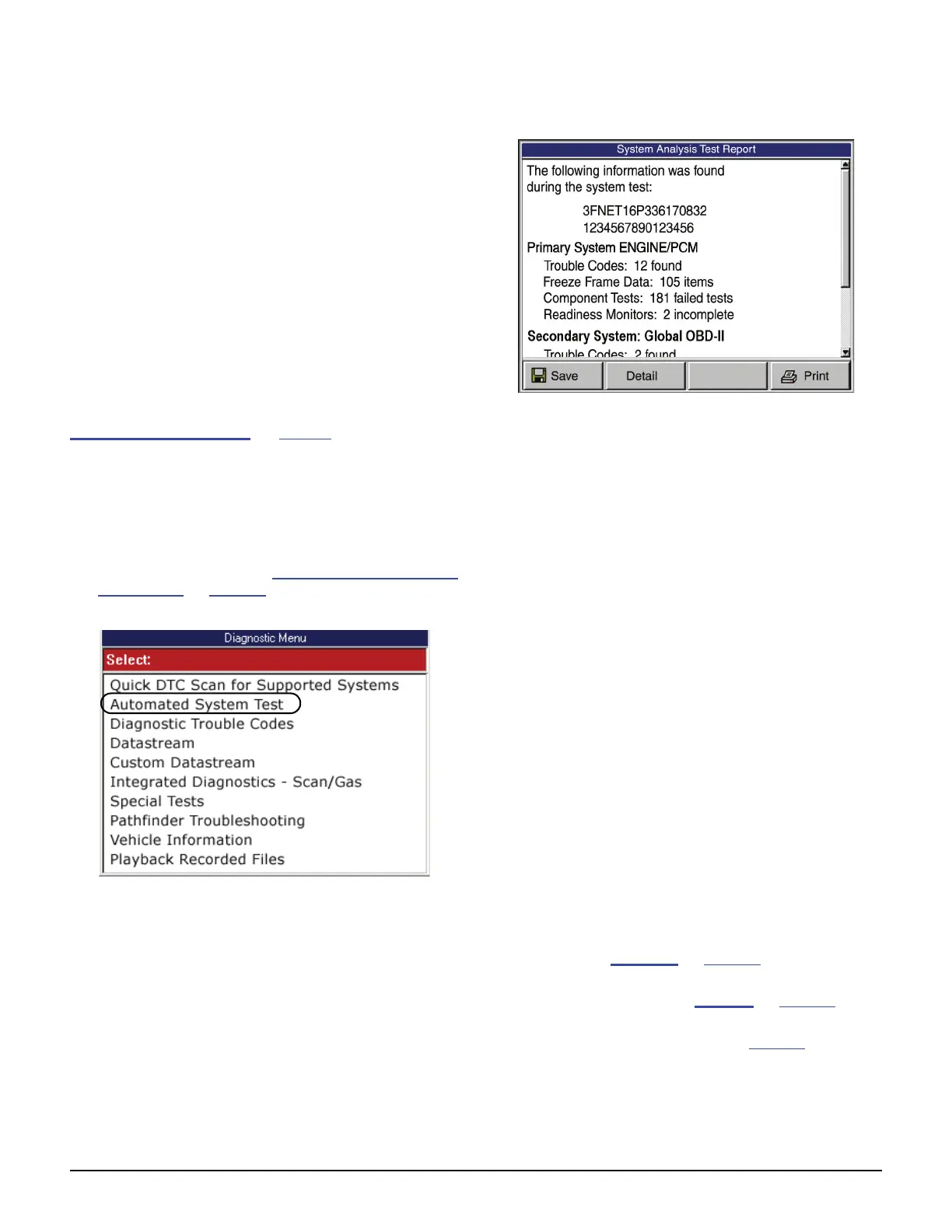
Figure 5.2: System Analysis Test Report Screen
3 Notice the following about the System Analysis Test
Report screen:
• You use the Up and Down Direction keys
to scroll through the data and to select lines
(one line at a time).
• You use the Right and Left Direction keys to
scroll one screen at a time.
• The top line displays the vehicle VIN number
(if available).
• The second line displays the calibration
identification number for the primary system
(if available).
NOTE: The primary system is the vehicle ECU
selected during the vehicle setup.
• The third line displays the name of the primary
system along with count numbers for the
various system tests.
• The remaining lines display the names and
counts for Global OBD-II and/or any secondary
system tests.
NOTE: The secondary systems are all other
ECUs that can be read through the cable
connection (or with the SSI if used).
• You can press the Save function key at the
bottom of the screen to save the test results for
later viewing with the Playback function.
(Refer to Playback
on page 75.)
• You can press the Print function key to print the
test results. (Refer to Printing
on page 83.)
• You can use the Detail function key to view test
details. Go to step 4 on page page 24
.
• Pressing the EXIT key exits the test.



 To Next Page