– 63 –
Chapter 5 Basic Operations — KEY
Item Description
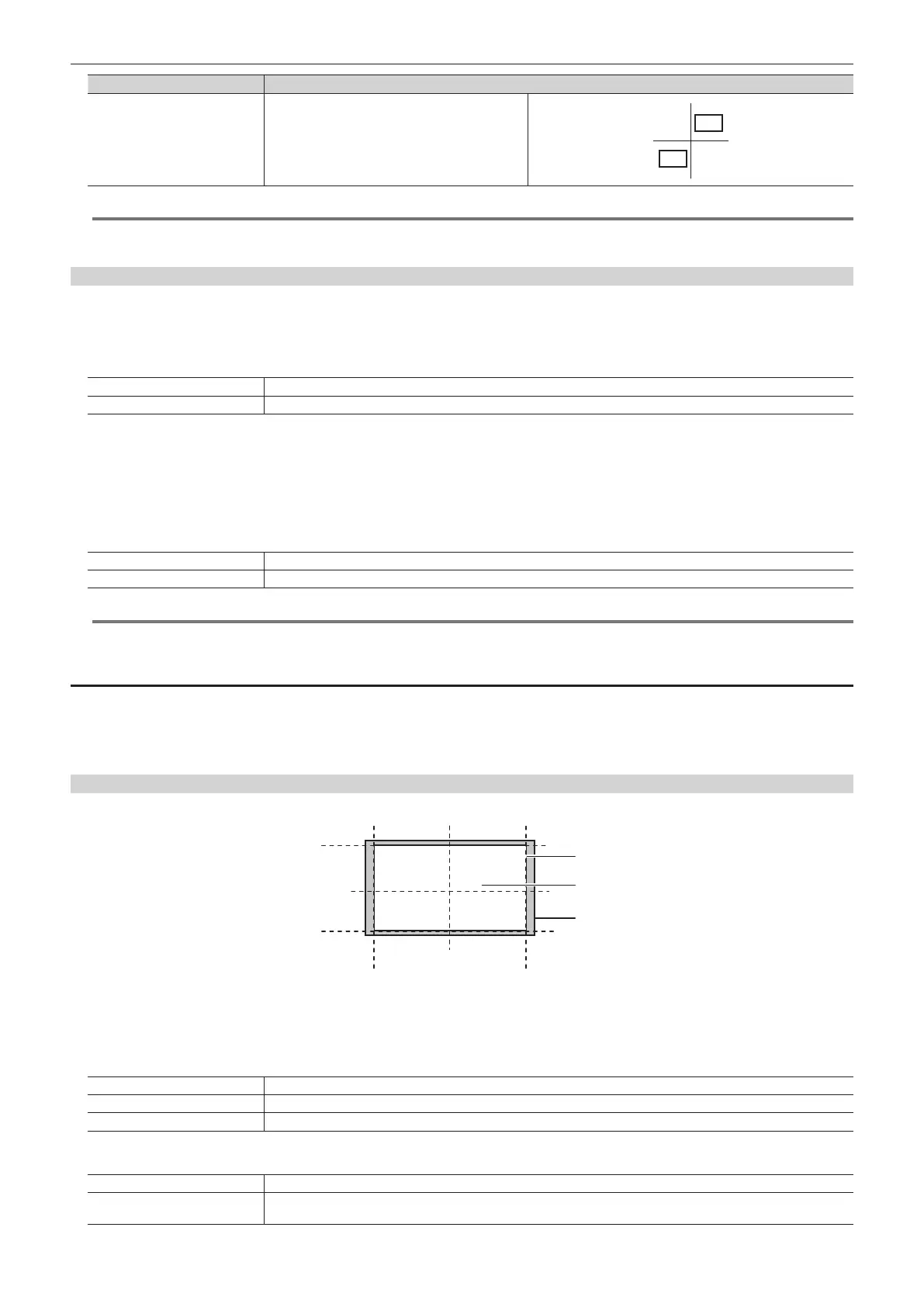
[Center]
Makes the coordinates and rotation angle
symmetrical to the center.
@@
NOTE
t Do not set each other, such as selecting [Key2] in [Key1] and selecting [Key1] in [Key2] at [Target] in the [Sync] column. Normal operation may not be
performed if set each other.
PinP decorations
Add a border or soft effect to PinP.
1
Select the <ME1>/<ME2> button → [KEY1] to [KEY4] → [PinP Adjust] tab.
2
Select an item in [Border] in the [Border] column.
[Off] Does not add the border effect.
[On] Adds the border effect.
3
Set [Width] in the [Border] column.
f Sets the border width.
4
Set [Soft] in the [Border] column.
f Sets the amount of soft effect. When set to [0.0], the soft effect is disabled.
5
Set an item in [Mode] in the [Border] column.
[Fix] Keeps the border width constant.
[Variable] Changes the border width to suit the PinP size.
@@
NOTE
t When [Border] in the [Border] column is set to [On], the amount of soft effect set using [Soft] in the [Border] column is indicated as the ratio of soft
effect to the border width. To add only soft effect to PinP, set [Border] in the [Border] column to [Off].
Setting the border color
1
Select the <ME1>/<ME2> button → [KEY1] to [KEY4] → [PinP Adjust] tab.
2
Adjust the color.
f Set [Hue], [Sat], [Lum], or [Color Palette] in the [Border Color] column.
Setting the trimming
Set the trimming type and values as well as operation for when manual is set. The default setting is as shown in the following gure.
PinP effective area
Area trimmed
Original size of PinP
[Right][Left]
[Top]
[Bottom]
[50]
[40]
[0]
[−40]
[−50]
[−50]
[0] [50]
[−40]
[40]
1
Select the <ME1>/<ME2> button → [KEY1] to [KEY4] → [PinP Adjust] tab.
2
Select an item in [Trim] in the [Trim] column.
[Off] Does not perform trimming.
[4:3] Trims automatically so that the aspect ratio is 4:3.
[Manual] Trims using the values set with [Trim Adjust1] and [Trim Adjust2].
3
Select an item in [Manual] in the [Trim] column.
[Free] Sets the amount of trimming for [Left], [Right], [Top], and [Bottom] separately.
[Pair]
Changes the settings in such a way that the [Left] and [Right] trimming amounts, and the [Top] and [Bottom] trimming
amounts are the same. (This makes for a top-bottom and left-right symmetry.)





 To Next Page