– 64 –
Chapter 5 Basic Operations — KEY
4
Set [Left], [Top], [Right], and [Bottom] in [Trim Adjust1]/[Trim Adjust2].
f Set the trimming value. The [Left] setting cannot exceed the [Right] setting (and vice versa), and the [Top] setting cannot exceed the [Bottom]
setting (and vice versa).
[Left] Sets the left trimming value.
[Top] Sets the top trimming value.
[Right] Sets the right trimming value.
[Bottom] Sets the bottom trimming value.
Setting the priority
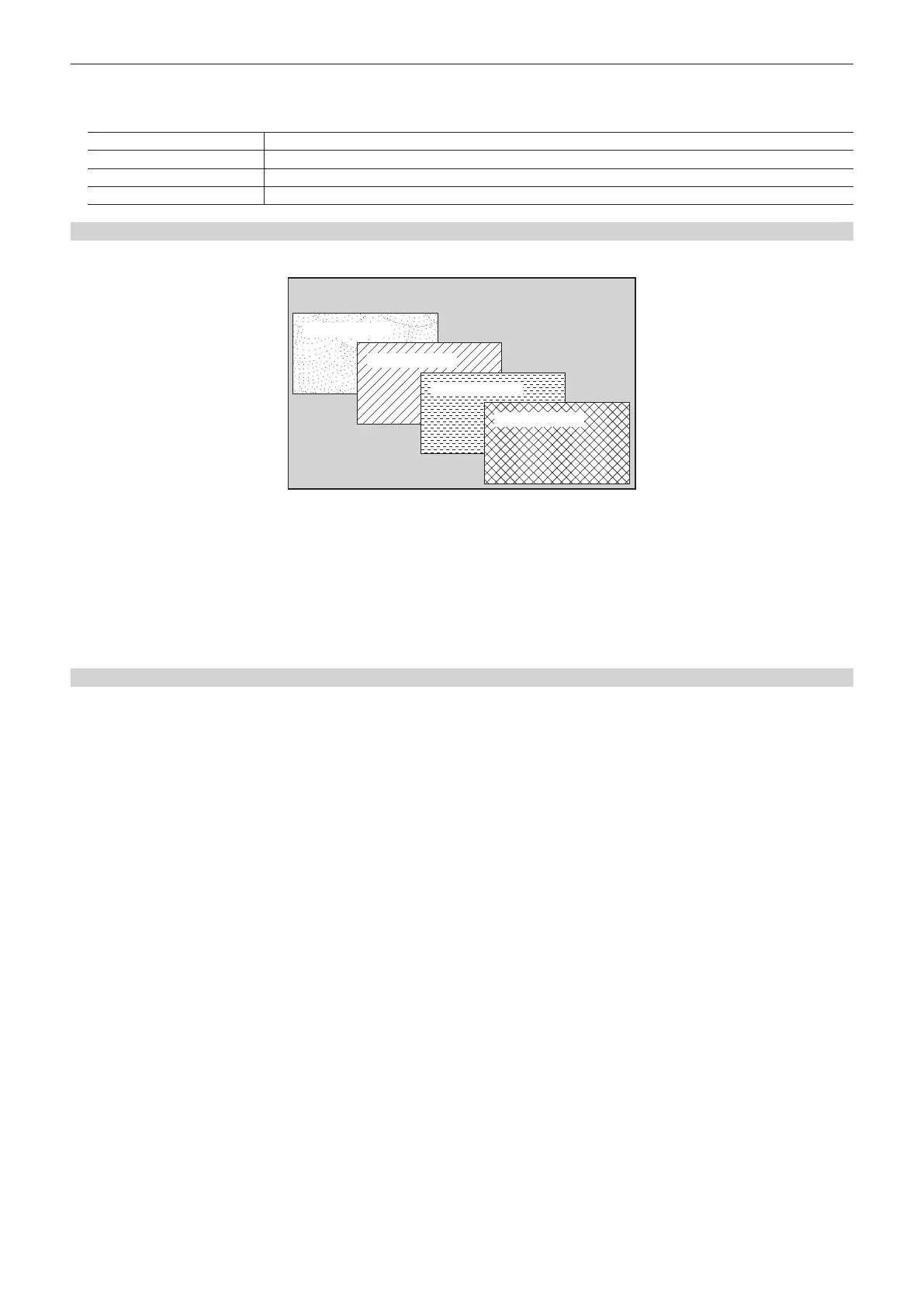
Set the priority (image positioning). The default setting is as shown in the following gure.
Background image
[Key4]: [1st]
[Key3]: [2nd]
[Key2]: [3rd]
[Key1]: [4th]
1
Select the <ME1>/<ME2> button → [MISC] → [Misc] tab.
2
Select an item in [Key1] to [Key4] in the [Key Priority] column.
f Select the priority for any key from [1st] to [4th].
f Changing the setting of one item will change the settings of other items accordingly. In the default setting, if [Key1] is changed from [4th] to [1st],
then the settings of [Key2] to [Key4] also change as follows.
- [Key2]: [3rd] → [4th]
- [Key3]: [2nd] → [3rd]
- [Key4]: [1st] → [2nd]
Setting [Key On Link]
Combine [Key1] to [Key4] in the same ME to start transitions simultaneously.
1
Select the <ME1>/<ME2> button → [MISC] → [Misc] tab.
2
Select an item in [Key1] to [Key4] in the [Key On Link] column.
f Select [Off] or [On] for any key.
Example) When [Key1] and [Key3] are set to [On], and [Key2] and [Key4] are set to [Off]
Pressing the <KEY1 TRNS> button starts transitions of [Key1] and [Key3] at the same time.













 To Next Page