84
Polyend Play+ Manual Rev 2
NOTES
▌ SELECTING A SYNTH
1. Ensure the project in which to work is open and active.
2. Switch Play+ to change Audio/MIDI Mode. Press [Shift] + [Audio/MIDI].
The Function buttons will be lit purple for MIDI and Synth tracks as
opposed to green when purely in audio sample track mode.
3. Turn the (Sample) knob which is now assigned to the device list. The
three synth slots can be found in the device list along with the MIDI
device options.
4. Double tap (Sample) or press the lower left screen button to choose the
secondary patch parameter. Turn (Patch) to select a synth preset patch.
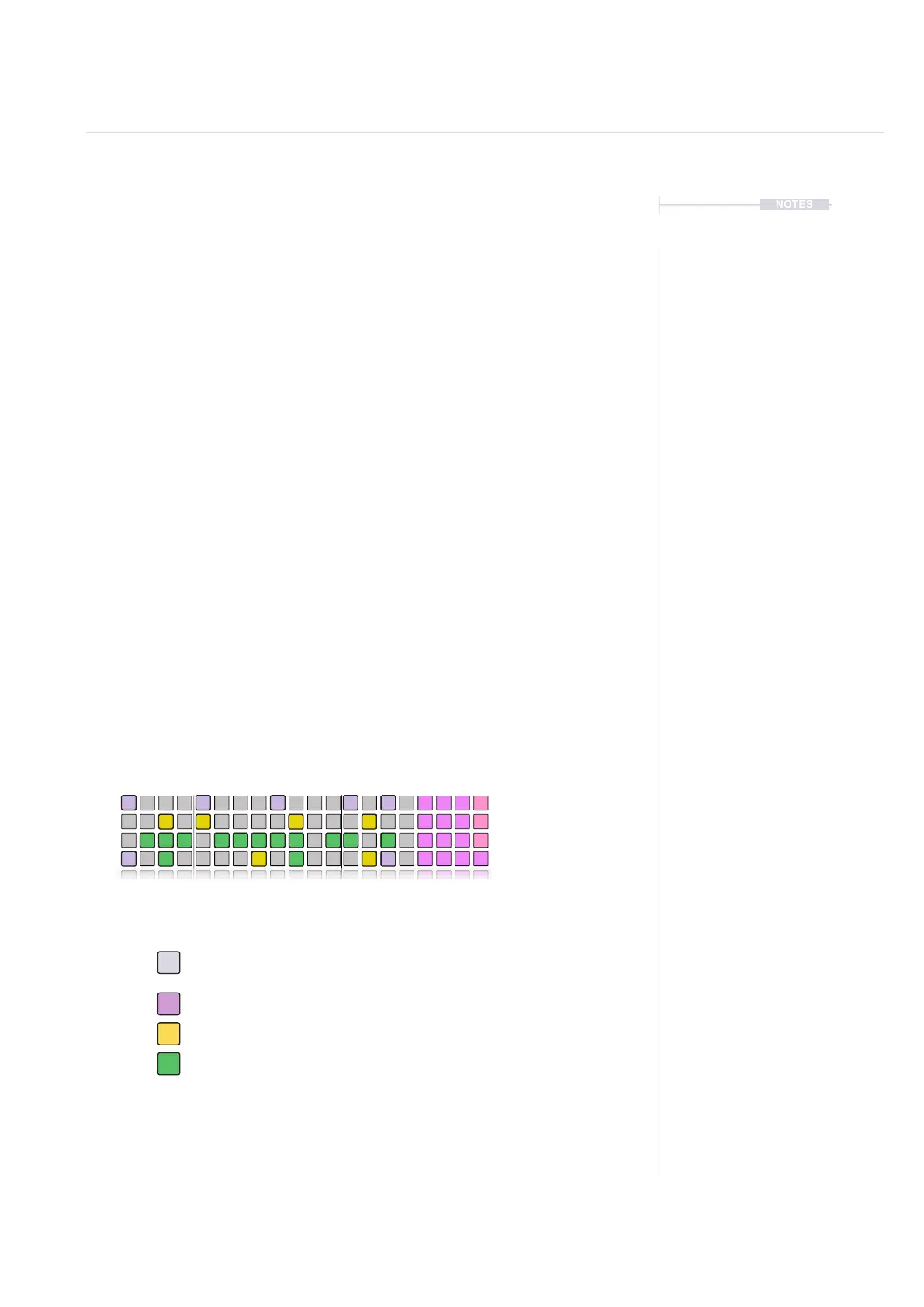
5. Press a [Pad] to place on a step. The synth selected will determine the
pad color: Synth 1, Violet; Synth 2, Yellow; Synth 3, Green.
6. The synth model can be changed for each of the four synthesizers
within the settings options by pressing (Screen) and selecting ‘Synths’.
Each of the 3 synths can then be assigned a discrete synth model.
Yellow. Step has an active Synth 2 note event. Tap [Pad].
Green. Step has an active Synth 3 note event. Tap [Pad].
Off. Step is empty and does not trigger any event. Tap [Pad].
Violet. Step has an active Synth 1 note event. Tap [Pad].
Track 1 - Synth 1
MIDI / Synth mode is indicated
by purple function buttons.
Example: Synth Patterns
3 Synths are available, each can be assigned a synth model. The
steps are designated by the color of the pad.
Track 2 - Synth 2
Track 3 - Synth 3
Track 4 - All Synths
Fill
Delete
Reverb Send
Delay Send
Note
Microtune
Master Volume
Limiter
Save
Reset
Overdrive
Bit Depth
Volume
Panning
Tempo
Swing
View
Master FX
Repeat Type
Repeat Grid
Filter Cutoff
Resonance
Track Length
Play Mode
Patterns
Audio/MIDI
Chance
Action
Sample
Folder
Copy
Paste
Randomize
Randomize Type
Sample Start
Sample End
ShiftMove
Micromove
Sample Attack
Sample Decay
Samples & Synths
5



 To Next Page