Local Operator Interface
March 2017
Reference Manual
00809-0100-4108, Rev CA
If Needed
121
D.3 Number entry
Floating-point numbers can be entered with the LOI. All eight number locations on the top
line can be used for number entry. Refer to Table 2-3 on page 11 for LOI button operation.
Below is a floating-point number entry example for changing a value of “-0000022” to
“000011.2”
Usage notes:
It is possible to move backwards in the number by scrolling to the left arrow symbol and
pressing enter.
The negative symbol is only allowed in the left most position.
Numbers can be entered in scientific notation by placing an “E” in the 7th position.
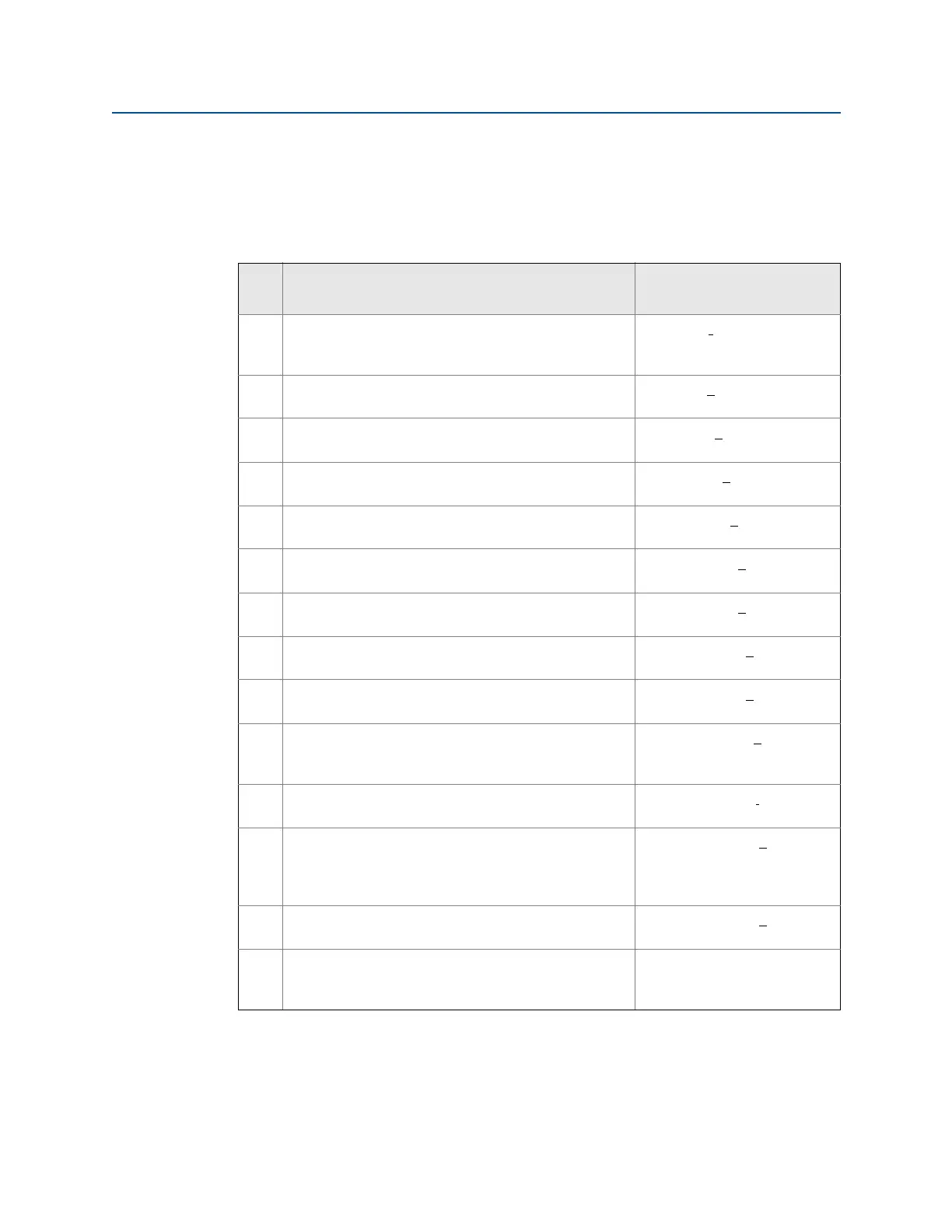
Step Instruction
Current position
(indicated by underline)
1 When the number entry begins, the left most position is
the selected position. In this example, the negative
symbol, “-“, will be flashing on the screen.
-0000022
2 Press the scroll button until the “0” is blinking on the
screen in the selected position.
00000022
3 Press the enter button to select the “0” as an entry. The
second digit from the left will be blinking.
00000022
4 Press the enter button to select “0” for second digit. The
third digit from the left will be blinking.
00000022
5 Press the enter button to select “0” for the third digit.
The fourth digit from the left will now be blinking.
00000022
6 Press the enter button to select “0” for the fourth digit.
The fifth digit from the left will now be blinking.
00000022
7 Press scroll to navigate through the numbers until the
“1” is on the screen.
00001022
8 Press the enter button to select the “1” for the fifth
digit. The sixth digit from the left will now be blinking.
00001022
9 Press scroll to navigate through the numbers until the
“1”, is on the screen.
00001122
10 Press the enter button to select the “1” for the sixth
digit. The seventh digit from the left will now be
blinking.
00001122
11 Press scroll to navigate through the numbers until the
decimal, “.”, is on the screen.
000011.2
12 Press the enter button to select the decimal, “.”, for the
seventh digit. After pressing enter, all digits to the right
of the decimal will now be zero. The eighth digit from
the left will now be blinking.
000011.0
13 Press the scroll button to navigate through the numbers
until the "2", is on the screen.
000011.2
14 Press the enter button to select the “2” for the eighth
digit. The number entry will be complete and a “SAVE”
screen will be shown.
000011.2













 To Next Page