MV-32/64 Multiviewer www.snellgroup.com Operation
Issue 1 Rev 11 Page 64 © 2014 Snell Limited
Example Audio Meter Configuration:
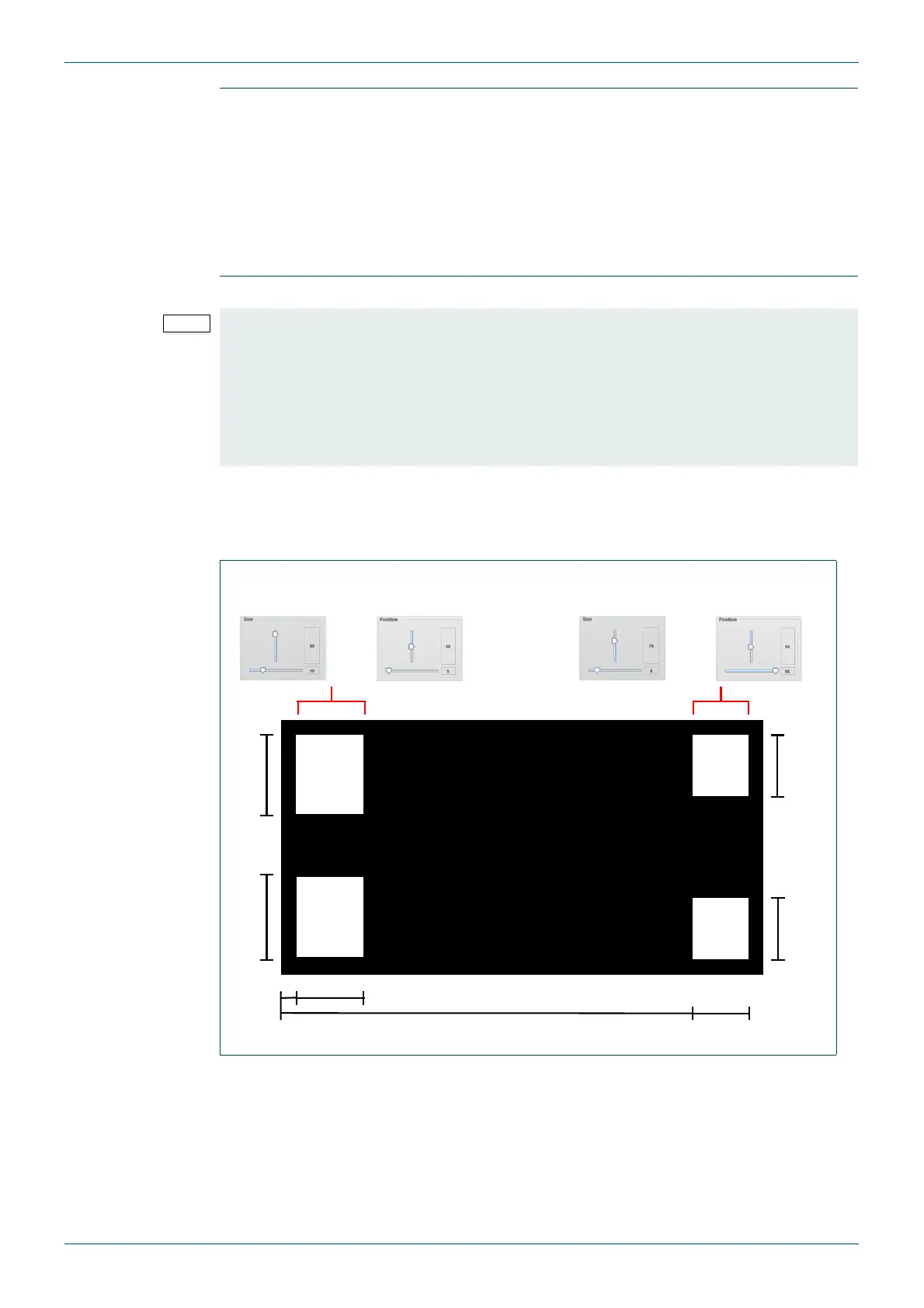
Configure four audio meters on a video tile with one meter in each corner as shown below in
Fig 52.
Display outside of
picture
Reduces the width of the video portion of the tile and positions the
meter against the inner edge of the tile so that it is not overlapping the
video. The area reserved for the audio meter will be indicated by a
shaded area on the video tile in the editor workspace (see page 31,
Fig 15. for an example).
Note: to maintain the desired aspect ratio of the video, go to the WSS
tab, select WSS/AFD for the mode and tick Auto size video image.
Set the default Video Aspect Ratio on the Edit object, Type tab (see
section 4.16.1 for details).
MV-VIP3D only:
The number of bars that actually get displayed in each meter depends on the number of
channels contained in a pair. When Dolby E is the content, there may be up to eight
channels to display for one source pair. The total number of bars that can be displayed in
each meter is 16.
So, for example, if three pairs are selected for displaying, and they all contain Dolby E with
eight channels each, then not all sources can be displayed. Only the first two Dolby E
sources (16 channels) will be displayed in this instance.
Fig 52. Example Video Tile with Audio Meters.
Table 35. Edit Object - Properties - Audio Tab.
First Row when Use 2 rows for bars is ticked
First Row
or
Second Row if Use 2 rows for bars is ticked
Audio Meter 1 tab Audio Meter 2 tab
A1
B1
C1
D1
A1
B1D1
Size Controls Position Controls
D2 B2
A2
A2
B2
C2
D2
Size Controls Position Controls
A1
A2
B1
W
X
Y
Z


 To Next Page