12 Software description
CyFlow
®
Cube 8 | Operating Manual | May 2018 | Revision 032 123
of the page after it has been aligned, it is automatically repositioned to fit
on the page.
Resize: The button allows for adjusting two or more objects to the same
height, width or size. First select the object that displays the target size,
then select the objects to resize. Click the button to display a drop-down
list and select whether to make the objects the same height, the same
width or the same size as the first selected object.
When plots are selected in the objects to resize, their aspect ratios are
always maintained. Using the "Make Same Size" option, the plots are
sized to the smallest dimension (height or width) of the first selected
object.
Zoom
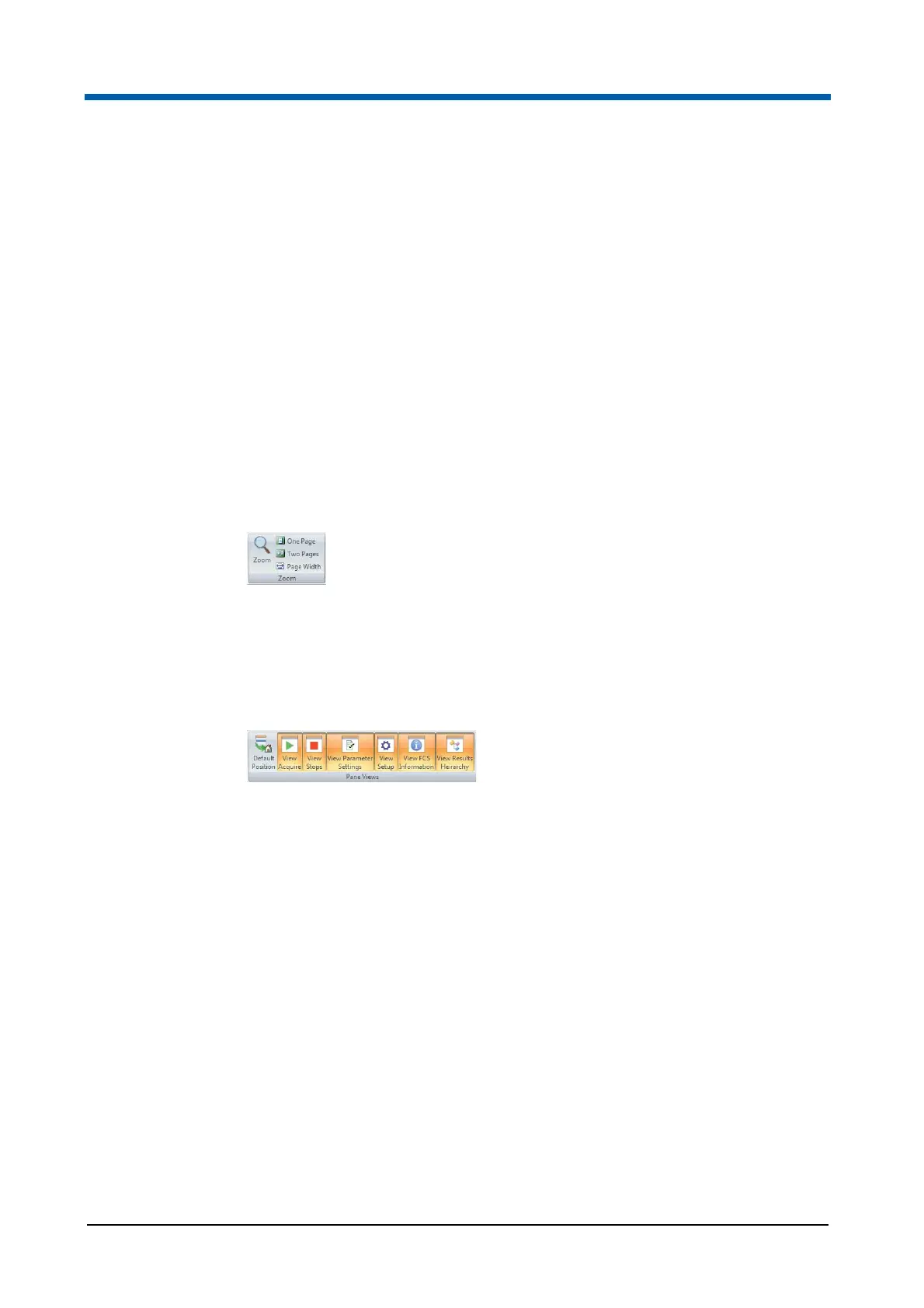
The Zoom group contains options to zoom in and out on the page using
predefined and custom percentages.
Click the Zoom button to display a dialogue and use the dialogue options to
zoom in and zoom out as required.
12.4.13 Views tab
The Views tab provides controls to define the panes that are available.
Click the corresponding button to select or deselect viewing the following
panes:
Acquire pane,
Stops pane,
Parameter Settings pane,
Setup pane,
FCS File Information pane,
Results Hierarchy pane.
A button is highlighted in orange if the corresponding pane is available for
viewing.
Default Position: Click the button to view all panes in their default position.
The default position for the Worklist is docked to the bottom of the
Workspace. The default position for the Playlist is docked and pinned to the
left-hand side of the Workspace. The default position of the other panes is
docked, pinned and nested together on the left-hand side of the Workspace.
The view settings selected here are persisted between sessions.



 To Next Page