12 Software description
56 CyFlow
®
Cube 8 | Operating Manual | May 2018 | Revision 032
12.3 Quick Access Toolbar
The Quick Access Toolbar provides quick access to some of the most
commonly used options in the software.
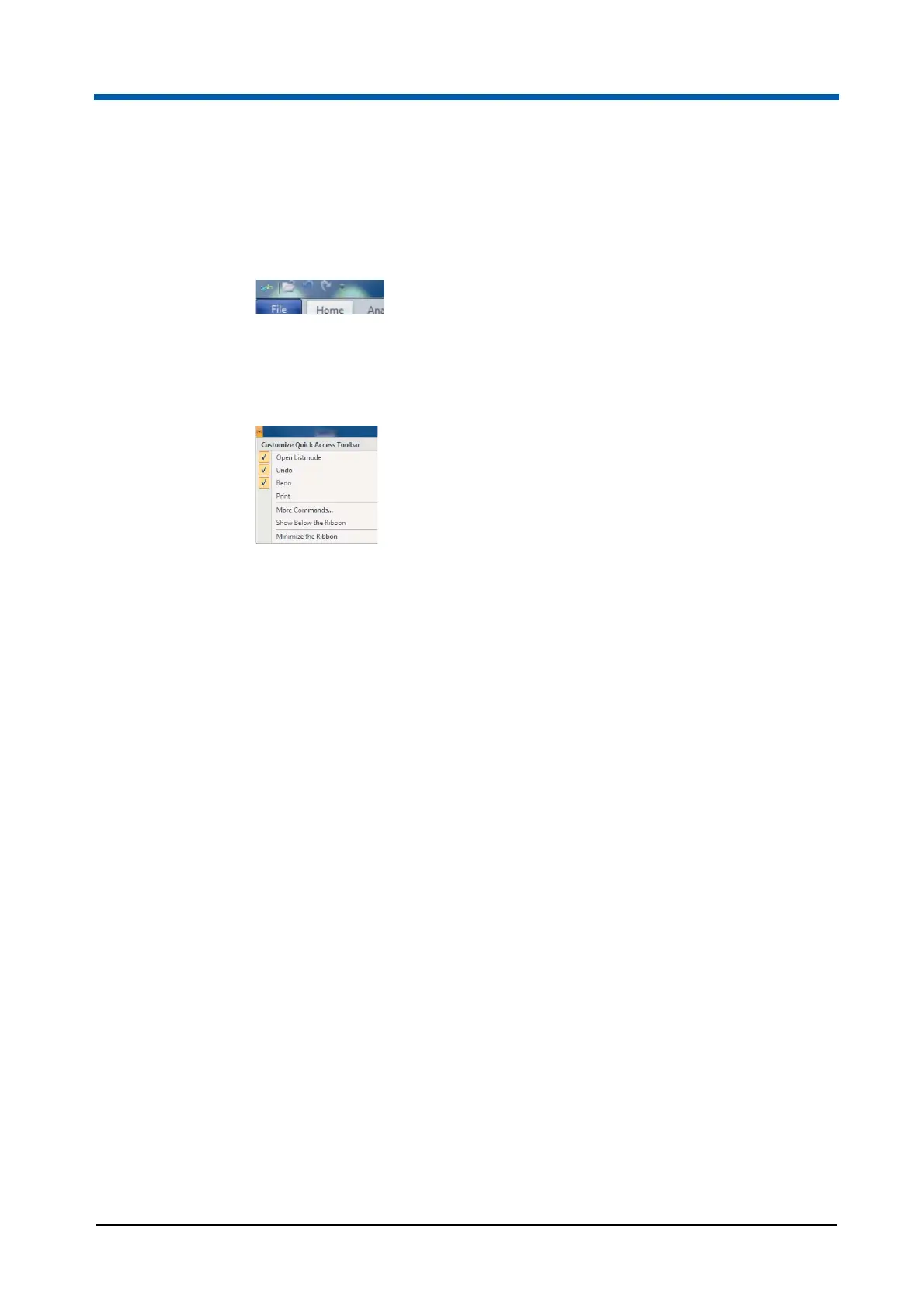
By default, the Quick Access Toolbar contains an Open Listmode button,
an Undo button and a Redo button.
You can customise the Quick Access Toolbar. To do this, click on the arrow
next to the buttons in the Quick Access Toolbar. A drop-down list appears.
Adding a button to the Quick Access Toolbar
The Open Listmode, Undo, Redo and Print menu items in the drop-down
list allow you to add or remove the respective buttons. Check the menu item
to add the corresponding button to the Quick Access Toolbar.
The More Commands… menu item allows you to add more buttons to the
Quick Access Toolbar. When you select the menu item, a dialogue box
appears. In this dialogue box you can choose further buttons for the Quick
Access Toolbar.
Removing a button from the Quick Access Toolbar
Uncheck the Open Listmode, Undo, Redo or Print menu item in the
drop-down list to remove the corresponding button from the Quick Access
Toolbar.
If you want to remove a different button from the Quick Access Toolbar, use
the More Commands… menu item.
Alternatively, right-click the button you wish to remove and select the
Remove from Quick Access Toolbar menu item from the context menu.
Showing the Quick Access Toolbar below the Ribbon
Usually the Quick Access Toolbar is located above the Ribbon in the top left
corner of the software window.
To place the Quick Access Toolbar below the Ribbon, click the Show Below
the Ribbon menu item in the drop-down list.
When the Quick Access Toolbar is displayed below the Ribbon, the menu
item in the drop-down list is named Show Above the Ribbon.



 To Next Page