12 Software description
CyFlow
®
Cube 8 | Operating Manual | May 2018 | Revision 032 131
The rules to link regions are:
Only regions that are on plots that display the same parameters can be
linked.
A maximum of 256 regions can be linked for each opened Workspace.
A linear region can only be linked to another linear region.
For linked linear regions, only movement in a horizontal direction of the
selected region is reflected in the rest of the region in the linked group,
i.e. they can be set to different vertical positions.
Elliptical, rectangular and polygonal regions can be linked to one another,
however, if regions are of different types, linking them changes them to
the same type as the "linked to" region.
Quadrant regions cannot be part of a linked region.
Once regions are linked, only the "linked to" region appears in the
drop-down list when other compatible regions are selected.
When a "linked to" region is deleted, the regions linked to it change to
"(Not Tracking)". Deleting a linked region has no effect on the linked
status of the remaining regions.
12.4.16 Overlay Format tab
The Overlay Format tab is only available when at least one plot is selected in
the Overlays tab of the Workspace (see chapter 12.8.3 Overlays tab of the
Workspace on page 174).
The Overlay Format tab provides controls to edit overlay plots.
Format group
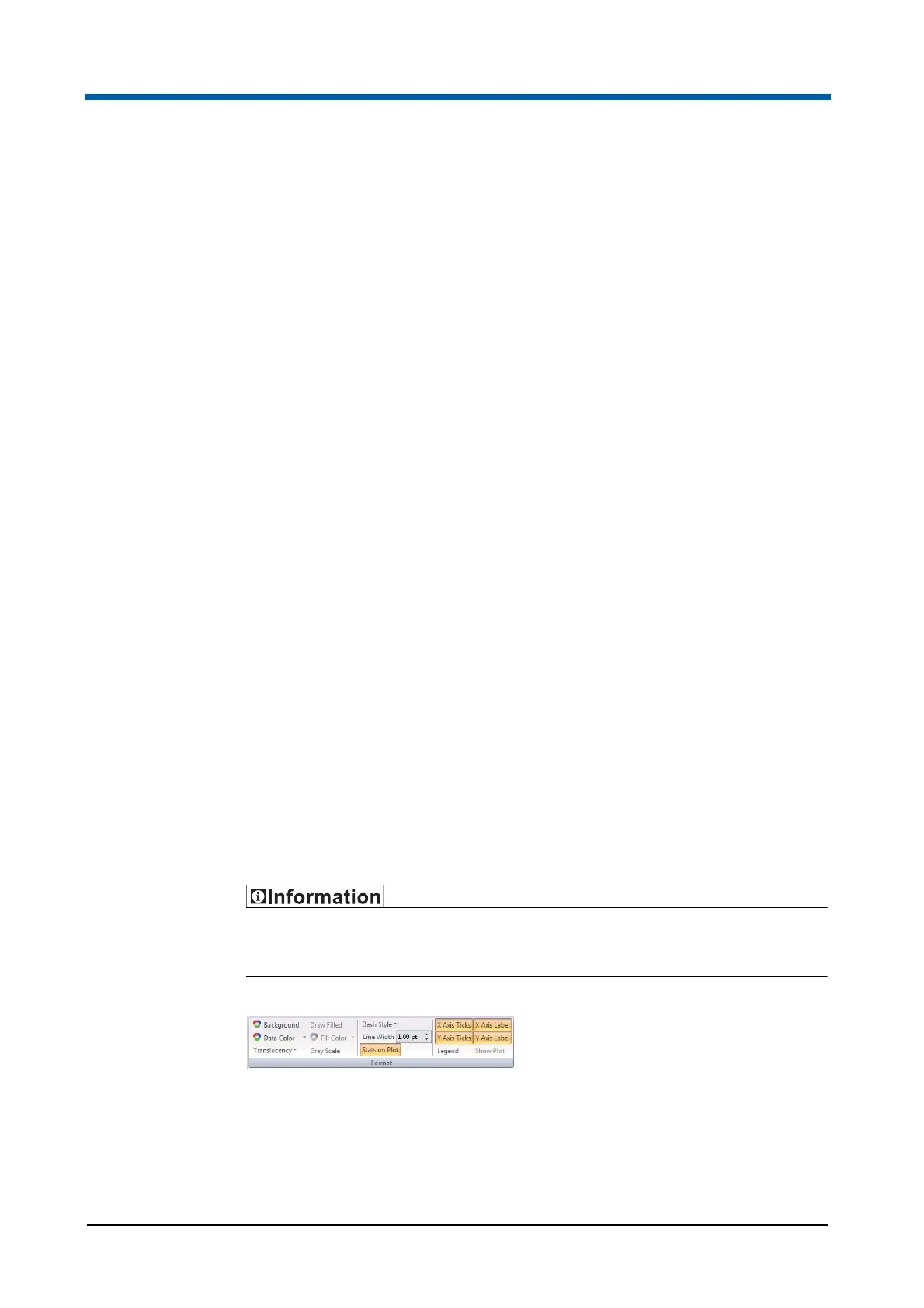
The Format group contains options to adjust line and fill styles of overlay and
gallery plots, also options for the display of plots, scaling and legend.
Use colour selection with caution as it is possible to choose the same colour
for data, background and filling, most importantly if white is used.



 To Next Page