12 Software description
186 CyFlow
®
Cube 8 | Operating Manual | May 2018 | Revision 032
Status of the device
This symbol indicates the status of the device.
Green: The device is operational.
Yellow: Maintenance is necessary.
Red: A problem occurred.
Caution symbol: The DLI is not connected.
Status of compensation settings
The status of the compensation settings of the current file is displayed
indicating if the file is not compensable, if the compensation is unaltered or if
the compensation has been modified.
If the Manual Compensation button on the Compensation tab of the Ribbon
is active, a warning icon and the text "Manual Compensation" is displayed.
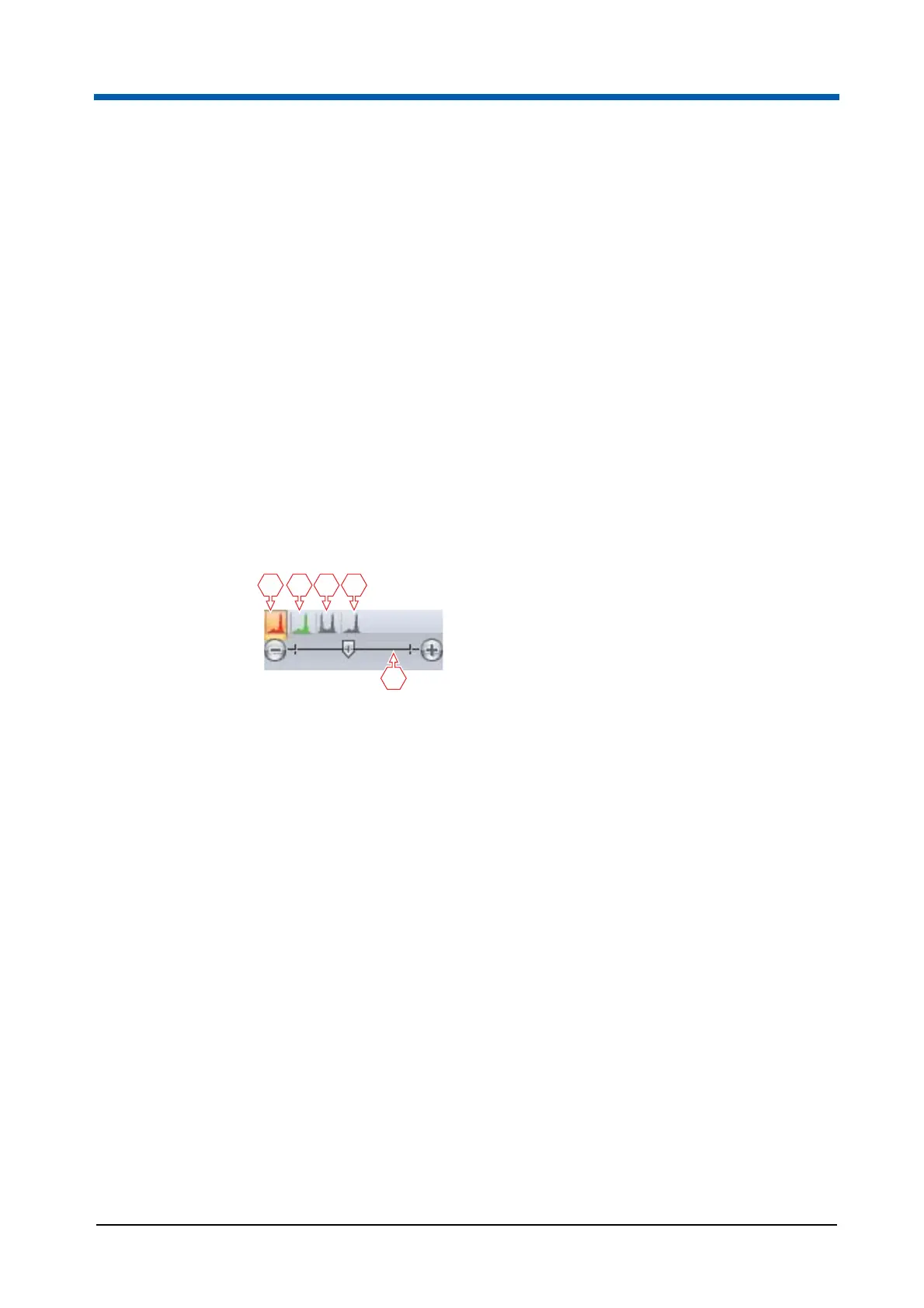
Resize options
To resize plots displayed in the Workspace, first select the type of plots to
resize using the plot type buttons:
Resize Plots (enabled in the Plots tab of the Workspace),
Resize Previews (enabled in the Plots tab of the Workspace),
Resize Overlays (enabled in the Overlays tab of the Workspace),
Resize Galleries (enabled in the Overlays tab of the Workspace).
Then use the resize slider to adjust the size of items as required. Move the
slider to the desired position or click to the left or right of the slider to
decrease or increase the size of the selected plot type, respectively.
1 Resize Plots button
2 Resize Previews button
3 Resize Overlays button
4 Resize Galleries button
5 Resize slider



 To Next Page