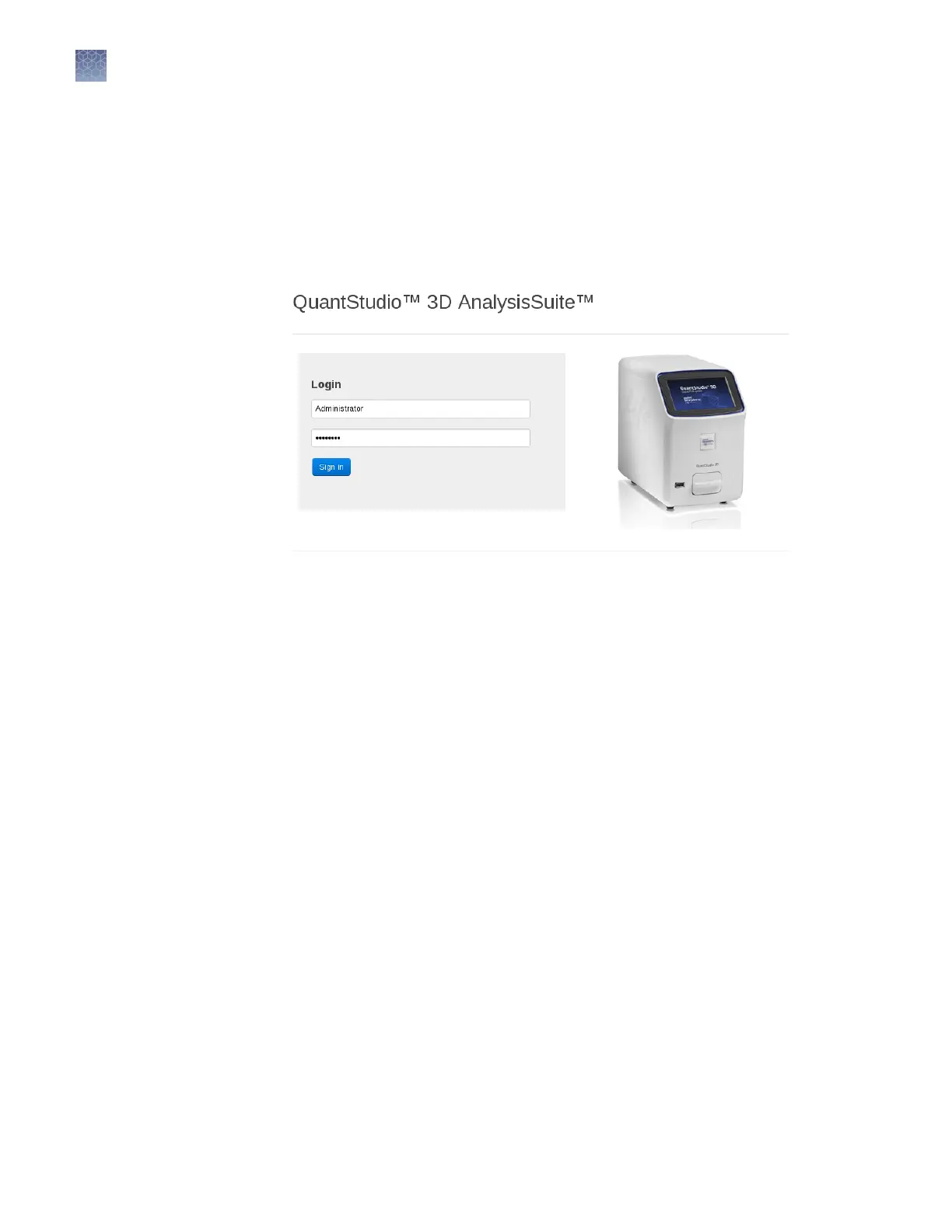
Access the software from the server desktop
1.
Double-click QuantStudio
™
3D AnalysisSuite
™
on the server desktop.
By default, the software opens in the Google
™
Chrome
™
browser.
2.
At rst login to the software as the administrator, enter Administrator as the
username and Password as the password.
Note: If you cannot sign in to the software, contact Thermo Fisher Scientic
customer support.
Note: Thermo Fisher Scientic recommends that you change the administrator
password after initial login to the software. For information about managing your
prole, see the QuantStudio
™
3D AnalysisSuite
™
Software Help.
Access the software from another computer
1.
Conrm that your computer has a network connection and that it is connected
to the same network as the server.
Note: If your computer does not have a network connection, contact a Thermo
Fisher Scientic sales representative for information about available
AnalysisSuite
™
Software deployment options.
2.
Open a browser window and go to http://<server IP
address>/quantstudio3d, using the <server IP address> you received
from your server administrator (see QuantStudio
™
3D AnalysisSuite
™
Server
System Quick Reference (Pub. No. 4486248)).
Note: Using your browser settings, conrm that cookies and JavaScript
™
are
turned on for the website to function correctly. If you cannot access the website,
then contact Thermo Fisher Scientic customer support.
Chapter 5
Image and analyze the chips
Using the QuantStudio
™
3D AnalysisSuite
™
Software
5
52
QuantStudio
™
3D Digital PCR System User Guide










 To Next Page