3.
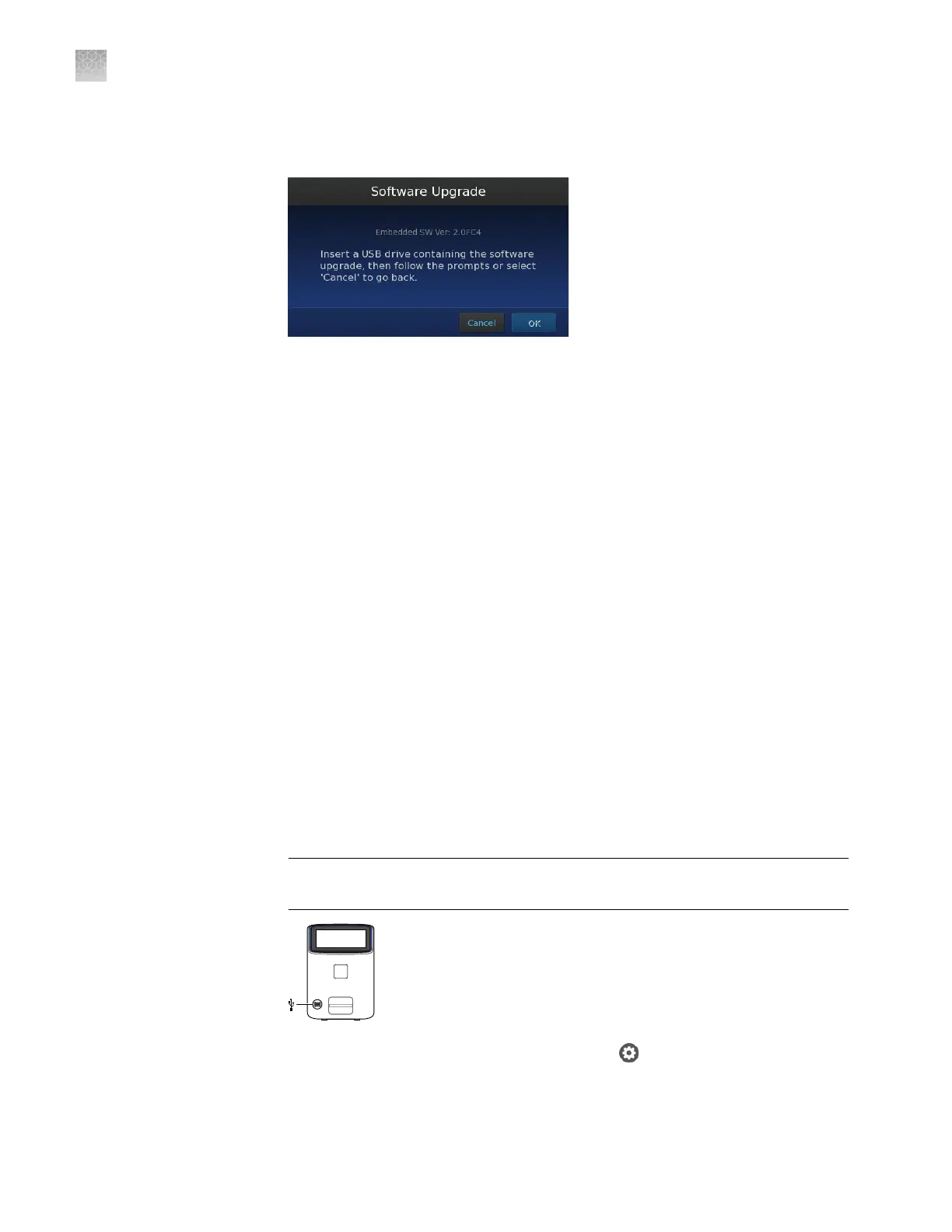
In the Maintenance & Service screen, touch Software Update. The rmware
version is displayed on the screen after Embedded SW Ver:.
4.
If the version is earlier than 3.0, update the rmware as follows.
You can download QuantStudio
™
3D Digital PCR Instrument rmware updates
directly from the service section of thermofisher.com/support. After obtaining a
rmware update, transfer the update to the instrument using a USB drive.
1.
Download the rmware update:
a.
Go to thermofisher.com/support.
b.
Go to Instrument Management (you will need to log in if not already
logged in to our website) and nd the link to Software, Patches & Updates
on the left side of the Instrument Management dashboard.
c.
In the Software Downloads page, select QuantStudio
™
3D Digital PCR
Software from the Digital PCR menu.
d.
In the product page for your instrument, click the Download
QuantStudio
™
3D Digital PCR Software link to download the instrument
rmware and save it on a USB drive.
e.
On the same page, click on User Instructions to download and review the
release notes for the update.
2.
Conrm that the instrument touchscreen is displaying the Main Menu, then plug
the drive into the USB port.
IMPORTANT! The instrument must display the Main Menu when you insert the
USB drive. If not, the update may fail.
3.
From the Main Menu of the touchscreen, touch , then touch Maintenance &
Service.
Update the
instrument
firmware
Appendix C Maintenance
Check the instrument firmware
C
88
QuantStudio
™
3D Digital PCR System User Guide










 To Next Page