Configure the instrument settings
After you install the QuantStudio
™
3D Digital PCR Instrument, you can congure the
instrument settings for your region as explained below.
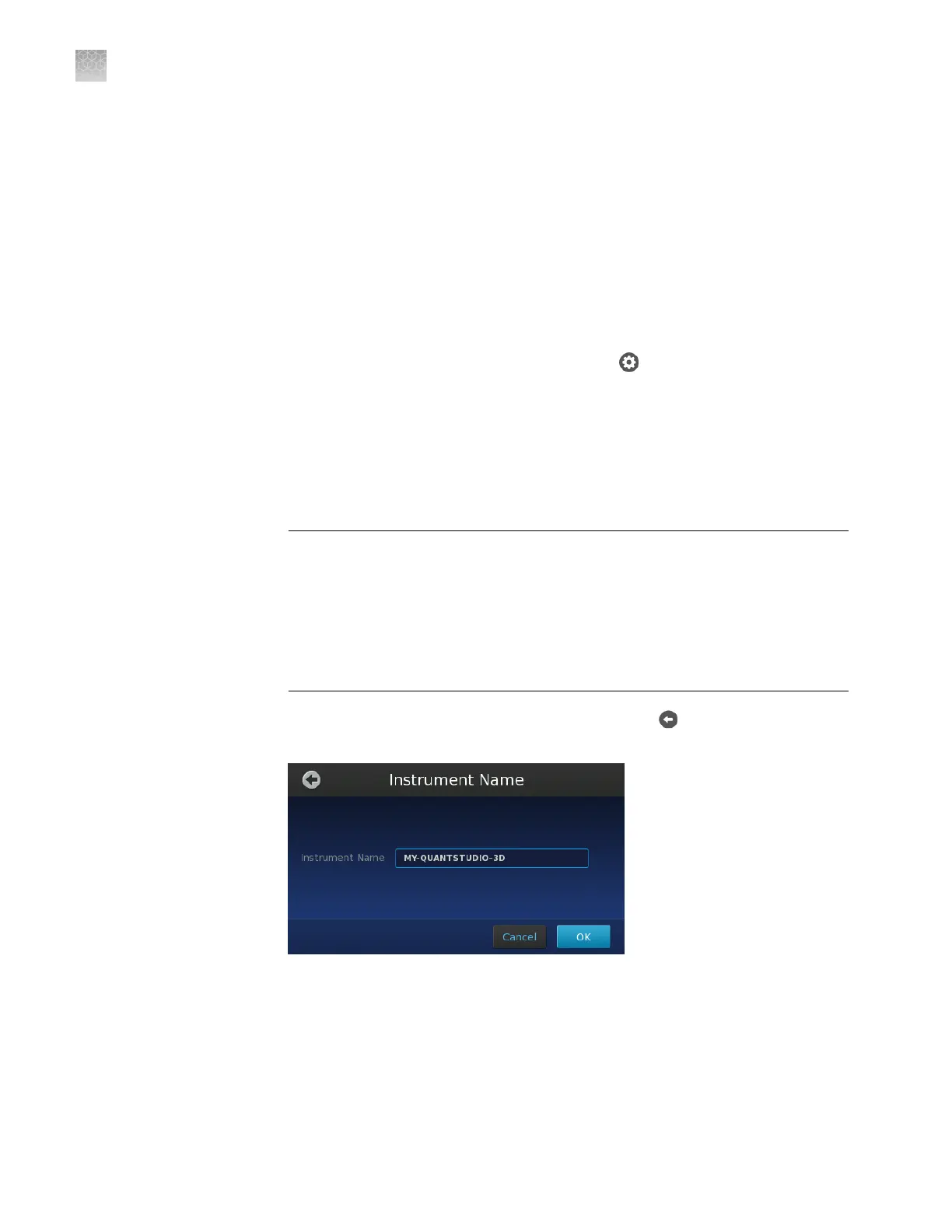
Note: The serial number of the QuantStudio
™
3D Digital PCR Instrument is the
default instrument name. We recommend that you name the QuantStudio
™
3D
Instrument uniquely. While not critical to network function, unique instrument names
can aid with sample tracking and instrument troubleshooting. The QuantStudio
™
3D
Instrument does not test the uniqueness of the instrument name when it is set.
1.
From the Main Menu of the touchscreen, touch , then touch
Instrument
Settings
.
2.
In the Instrument Settings menu, touch Instrument Name.
3.
In the Instrument Name screen, touch the Instrument Name eld.
4.
In the Edit Instrument Name screen, enter up to a 16-character name for the
instrument, then touch Enter.
IMPORTANT! The instrument name is an alphanumeric string used to identify
the QuantStudio
™
3D Instrument on the network. The instrument name:
·
Can be up to 16 characters long.
·
Must consist of alphabetic and numeric characters.
·
Can contain hyphens, but not as the rst or last characters in the name.
·
Cannot include spaces or special characters ( ; : " < > * + = \ | ? , ).
5.
Touch OK when done to save the setting, then touch to return to the Main
Menu.
(Optional) Set
the instrument
name
Appendix C Maintenance
Configure the instrument settings
C
86
QuantStudio
™
3D Digital PCR System User Guide










 To Next Page