ArcLight Hub User’s Guide
Screen Descriptions for NMS Client
Rev. 001 1081006 3-7
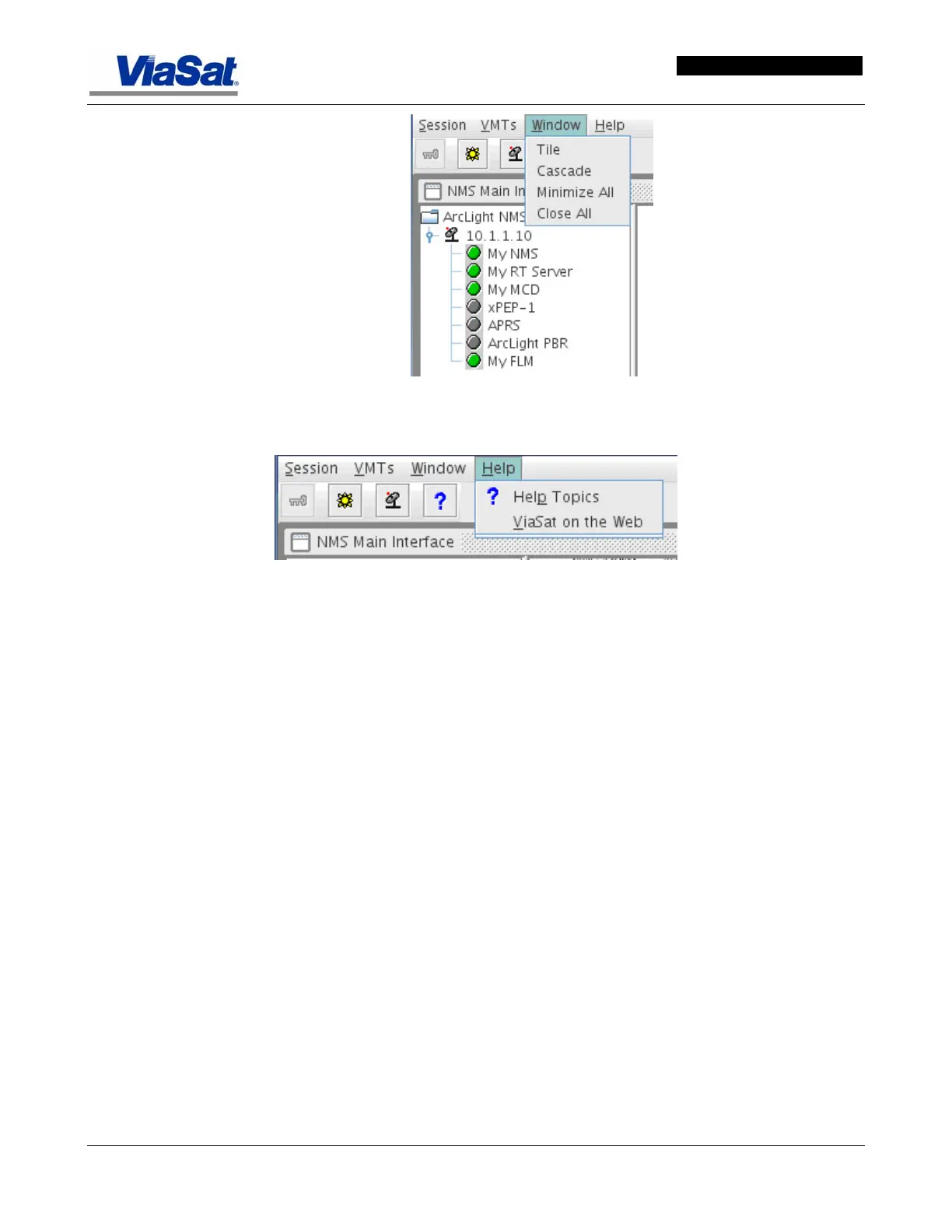
Figure 3-7. Window Drop-down Menu.
Figure 3-8. Help Drop-down menu.
3.2.2 Hub Component Screens
Hub component status screens are also accessible from the left menu
with the ArcLight NMS folder at the top (from top to bottom: the Hub
icon and address, the servers installed in the ABS, consisting of the
NMS server, RtNMS server, MCD II, HC and FLM, and rack mounted
components such as the xPEP and ArcLight PBR. Right clicking on one
of the items shown in the list (or right-clicking on the map screen)
brings up an administration, configuration, and sometimes a status
screen. These screens reflect the most recent status data obtained via
SNMP polling of the components, but may not reflect actual current
status. This is due to the decoupling of the underlying polling
mechanism from the client display; the server-side polling threads will
log data to memory, and the client-side status request methods will
return the most recently written data. Thus, displayed status data may
be up to n-1 seconds out of date, where n is the poll interval. All status
display screens will show a timestamp indicating when the latest
available polled data was received.
Figure 3-9 shows the tree view and the menu that appears when the
operator right clicks on the hub (10.1.1.10 in this example) in the tree
list and selects “Manage Component Membership” from the menu that
appears.
These screens are covered in more detail later on in the sections
devoted to the configuration and administration of each component.



 To Next Page